
Before You Begin
- The Software module must be turned on for your account. An account owner or admin can enable it under Settings → Features (see Enabling and Disabling Apps/Modules).
- You need permission to view software applications. To create, edit, or archive an application you also need create/edit permissions. See Permissions & Access Control for Software.
- Related articles:
The Software module is your central inventory of every application your organization pays for or uses — your SaaS subscriptions and your installed/perpetual software. Each application record brings together its owner, the people who use it, its spend, renewals, versions, security posture, and licenses in one place.
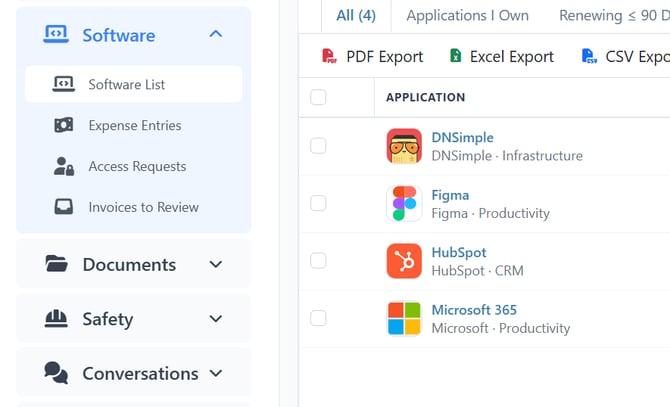
You'll find the module in the left navigation under Software. The group contains four pages:
- Software List — the full inventory grid of your applications.
- Expense Entries — every spend entry across all applications.
- Access Requests — employee requests for access to applications.
- Invoices to Review — automatically captured invoices that need a human to confirm them.
Step 1: Open the Software List
- In the left navigation, click Software to expand the group.
- Click Software List.
The list opens with a summary strip across the top (monthly run-rate, renewals in the next 90 days, monthly waste, and security flags) and a grid of your applications below.
Step 2: Find an application with filters and tabs
- Use the filter panel at the top of the grid to narrow the list. You can filter by Name, Vendor, Category, Status, Version Status, and Owner.
- Use the saved-view tabs above the grid to jump to a common view:
- All — every active application (the number in parentheses is your active count).
- Applications I Own — applications where you are the owner.
- Renewing Within 90 Days
- Underutilized
- Needs Review
- SOC 2 expiring or missing
- To search by name, use the search box in the grid toolbar.
Tip: Click the column-chooser button in the grid toolbar to show or hide columns such as Monthly Waste or Vendor.
Step 3: Create a new application
- On the Software List, click New Application.
- Fill in the form:
- Name (required)
- Vendor — pick an existing company, or click the + button to create one inline.
- Category (required) — pick a category, or click the + button to add one.
- Status — defaults to Active. Other options are In Trial, In Procurement, Pending Cancellation, and Cancelled.
- Owner — defaults to you. The owner is also the default approver and reminder recipient.
- Backup Owner (optional) — must be different from the owner.
- Seats Purchased and Cost Per Seat (optional)
- Renewal Date, Recurrence (Monthly, Quarterly, Yearly), Auto-renewal enabled, and Send renewal reminders
- Login URL and Description (optional)
- Click Create.
A success message appears, and the dialog shows the application's unique invoice intake address with a copy button. Copy this if you plan to forward invoices to it (see Automated Invoice Intake).
- Click Done to close the dialog.
Tip: Setting a Renewal Date automatically creates a renewal reminder so you never miss a renewal. Turn on Auto-renewal enabled to record the cancellation notice period.
Step 4: Open and edit an application
- On the Software List, click an application's name.
- The detail page opens on the Overview tab. The detail page has these tabs:
- Overview — name, vendor, category, status, owner, seats, cost per seat, description, the renewal card, expiration reminders, attachments, notes, and location.
- Users — the people and contacts who use the application.
- Spend — the expense ledger and spend rollups.
- Versions — current/latest version, end-of-life, and version history.
- Vulnerabilities — known CVEs and severity.
- Security Posture — certifications (SOC 2, ISO 27001, and more) and operational security fields.
- Licenses — product keys and seat assignments (shown if you have license permissions).
- Invoice Intake — the forwarding email address and approved senders.
- Expiration Items, Upcoming Notification, and Audit Log.
- To edit a field on the Overview tab, click the field value, change it, and confirm. Changes save in place.
Step 5: Archive or delete an application
To delete an application from the detail page:
- Open the application.
- Click the ⋮ (more actions) menu in the top-right of the header.
- Click Delete and confirm.
From the Software List, the row Actions menu offers Edit, Archive, and Delete as well.
Tips & Best PracticesNote: Deleting an application removes it from your active inventory. Use the Recycling Bin to recover items if needed.
- Set an Owner for every application so renewals and reminders reach a real person.
- Add a Login URL — the list shows the vendor's logo automatically when a website is set.
- Use Categories consistently (for example "Design", "Security", "HR") so your filters and reports stay clean.
- Record Seats Purchased and Cost Per Seat so the module can calculate utilization and monthly waste.
- Issue: I don't see the Software group in the left navigation. Solution: The module may not be enabled, or you may not have view permission. Ask an account admin to enable it under Settings → Features, and confirm your role includes software view access.
- Issue: The New Application button isn't visible. Solution: You need create permission for software applications. Ask an admin to update your role.
- Issue: I can't save because of a "Category required" or "Owner required" message. Solution: Both fields are required. Pick an existing value or use the + button to create one.