
Before You Begin
- You need edit permission for software applications to change the owner or manage users.
- The application must already exist. See Getting Started with Software Applications.
- The people you attach must already exist as contacts. See the People category.
Step 1: Set the owner and backup owner
Every application has one Owner (required) and an optional Backup Owner. The owner receives renewal reminders by default and is the default approver for access requests.
- Open the application and stay on the Overview tab.
- In the Details card, click the Owner value and choose a contact.
- Click the Backup Owner value and choose a different contact (it must differ from the owner).
Changes save in place. You set the owner when you first create the application; it defaults to you.
Tip: If an owner leaves and their contact is archived, the Overview tab shows a yellow warning banner with a Reassign Owner button. Click it to jump straight to the Owner field and pick a new owner.
Step 2: Open the Users tab
- Open the application.
- Click the Users tab.
The tab lists everyone currently attached to the application, with their Name, Email, Role, Date Added, Date Removed, and Cost Per Seat Override. The active-user count here feeds the application's seat utilization.
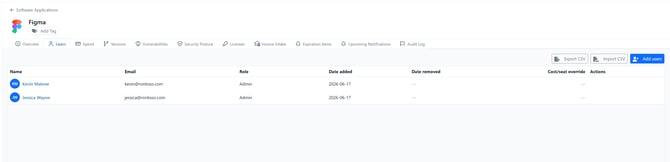
Step 3: Add users
- On the Users tab, click Add Users.
- In the Select Contacts picker, choose one or more contacts. (Contacts who already have an active link are excluded.)
- Optionally enter a Role and a Cost Per Seat Override that applies to those users.
- Click Add.
A success message confirms the users were added.
Step 4: Add users in bulk with a CSV
- On the Users tab, click Import CSV.
- Click Download Template to get a CSV with the columns Email, Role, and CostPerSeatOverride.
- Fill in one row per person and save the file.
- Drag the file into the upload area (or click to browse). Files up to 5 MB are accepted.
When the import finishes, a summary shows how many users were added, already linked, not found, and invalid. Emails that don't match an existing contact are listed so you can fix them.
Note: The import only links people who already exist as contacts and match by email. It never creates new contacts.
Step 5: Edit or remove a user
- On the Users tab, find the person's row and open its Actions menu.
- Choose:
- Edit — change the Role or Cost Per Seat Override.
- Remove User — stamp the person as removed (you'll be asked to confirm).
Removing a user is a soft action: their history is kept and the Date Removed column is filled in. Removed users drop out of the active list and stop counting toward seat utilization.
Step 6: Review users flagged after offboarding
When a contact attached to an application is archived (offboarded), their link is flagged Needs Review so you can reclaim the seat.
- Open the Users tab. A yellow banner at the top tells you how many users need review.
- Find the flagged person (they show a Needs Review badge, and archived contacts show an Archived badge).
- Open their Actions menu and either:
- Remove User — to free the seat, or
- Mark Reviewed — to dismiss the prompt while keeping them attached.
Step 7: Export the user roster
- On the Users tab, click Export CSV.
The download includes the full roster (active and removed) with Name, Email, Role, Date Added, and Date Removed.
Tips & Best Practices- Keep the Owner current — it drives who gets renewal reminders and who approves access requests.
- Use Cost Per Seat Override for people on a different price tier than the application's standard seat cost.
- Run the Needs Review check after every offboarding so you stop paying for seats no one uses.
- Issue: A contact isn't in the Add Users picker. Solution: They may already have an active link, or they may be archived. Archived contacts are excluded.
- Issue: My CSV import reports everyone as "not found". Solution: The Email column must match the email on existing contacts. Check for typos and confirm the contacts exist.
- Issue: I can't see the Add Users, Import CSV, or Actions buttons. Solution: Those actions require edit permission. Ask an admin to update your role.