
Before You Begin
- You must be an Admin (or have a custom role with the Setting View permission) to change account-wide settings.
- Changes affect the entire account, including every user and workspace. Make sure your team is informed before flipping a toggle.
- Nothing is saved until you click the Update button at the bottom of the page.
- Related articles:
What you can toggle here
The Features page is your account's main control panel for behaviors that apply everywhere — not to a single user or contact. Common toggles include:
- Send reminder emails and SMS — the master switch for all reminder delivery. Off = no reminders fire.
- Enable new UI
- Show tags in dashboard
- Redirect to view on edit
- Enable Email From Name — when on, exposes a custom "From Name" text box for outbound emails.
- Require attachment — forces every new expiration item to have an attachment.
- Require location — forces every new expiration item to be linked to at least one location.
- Hide Powered By in email — removes the "Powered by Expiration Reminder" footer from outbound emails.
- Two-factor authentication — requires every user to set up 2FA at next login.
- Use custom Twilio — when on, exposes Twilio account fields so SMS can be sent from your own Twilio account.
- Magic link login — lets users sign in by clicking an emailed link instead of typing a password.
A few text settings live on the same page:
- Location menu name — change the label "Locations" to your own term (for example, "Sites" or "Branches") across the entire app.
- Configure SSO — a link to set up Single Sign-On with your identity provider.
Step-by-Step Instructions
Step 1: Open the Features page
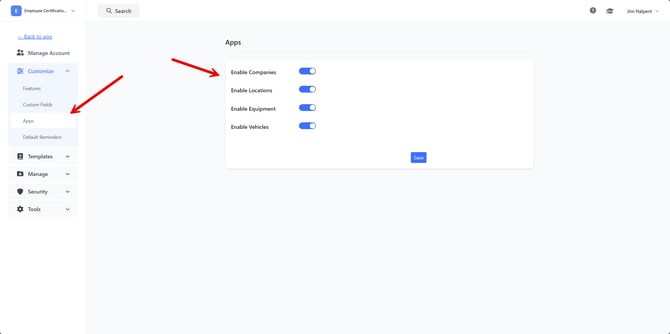
- From the left sidebar, click Settings.
- Click Customize.
- Click Features.
Step 2: Toggle the features you want
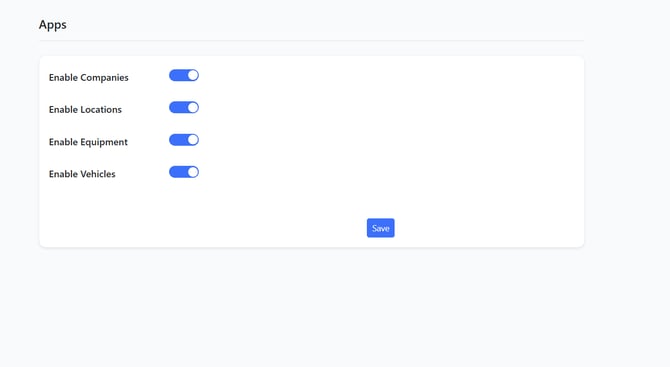
Use the on/off switches next to each feature to enable or disable it.
Some toggles reveal additional fields when turned on (for example, Enable Email From Name reveals an Email From Name text box, and Use custom Twilio reveals Twilio SID / Token / From Number fields). Fill those in if needed.
Step 3: Update text settings (optional)
- To rename "Locations" across the app, change the Location menu name text box.
- To set up Single Sign-On, scroll to the bottom and click Configure SSO.
Step 4: Save your changes
Click the Update button at the bottom of the page.
Nothing is persisted until you click Update — if you navigate away first, your toggle changes are lost.
Tips & Best Practices
- Send reminder emails and SMS is the kill switch. Turn it off during a data cleanup or before a long maintenance window so contacts don't receive incorrect reminders. Turn it back on when you're done — queued reminders will resume from where they left off.
- Renaming locations changes UI everywhere. If you set Location menu name to "Sites", every menu, button, and report label in the app will say "Sites" instead of "Locations". Communicate the change to your team.
- Test 2FA on yourself first. Before turning on Two-factor authentication for the whole account, set up 2FA on your own user account so you can verify the flow works before enforcing it.
- Custom Twilio is for compliance-sensitive accounts. Most accounts can leave it off and use our built-in SMS service. Switch it on only if you've been told you need to send from your own Twilio number.
Troubleshooting
- Issue: I clicked a toggle but nothing changed.
Solution: Click Update at the bottom of the page. Toggles do not save automatically. - Issue: I turned off Send reminder emails and SMS but contacts are still getting reminders.
Solution: Wait a few minutes — reminders queued before you flipped the switch may still be in the send queue. New reminders won't be created. - Issue: I don't see the Customize → Features menu.
Solution: You don't have admin permission. Ask an account admin to grant you the Setting View permission or to perform the change for you. - Issue: I turned on Use custom Twilio but my SMS still fails.
Solution: Double-check your Twilio Account SID, Auth Token, and From Number. The number must be a Twilio-provisioned number that has SMS enabled.