
Before You Begin
- You need edit permission for software applications to add or edit spend entries.
- The application must already exist. See Getting Started with Software Applications.
- Spend is shown in your workspace currency. See Organization Settings & Features to confirm your currency.
Step 1: Open the Spend tab
- Open the application.
- Click the Spend tab.
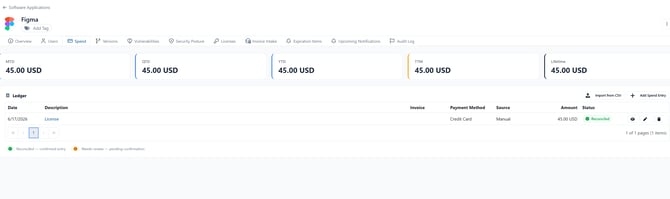
At the top you'll see five spend rollups, all in your workspace currency:
- MTD — month to date
- QTD — quarter to date
- YTD — year to date
- TTM — trailing twelve months
- Lifetime — all recorded spend
Below the rollups is the Ledger — every spend entry for the application.
Step 2: Add a spend entry
- On the Spend tab, click Add Spend Entry.
- Fill in the form:
- Software Application (pre-selected)
- Expense Type (required) — pick one, or click the + button to create one.
- Vendor (optional)
- Amount (required) and Currency — pick the currency the invoice was billed in.
- Frequency — choose Single expense or Recurring expense (Monthly or Annual).
- Date (required)
- Notes (optional)
- Files — drag receipts or invoices into the upload area (images or documents up to 20 MB each).
- Click Save expense entry. To keep adding, click Save and add another instead.
Tip: If you choose a Currency that differs from your workspace currency, enter the exchange rate so the rollups can convert it. Entries with a missing rate are marked with a warning and the rollups show an "approximate" notice.
Step 3: Read the ledger
The ledger shows each entry's Date, Description, Invoice number, Source, Amount, and Status.
- Source tells you how the entry was created: Manual, Auto-Parsed (from a forwarded invoice), CSV, or API.
- Status is either Reconciled (confirmed) or Needs Review (an auto-parsed entry awaiting confirmation).
Click an entry's Description or the eye icon to open a read-only view of the full entry, including any attached files.
Step 4: Import spend from a CSV
- On the Spend tab, click Import from CSV.
- Click Download Template to get the columns: Date, Amount, ExpenseType, Vendor, Frequency, Invoice, Notes.
- Fill it in (Date and Amount are required) and save.
- Upload the file (up to 5 MB).
A summary shows how many rows were added, skipped, and invalid. Rows are skipped when their expense type doesn't match an existing type — unmatched type names are listed so you can create them first.
Step 5: Review all spend across applications
- In the left navigation, open Software → Expense Entries.
This page lists every spend entry across all your applications in one grid, so finance can review software costs without opening each application.
Tips & Best Practices- Set Frequency to Recurring for subscriptions so your run-rate reflects ongoing cost.
- Attach the invoice or receipt to each entry — it stays with the record for audits.
- Use consistent Expense Types so the Expense Entries page and reports stay tidy.
- Issue: The rollups show an "approximate totals" warning. Solution: One or more entries are in a foreign currency with no exchange rate. Open those entries and enter a rate.
- Issue: My CSV import skipped rows. Solution: The ExpenseType in those rows didn't match an existing expense type. Create the types first, then re-import.
- Issue: I can't see Add Spend Entry or Import from CSV. Solution: Those actions require edit permission for software applications.