
Before You Begin
- You need an Expiration Reminder account with permission to view documents.
- To upload, edit, replace, or delete documents you need the Document permissions enabled on your user role. If the Add Document button is hidden or the Edit button doesn't appear, ask your account administrator to update your role.
- Related articles:
- Organizing Documents with Folders (suggested follow-up article — link to be added once published)
- Tags
- Using the Recycling Bin to Recover Deleted Items
Opening the Document Library
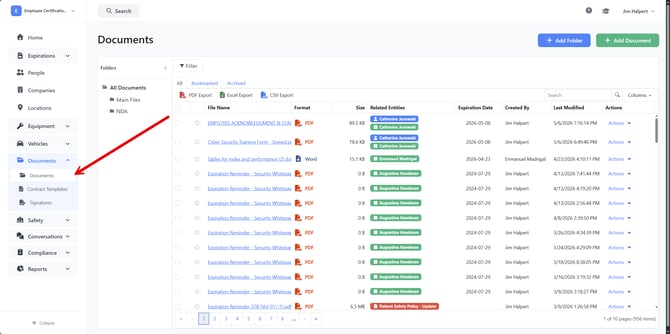
- In the left navigation, expand the Documents group.
- Click Documents.
The Document Library opens with the folder list on the left, a tab bar at the top of the grid, and your documents listed in the main area.
Switching Between Tabs
Three tabs sit above the document grid:
- All — every active document in your account.
- Bookmarked — only documents you have starred.
- Archived — documents that have been archived and are no longer shown in All.
Click any tab to filter the grid.
Searching for a Document
- In the toolbar above the grid, click the Search box.
- Type any part of a file name. The grid filters as you type and also looks inside the text of supported documents, so you can find a file by a phrase that appears in its contents.
- Clear the search box to return to the full list.
Filtering the List
Above the grid you'll see a filter chip area. Click it to open the filter panel and narrow the list by:
- Expiration Date
- Last Modified
- Date Created
- Format (PDF, Word, Excel, PowerPoint, Image, Video, Audio, Text, Archive, Code, Other)
- Tags
- File Name
- Uploaded By
- Related Records
Choose values, click Apply, and the grid updates. Active filters remain visible above the grid so you can remove them with one click.
Showing, Hiding, and Reordering Columns
- In the toolbar, click Columns.
- Toggle individual columns on or off (File Name, Format, Size, Related Records, Expiration Date, Uploaded By, Last Modified, Date Created, Tags).
- Drag a column heading on the grid to move it to a new position. Drag the divider between two headings to resize a column.
Your column choices are remembered the next time you open the Document Library.
Exporting the Visible List
Use the toolbar buttons to download a copy of what's currently shown in the grid (filters and search are respected):
- PDF Export
- Excel Export
- CSV Export
The exported file appears in your browser's download folder.
Uploading a New Document
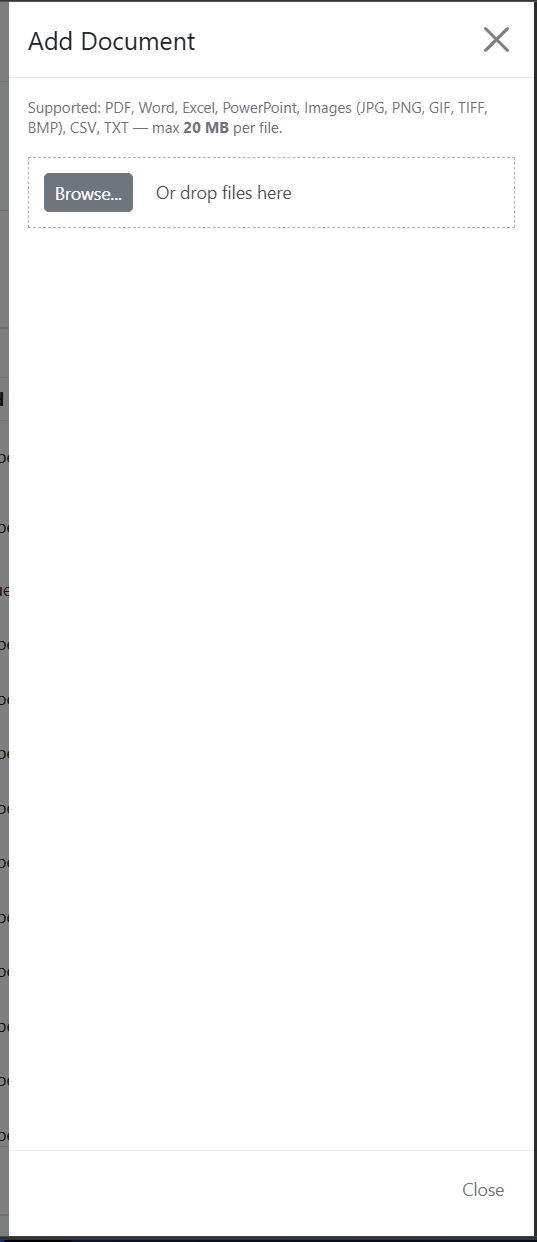
- Click Add Document at the top right of the page.
- The Add Document panel slides in from the right. If you are currently viewing a folder, the panel shows Uploading to: folder name so you can confirm the destination.
- Drag and drop a file into the upload area, or click to browse.
- Each file is uploaded automatically as soon as it's added. A green checkmark appears next to files that uploaded successfully and a red icon appears next to any that failed, along with the reason.
- When you're finished, click Close.
Supported formats: PDF, Word, Excel, PowerPoint, images (JPG, PNG, GIF, TIFF, BMP), CSV, and TXT.
Maximum file size: 20 MB per file.
Tip: To upload a document straight into a folder, select the folder in the left sidebar before clicking Add Document. See Organizing Documents with Folders for details.
Opening a Document
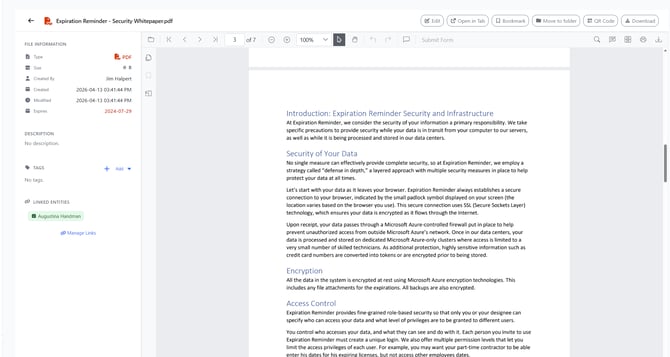
Click the file name in the grid to open the document detail page. You will see:
- A live preview of the file (PDF, Office, or image — Office files are converted to PDF automatically for preview).
- The file information panel on the left: Type, Size, Uploaded By, Created, Modified, and Expires (when linked to an expiration item).
- The document's Description, Tags, and Linked Records.
If a file is larger than 20 MB, the preview is skipped automatically. Click Download to Preview to fetch the file when you're ready.
Downloading a Document
You have two options:
- From the list: In the grid, open the Actions dropdown for the document and choose Download.
- From the detail page: Click the Download button in the header.
The file downloads using its original name.
Opening a Document in a New Tab
On the detail page, click Open in Tab. The document opens in a new browser tab so you can keep the Document Library open in the original tab.
Bookmarking a Document
Bookmarks are personal — they help you quickly find the files you use most.
- From the list: Click the star icon at the start of the row. A filled yellow star means the document is bookmarked.
- From the detail page: Click the Bookmark button in the header. It turns yellow when active.
To see only your bookmarked files, switch to the Bookmarked tab.
Editing a Document
- Open the document by clicking its file name, or choose Edit from the Actions dropdown in the grid.
- Click Edit in the header (or you'll already be in edit mode if you used Actions → Edit).
- Update the File Name and Description as needed (descriptions can be up to 2,000 characters).
- To swap the file itself, use the Replace File uploader. The selected file becomes pending and is saved when you click Save.
- Click Save.
A confirmation toast appears at the top of the page. Click Cancel to discard changes.
Tagging a Document
In the detail panel, scroll to the Tags section. Add or remove tags to group similar documents (for example, "HR", "Insurance", or "Equipment"). Tags are then available in the Tags filter on the main list.
Linking a Document to a Record
Linking attaches a document to one or more records — an expiration item, a contact, a company, an equipment, a location, or a vehicle — so the document also appears on those records' pages.
- From the grid, open the Actions dropdown and click Manage Link.
- The Manage Linked Records dialog opens. Existing links are grouped by record type.
- To remove a link, click Remove next to the record.
- To accept a suggested link, click Add under Suggested Links.
- Close the dialog when you're done.
You can also see links from the document detail page under Linked Records, and click any chip to jump straight to that record.
Sharing a Document with a QR Code
- In the grid, open the Actions dropdown and click Create QR Code — or, on the detail page, click QR Code in the header.
- The QR Code dialog appears with a scannable code and a direct link to the document.
- Click Download PNG to save the QR code image, or click the copy icon to copy the link to your clipboard.
- Click Cancel to close the dialog.
Note: The QR code and direct link still require the recipient to be signed in to your Expiration Reminder account. Sharing the link does not bypass login.
Archiving a Document
Archiving keeps a document out of the All tab without deleting it.
- In the grid, open the Actions dropdown and click Archive.
- Confirm the prompt "Are you sure you want to archive this item?"
The document moves to the Archived tab.
Restoring an Archived Document
- Switch to the Archived tab.
- Open the Actions dropdown for the document and click Unarchive.
- Confirm the prompt "Are you sure you want to restore this item?"
The document moves back to the All tab.
Tips & Best Practices
- Use Tags for cross-cutting groupings (department, year, project) and Folders for the main filing structure.
- The Search box looks inside the text of supported documents, so unique phrases inside a file are a great way to find it.
- Bookmark the handful of documents you open daily so you can reach them from the Bookmarked tab in one click.
- Use Archive instead of delete when you want to retain a document for the record but remove it from everyday views.
Troubleshooting
- Issue: "Add Document" button doesn't appear.
Solution: Your user role doesn't have document upload permission. Contact your account administrator. See Managing Permissions. - Issue: A file uploads with an error like "File type not allowed".
Solution: Only PDF, Word, Excel, PowerPoint, images, CSV, and TXT files are accepted. Convert the file to a supported format or compress it into a ZIP and use a different sharing method. - Issue: Upload fails with a size error.
Solution: The per-file limit is 20 MB. Split the file or compress it. - Issue: The preview doesn't appear and the page says "The file is too large for automatic preview (over 20 MB)".
Solution: Click Download to Preview to download the file locally; the preview will then load. - Issue: "Open in Tab" is disabled.
Solution: The file is still loading, or the format isn't supported for in-browser viewing. Use Download instead.
Related Articles
- Organizing Documents with Folders (suggested follow-up article — link to be added once published)
- Tags
- Using the Recycling Bin to Recover Deleted Items
- Adding an Expiration Item
- Managing Permissions