
Before You Begin
- You should already be comfortable with the Document Library basics. If you're new to it, start with Using the Document Library (suggested companion article — link to be added once published).
- To create folders, move documents between folders, or delete folders you need the matching Document permissions on your user role. If the Add Folder button is hidden, ask your account administrator.
- Folders can be nested up to 5 levels deep.
Opening the Folder Sidebar
- In the left navigation, expand the Documents group and click Documents.
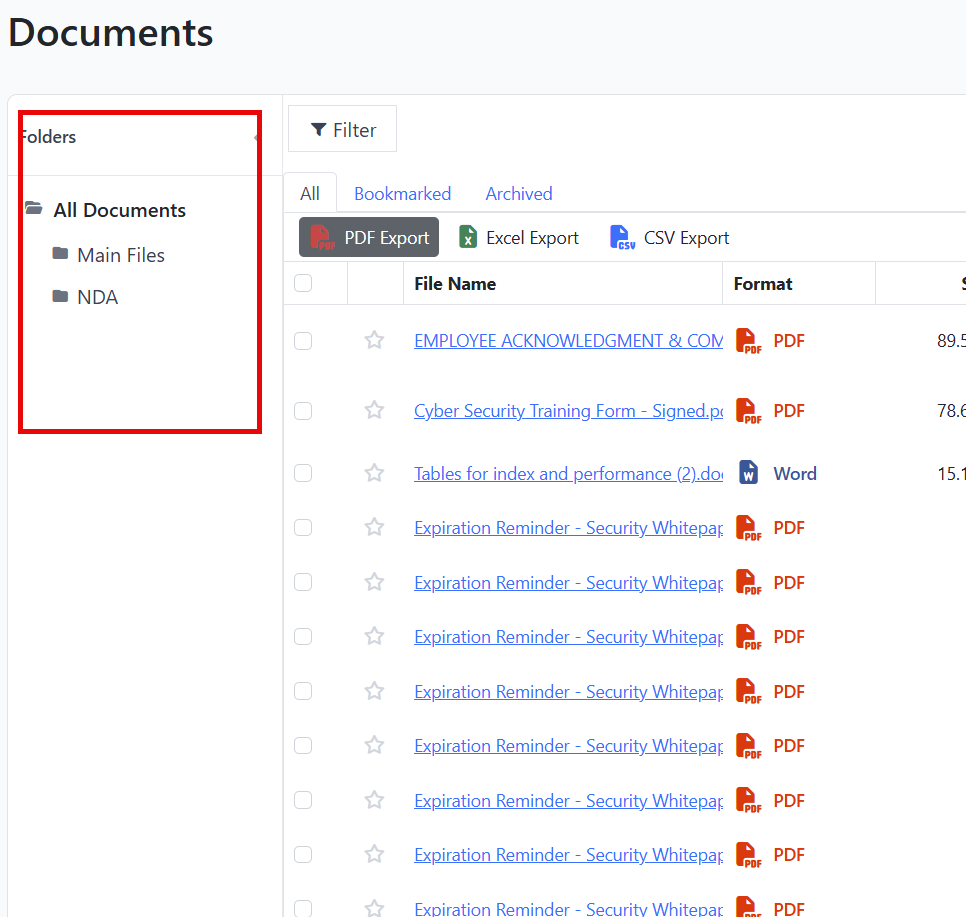
- The folder sidebar appears on the left side of the Document Library. The first entry, All Documents, shows every document regardless of folder.
- To collapse or expand the sidebar, click the small arrow at the top of the Folders header.
Creating a Folder
- At the top right of the Document Library, click Add Folder.
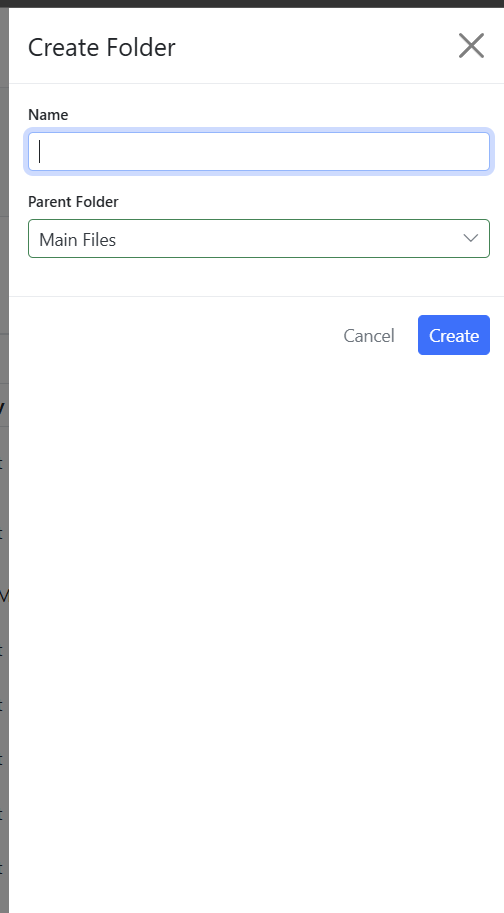
- The Create Folder panel slides in from the right.
- Enter a Name for your folder (for example, "Insurance Certificates" or "2026").
- Choose a Parent Folder to nest this folder inside an existing one, or leave it as None to create a top-level folder.
- Click Create.
A success toast appears and the new folder shows up in the sidebar.
Tip: You can only choose a parent folder that doesn't already sit at the maximum nesting depth. If a folder you expected to see isn't in the Parent Folder dropdown, you've hit the 5-level limit on that branch.
Navigating Folders
The folder sidebar shows your folder tree:
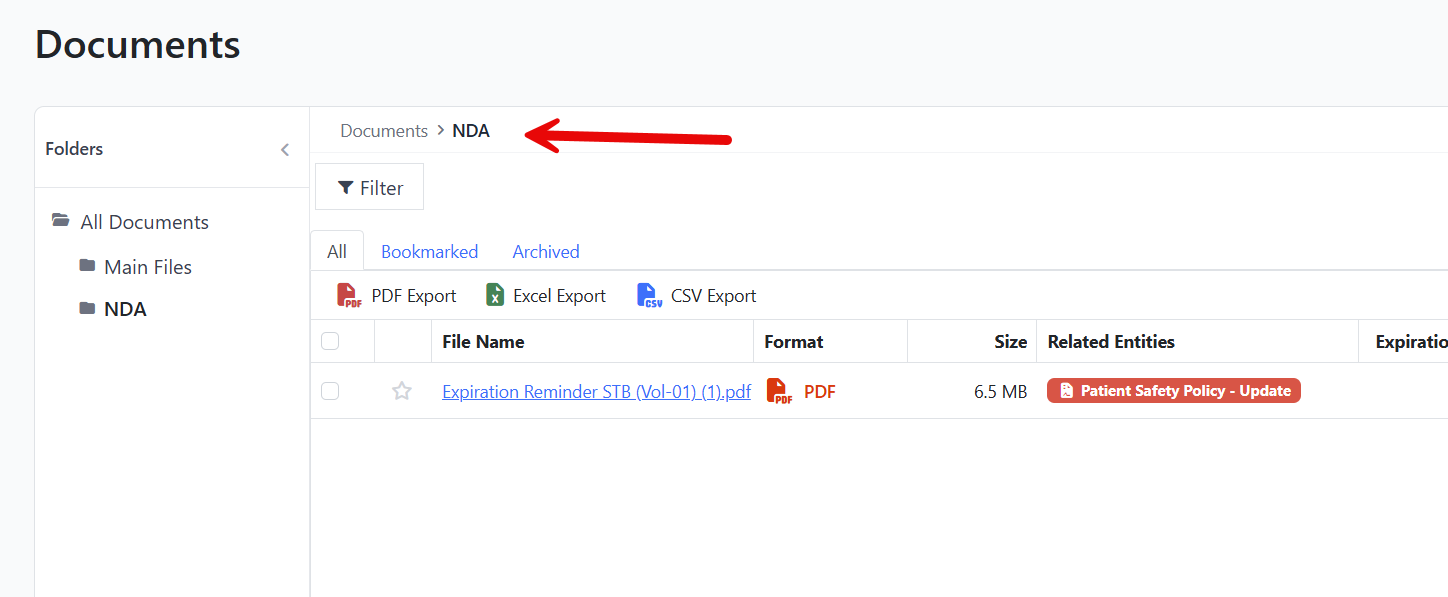
- Click a folder name to view the documents inside that folder. The folder name is bold when it's selected.
- Click the small chevron next to a folder to expand or collapse its sub-folders.
- Click All Documents at the top to return to the full document list.
As you navigate, a breadcrumb appears above the document grid showing your current location, for example: Documents › Insurance › 2026. Click any segment to jump back to that level.
Uploading Directly Into a Folder
- Select the folder in the sidebar so it becomes the active view.
- Click Add Document at the top right.
- Notice the panel header now says Uploading to: folder name.
- Drop or browse for your files. They are filed into that folder automatically.
If you upload while All Documents is selected, the files land at the root (no folder) and you can move them later.
Moving a Document to a Different Folder
You can move one document at a time using Move to Folder:
- In the document grid, open the Actions dropdown for the document.
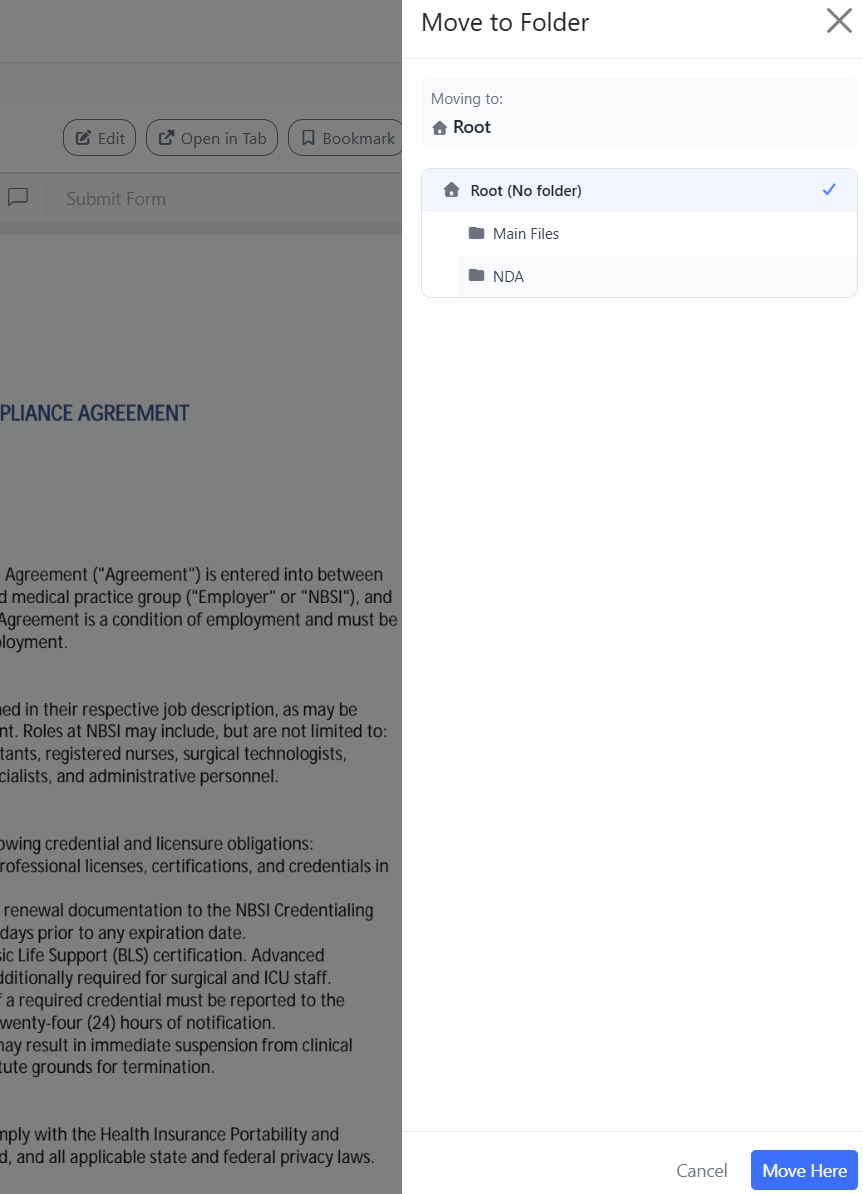
- Click Move to Folder. The Move to Folder panel slides in from the right.
- The Moving to: indicator at the top shows your current target. By default this is Root (No folder).
- Browse the folder tree:
- Click any folder to make it the target. A blue check mark appears next to the selected destination.
- Click the chevron next to a folder to expand its sub-folders.
- Click Root (No folder) if you want to remove the document from any folder.
- Click Move Here to apply the move, or Cancel to back out.
A success toast confirms the move and the grid refreshes.
You can also move a document from its detail page. Click Move to Folder in the header and follow the same steps.
Deleting a Folder
Deleting a folder does not delete its documents. Documents inside the folder are moved up to the parent folder (or to the root if the folder was at the top level). Sub-folders are likewise moved up.
- Hover over the folder in the sidebar.
- Click the small trash icon that appears at the end of the folder row.
- A confirmation dialog appears with the message:
"Delete 'folder name'? Its documents will be moved to the parent folder (or root). Sub-folders will also be moved up." - Click Confirm to delete the folder, or Cancel to keep it.
A success toast confirms the deletion. If you were viewing the folder you just deleted, the Document Library automatically switches to the parent folder (or to All Documents).
Tips & Best Practices
- Plan a shallow structure. Two or three levels of folders are usually enough — deep nesting (close to the 5-level limit) makes documents harder to find.
- Combine folders with tags. Use folders for the main filing structure (such as by department or year) and tags for cross-cutting groupings. See Tags.
- Move first, delete second. If you want to clean up empty folders, deleting them is safe — the system always re-files documents into the parent.
- Bookmark the folder you check most. While bookmarks are at the document level, you can quickly reach a frequently-used folder by leaving it expanded in the sidebar.
Troubleshooting
- Issue: The Add Folder button isn't visible.
Solution: Your user role doesn't have folder management permission. Ask your account administrator. See Managing Permissions. - Issue: A folder I expected to choose as a parent doesn't appear in the Parent Folder dropdown.
Solution: Folders are limited to 5 levels of nesting, so any folder that would push the new child past that limit is hidden from the dropdown. Pick a higher-level folder or create your new folder at the root. - Issue: I deleted a folder by accident.
Solution: The folder itself is gone, but its documents and any sub-folders were preserved and moved up one level. Re-create the folder and use Move to Folder to put the documents back in. - Issue: Documents I expected to see aren't in the folder I'm viewing.
Solution: Make sure you've selected the right folder in the sidebar (the active folder's name is bold) and that the filter and tab settings aren't excluding what you're looking for. Switch to All Documents to confirm the file is present in your account.
Related Articles
- Using the Document Library (suggested companion article — link to be added once published)
- Tags
- Managing Permissions
- Using the Recycling Bin to Recover Deleted Items