
Before You Begin
- You need permission to view expirations to find them, and permission to delete expirations to remove them. If you don't see the Delete option in a row's actions menu, ask an admin to grant you the Expiration Item Delete permission.
- Deleting an expiration item is permanent — once removed, attached documents and notification history are also gone. Always confirm you are deleting the right copy.
- Related articles:
Why duplicates happen
Duplicate expirations usually appear after:
- Importing the same spreadsheet twice
- Adding an expiration manually that was also created by an automation rule
- Renewing an item by creating a brand-new record instead of using Renew on the existing one
The good news: most duplicates can be found in a few clicks from the Expiration Items list.
Step-by-Step Instructions
Step 1: Open the Expiration Items list
- From the left sidebar, click Expiration Items.
- Make sure the All tab is selected so you're searching across every status, not only Active or Expired.
Step 2: Sort by Name to group duplicates together
- Click the Name column header to sort A–Z.
- Identical or near-identical items will now sit next to each other in the list.
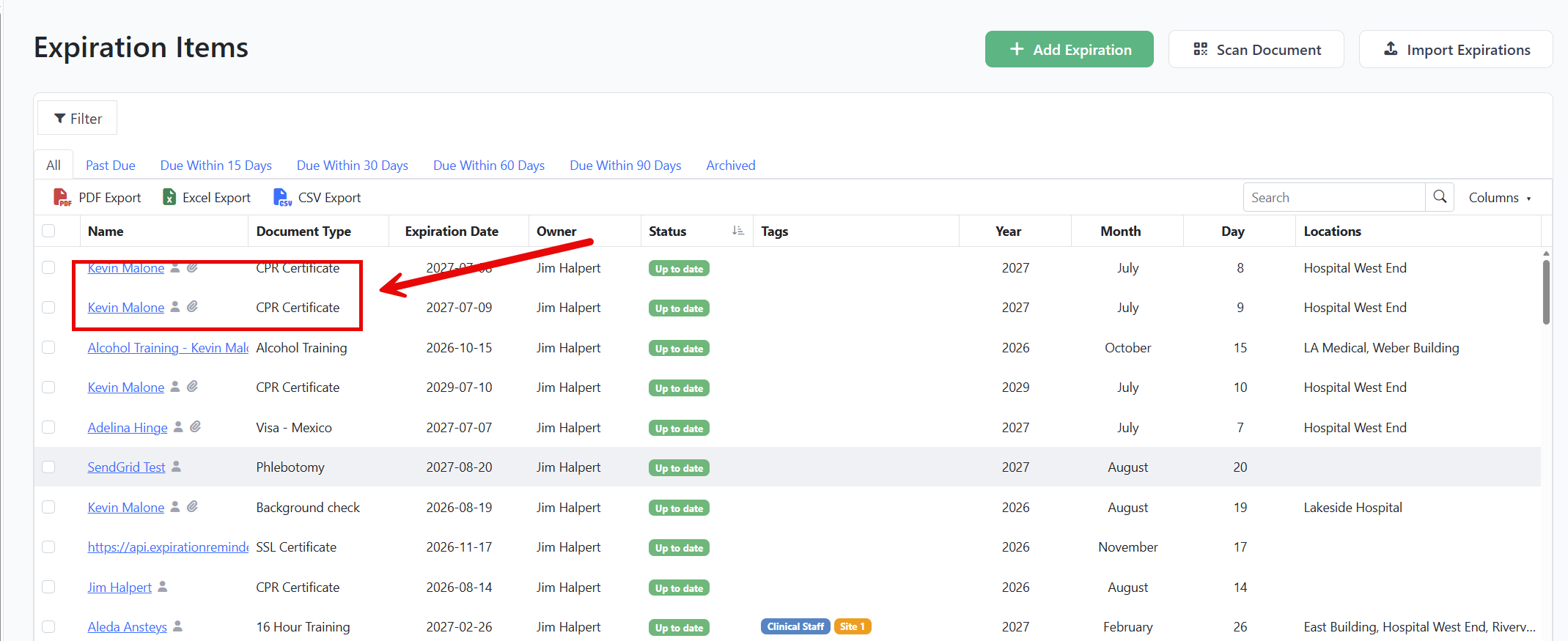
Tip: If you also sort by Expiration Date (Shift-click the column header to add a second sort), duplicates with the same renewal date stand out even more.
Step 3: Search for a specific item you suspect is duplicated
If you already know an item's name:
- Use the search box at the top right of the grid.
- Type part of the item's name. The list narrows as you type — any duplicates with similar names will appear together.
Step 4: Compare duplicates side by side
- Click the name of the first match to open it. The item opens in a side panel preview.
- Note the Expiration Date, Contacts, Document Type, and any Attachments.
- Close the preview and click the next match to compare.
The copy with the most complete data (attachments, notification history, related contacts) is usually the one you want to keep.
Step 5: Delete the extra copy
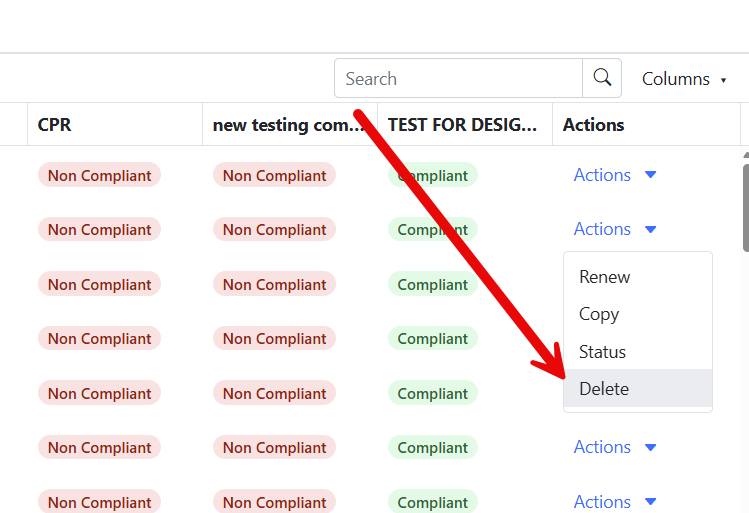
- Hover over the row of the duplicate you want to remove.
- Click the actions menu (the three-dot icon) at the right end of the row.
- Click Delete.
- Confirm the deletion in the dialog that appears.
Step 6 (optional): Use Bulk Edit to clean up many duplicates at once
If you have a long list of duplicates created by an import, you can update many at once instead of deleting one by one:
- Tick the checkbox next to each duplicate you want to act on.
- From the bulk actions bar that appears at the top of the grid, choose Bulk Edit to reassign or update fields, or use the Delete option to remove the selected rows in one step.
- Confirm the action.
See Bulk Edit Menu for the full bulk-edit workflow.
Tips & Best Practices
- Prevent duplicates at import time. When importing expirations from a spreadsheet, the Import Expirations dialog includes a What to do with duplicates option. Select Merge duplicates instead of Duplicate records so the importer skips items that already match existing records.
- Export before deleting. Use the Export button on the grid to download the full list to Excel before a cleanup pass — that way you have a backup if you delete the wrong row.
- Use distinctive names. "Driver License" appearing on 50 contacts is fine, but if you put the contact's name in the expiration title (e.g., "John Smith — Driver License"), duplicates become much easier to spot at a glance.
- Renew, don't recreate. When an expiration is up for renewal, click Renew on the existing record instead of creating a new one. This preserves the audit history and prevents an "old vs. new" duplicate pair.
Troubleshooting
- Issue: I deleted what I thought was the duplicate, but it was actually the wrong copy.
Solution: Deletion is permanent. Recreate the item using Add Expiration, then re-attach its documents and contacts. If the deleted item was created by an import, you may be able to re-run the import to restore it. - Issue: I see two items with the same name but they have different document types.
Solution: These are not duplicates — they're tracking different things. Check the Document Type column before deleting. - Issue: Sorting by Name doesn't group obvious duplicates together.
Solution: Small differences (an extra space, different capitalization) keep similar items apart in a sort. Use the Search box with just the first word of the name to find them. - Issue: I don't see a Delete option in the row menu.
Solution: Your role doesn't include the delete permission for expirations. Ask an admin to update your role, or have them perform the deletion.