
Before You Begin
- This article assumes you already know how to open the Workflow Builder. If you haven't built a workflow before, start with Building Workflows first.
- Related articles:
How Triggers and Actions Fit Together
Every workflow has the same skeleton:
- A trigger on the Start node — the event that kicks the workflow off.
- One or more action or logic steps that run in sequence.
- An End node that closes the path.
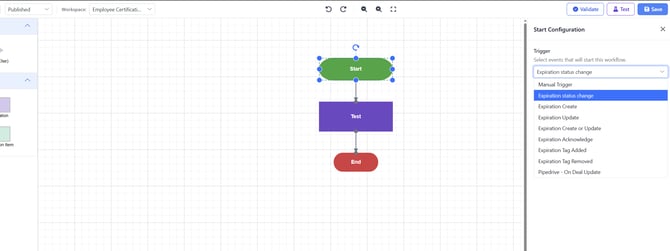
Triggers are configured on the Start node. Actions and logic are available in the palette on the left side of the Workflow Builder.
Triggers
The trigger you can choose depends on the workflow type you picked when you created the workflow.
Triggers available in a Regular Workflow
| Trigger | When it fires |
|---|---|
| Manual Trigger | The workflow only runs when someone starts it by hand. Use this for ad-hoc actions or testing. |
| Expiration Create | An expiration item is created in your account. |
| Expiration Update | An existing expiration item is updated. |
| Expiration Create or Update | Either of the two events above. Useful when you don't care which one triggered the change. |
| Expiration status change | An expiration item's status changes (for example, Active to Archived). |
| Expiration Acknowledge | A contact acknowledges an expiration item. |
| Expiration Tag Added | A tag is added to an expiration item. |
| Expiration Tag Removed | A tag is removed from an expiration item. |
If your account has the Pipedrive integration active, the Regular workflow also exposes:
- Pipedrive - On Deal Update
Triggers available in a Pipedrive Workflow
- Pipedrive - Create Contact
- Pipedrive - Update Contact
Triggers available in a Greenhouse Workflow
- Greenhouse - Create Candidate
How to set the trigger
- In the Workflow Builder, click the Start node on the canvas.
- In the right-side panel, open the Trigger dropdown and choose an event.
- Click Save.
A confirmation toast appears at the bottom of the page.
Note: Only one trigger event is set per workflow. Expiration Create or Update is a shortcut for selecting both events at the same time.
Action and Logic Steps
The palette in the Workflow Builder is divided into two groups:
- Logic — branching steps that route the workflow.
- Actions — steps that do something (send a notification, create a record, etc.).
To use any of them, drag the card from the palette onto the canvas. A green-banner configuration panel slides in on the right for you to fill out before saving.
Decision (If/Else)
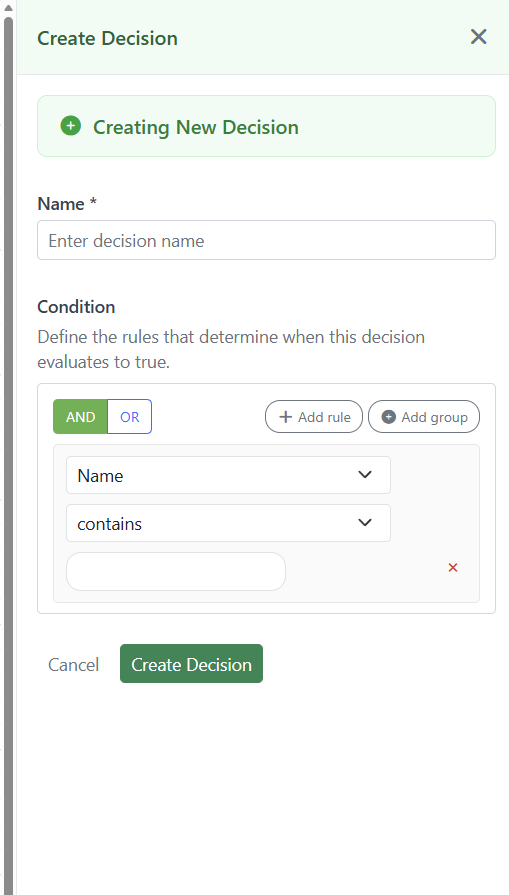
A Decision step branches the workflow based on conditions you define against the expiration item.
| Field | What it does |
|---|---|
| Name | A short label that appears on the canvas (required). |
| Condition | One or more rules that compare expiration-item fields to values. Build rules with the visual rule builder. |
Each Decision step exposes two outgoing connectors — one for the true branch (conditions met) and one for the false branch (conditions not met). Connect each branch to the step that should run next.
Example: "If Category is Contract AND Expiration Date is within 30 days, then send a notification. Otherwise, do nothing."
Send Notification
A Send Notification step sends an email (and optionally an SMS) to one or more contacts.
| Field | What it does |
|---|---|
| Name | A short label that appears on the canvas (required). |
| Notification Type | Controls when the notification is sent. See the table below. |
| Contact Fetch Method | How Expiration Reminder decides who receives the message. See the contact source table below. |
| Email Template | The email template to use. Default Email Template uses your account default; otherwise pick a saved template. |
| Impersonate contact that holds expiration item | When on, the email looks like it was sent by the contact on the expiration item. |
Notification timing — the three Notification Types
| Notification Type | Behavior | Timing fields |
|---|---|---|
| Single Notification | Sends once at the offset you choose. | A number, a time unit (Days, Months, Years), and a timeline (Before Expiration, After Expiration, or From Today). |
| Recurrent Notification | Sends repeatedly until an end condition. | Send Alerts Every N days/months/years; End After N days/months/years. |
| Immediate Notification | Sends as soon as the step runs. No timing fields. | None. |
Choosing who receives the notification — Contact Fetch Method
| Method | What it does |
|---|---|
| Contact List | Send to specific contacts you choose from your address book. |
| Variable | Pull the recipient from a Liquid variable (for example, {expirationcustomfield.fieldname}). Useful when the recipient is stored on the expiration item itself. |
| Expiration Contact | Send to the primary contact on the expiration item. |
| Manager | Send to the manager of the contact on the expiration item. |
| Audience | Send to every contact in one or more saved audiences. |
| Owner | Send to the user who owns the expiration item. |
| Watchers | Send to anyone watching the expiration item. |
When you pick Contact List, a multi-select appears so you can choose recipients. When you pick Audience, a multi-select of your saved audiences appears. When you pick Variable, a text box appears for the Liquid expression.
Create Expiration Item
A Create Expiration Item step creates a new expiration item automatically when the workflow runs. Use it for follow-ups, renewals, or chained certifications.
| Field | What it does |
|---|---|
| Action Name | A short label that appears on the canvas (required). |
| Name | The name of the new expiration item. Supports Liquid variables, so you can build a name like Follow-up for (required). |
| Category | The document type for the new expiration item. |
| Expiration Date | Controls how the new item's expiration date is calculated. See the table below. |
| Contacts | Comma-separated email addresses, or a Liquid variable. These become the contacts on the new expiration item. |
| Custom Fields | If the chosen category has custom fields, you'll see input boxes for each one. Liquid variables are supported. |
Expiration date options
| Option | Behavior |
|---|---|
| No date | The new expiration item is created without an expiration date. |
| From Today | The expiration date is calculated from today's date. Provide a number and choose Years, Months, or Days. |
| Custom value | Use a fixed MM-DD-YYYY date or a Liquid variable to compute the date dynamically. |
Tip: Liquid variables let you copy details from the triggering expiration item into the new one. Place the variable inside curly braces — for example,
— wherever the variable hint appears.
Connecting Steps
After you create a step, connect it to the rest of the workflow:
- Hover over a step on the canvas. Small connection ports appear around its edges.
- Click and drag from a port to the next step.
- The connector saves automatically and a confirmation toast appears.
Decision steps have two outputs — connect both the true path and the false path so the workflow doesn't dead-end.
To remove a connector, click it on the canvas and press the Delete key.
Editing a Step Later
- Click the step on the canvas. Its configuration panel opens on the right.
- Change any field. The panel shows a yellow indicator while there are unsaved edits.
- Click Save.
If you click another step or the canvas before saving, Expiration Reminder asks whether to discard your changes.
Tips & Best Practices
- Name each step with a verb (for example, Email Manager, Create 30-day Follow-up, Check if Contract). The canvas reads like a flowchart when steps are named clearly.
- Use Variable as the contact source whenever you store the recipient on the expiration item — it's more reliable than hard-coding a contact list.
- Recurrent notifications are great for renewal nudges but easy to overdo. Set a sensible End After value so the loop doesn't keep firing forever.
- When you change an existing workflow that's already Published, test it on a sample expiration item before saving.
Troubleshooting
- Issue: A trigger I expect to see isn't in the dropdown. Solution: The trigger list depends on the workflow type. Pipedrive-only or Greenhouse-only triggers only appear on workflows of that type. If the trigger requires an integration, confirm the integration is active under Apps.
- Issue: A Decision step always takes the false branch. Solution: Open the step and review the rules. Make sure the field you're checking actually has a value on the expiration item that triggered the workflow.
- Issue: A Send Notification step doesn't email the expected contact. Solution: Open the step and confirm the Contact Fetch Method matches where that contact lives. Expiration Contact, Manager, Owner, and Watchers each pull from different places.
- Issue: The Create Expiration Item step fails because of a Liquid variable. Solution: Variables run against the triggering expiration item. If you reference
, the trigger event must produce an expiration with a contact. Test by switching the variable to a literal value first.