
How to Create and Manage Workflows in Expiration Reminder
Before You Begin- You need an Expiration Reminder account with permission to view and manage workflows.
- Workflows live under the Settings sidebar. If you don't see the Workflows option, ask your account administrator to update your role.
- Related articles:
Opening the Workflows Page
- Open the Settings menu.
- Expand the Tools group.
- Click Workflows.
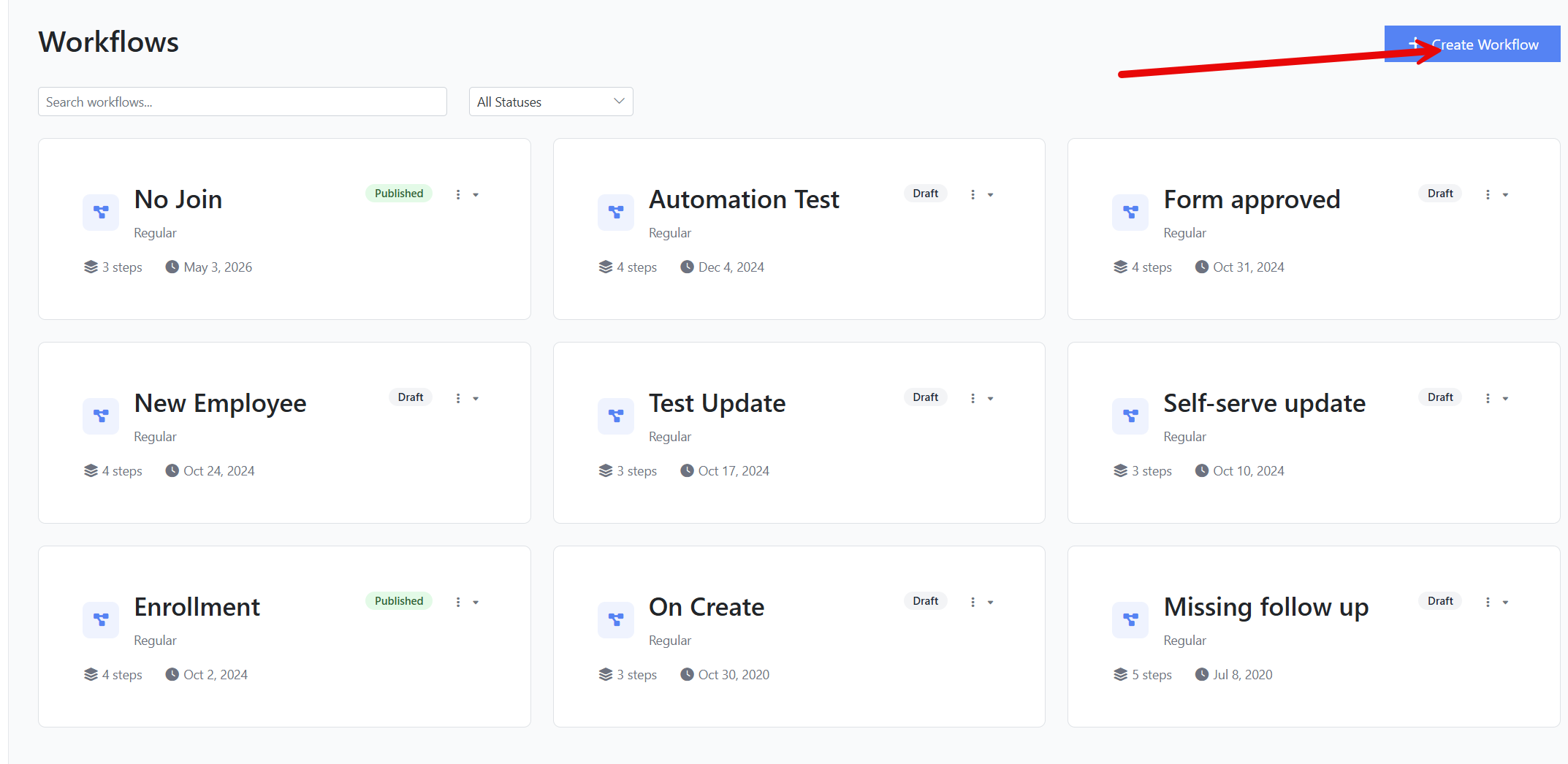
The Workflows page lists every workflow in your account as a card. Each card displays the workflow's name, type, status, step count, and last-modified date.
Creating a Workflow
Step 1: Open the Create dialog
- From the Workflows page, click Create Workflow at the top right.
- The Create New Workflow dialog opens.
Step 2: Name your workflow and choose a type
- Enter a clear, descriptive name in the Workflow Name field — for example, New Hire Onboarding or Contract Renewal Reminder.
- In the Workflow Type dropdown, choose one of:
- Regular Workflow — runs against expiration items in your account. This is the most common choice.
- Pipedrive Workflow — runs when Pipedrive contacts are created or updated. Requires the Pipedrive integration.
- Greenhouse Workflow — runs when a Greenhouse candidate is created. Requires the Greenhouse integration.
- Click Create.
A confirmation appears and the Workflow Builder opens automatically with your new workflow.
Step 3: Understand the Workflow Builder canvas
The Workflow Builder has three areas:
- Left sidebar — a palette of step types you can drag onto the canvas.
- Center canvas — the diagram where you arrange and connect steps.
- Top toolbar — buttons for Save, Validate, Test, Undo, Redo, zoom controls, and the status dropdown.
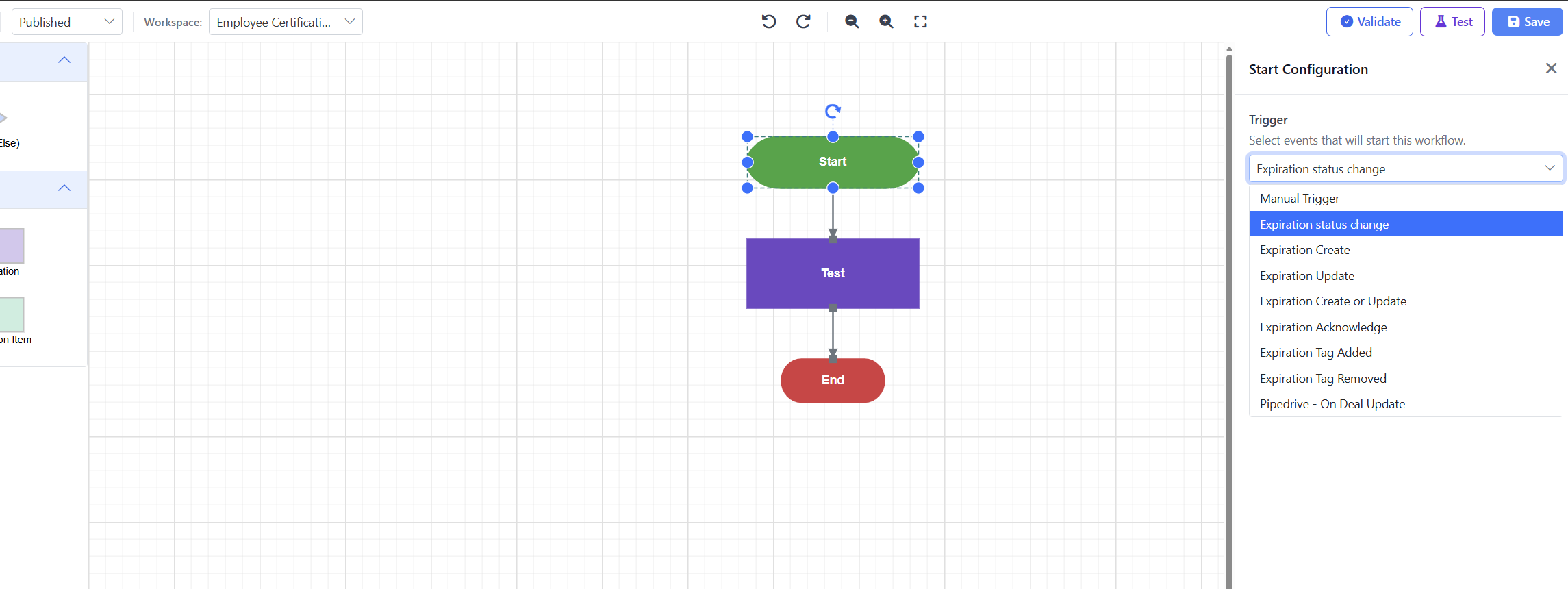
Every new workflow starts with three foundational nodes already on the canvas — Start, Join, and End. You can't delete these, and only one of each is allowed per workflow.
Step 4: Set the trigger on the Start node
The Start node tells Expiration Reminder when the workflow should run.
- Click the Start node on the canvas.
- In the right-side panel, open the Trigger dropdown and select an event. The available options depend on the workflow type you picked in Step 2 — see the companion article Workflow Actions and Triggers for the full list.
- Click Save.
A confirmation toast appears at the bottom of the page.
Adding Steps to the Canvas
Step 1: Drag a step from the palette
- In the left palette, find the step type you want to add. Steps are grouped under:
- Logic — Decision (If/Else)
- Actions — Send Notification and Create Expiration Item
- Click and drag the step onto the canvas.
A configuration panel opens on the right side of the screen, with a green banner confirming that you are creating a new step.
Step 2: Fill in the step details
Each step type has its own configuration fields. The most common ones are:
- Name — a short label that appears on the canvas.
- Step-specific settings — for example, a notification's timing and email template, or a decision's rules.
For a complete walkthrough of each step type's options, see Workflow Actions and Triggers. Workflow Actions and Triggers.
Step 3: Create the step
- Click the green Create button at the bottom of the panel.
- The new step appears on the canvas and the panel closes.
Step 4: Connect steps together
- Hover over a step on the canvas. Connection ports appear around its edges.
- Click and drag from a port to another step to draw a connector.
- The connector saves automatically and a confirmation toast appears.
To remove a connector, click it and press the Delete key.
Step 5: Edit an existing step
- Click the step on the canvas. Its configuration panel opens on the right.
- Change any field. The panel shows a yellow indicator when there are unsaved edits.
- Click Save.
If you click another step or anywhere on the canvas before saving, Expiration Reminder displays a prompt asking whether you want to discard your unsaved changes.
Step 6: Delete a step
- Click the step you want to remove.
- In the panel that opens, click the trash icon — or select the step and press Delete.
- Confirm Delete in the dialog.
The step and any connectors attached to it are removed. You can't delete the Start, Join, or End nodes.
Saving and Publishing
Validate the workflow
Before publishing, run the built-in structural validator to catch configuration errors such as missing connections, unset triggers, or disconnected steps.
- In the toolbar, click Validate.
- If the workflow is valid, the message "Workflow is valid" appears.
- If there are issues, a dialog lists each one (for example, "Workflow is missing a Start node" or a disconnected step). Fix each issue and validate again.
Save your work
Click Save in the toolbar at any time. A confirmation appears once the workflow is saved.
Tip: Save often. If you navigate away from the Workflow Builder with unsaved changes, Expiration Reminder will prompt you to confirm before discarding them.
Publish the workflow
A workflow only runs automatically when its status is Published. A workflow set to Draft or Paused will not execute, even if it has been fully configured and validated. Published.
- In the toolbar, open the status dropdown (it shows Draft by default).
- Choose Published.
- Click Save.
Expiration Reminder runs the validator one more time before publishing. If there are validation errors, the dropdown reverts to Draft and the validation errors are listed so you can fix them before attempting to publish again. Draft and the issues are listed so you can fix them.
Testing a Workflow
Use Test to safely dry-run the workflow against an existing expiration item. The test does not send real notifications, create real records, or trigger any live actions — it only simulates the workflow's execution. Test to dry-run the workflow against an existing expiration item without sending real notifications or creating real records.
- In the toolbar, click Test.
- Pick an expiration item to test against.
- Review the step-by-step output.
Note: Test is disabled until you save your latest changes. The validator must also pass — if it doesn't, the validation dialog appears instead.
Pausing, Drafting, and Deleting Workflows
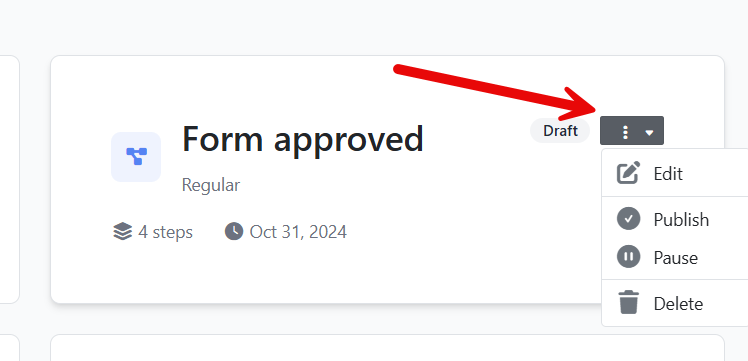
From the Workflows list, click the three-dot menu on any workflow card:
- Edit — opens the builder.
- Publish — activates the workflow (validator must pass).
- Set as Draft — pauses the workflow and lets you edit safely. Drafts don't run.
- Pause — temporarily stops the workflow without sending it back to draft.
- Delete — permanently removes the workflow after a confirmation. Steps and connectors are deleted with it.
Filtering and Searching the Workflow List
- The search box at the top of the list filters the workflow list by name in real time as you type.
- The All Statuses dropdown narrows the list to Draft, Published, or Paused workflows.
Tips & Best Practices
- Start every workflow as a Draft while you build it. Switch to Published only when you're ready for it to run on live data.
- Use clear, action-oriented names for your steps (for example, Email Manager or Create 90-day Follow-up) so the canvas reads like a flowchart.
- Validate before every publish. The validator catches the most common mistakes — missing connectors, disconnected steps, or duplicate Start nodes.
- Use Test before publishing a workflow that sends notifications. It's the fastest way to catch a misconfigured template or contact source.
Troubleshooting
- Issue: A step cannot be dropped onto the canvas. Solution: Certain step types — Start, Join, and End — can only appear once per workflow. Check whether the canvas already contains a node of that type. If it does, you do not need to add another one. "Cannot publish: X validation errors" appears when you switch the status to Published. Solution: Open the workflow, click Validate, fix each issue in the list (for example, connect any disconnected steps or set a trigger on the Start node), then try publishing again.
- Issue: A step won't drop onto the canvas. Solution: Some step types can only exist once per workflow (Start, Join, End). Check that the workflow doesn't already contain that type.
- Issue: The Test button doesn't open the test dialog. Solution: Click Save first. Test is unavailable while there are unsaved changes.