
Before You Begin
- Plan requirement: E-signatures are available on the Professional plan and above.
- This article assumes you have already sent at least one signature request. If you haven't, start with:
- Related articles:
Step-by-Step Instructions
Step 1: Open the Signatures page
- From the left navigation, open the Signatures page. The URL is
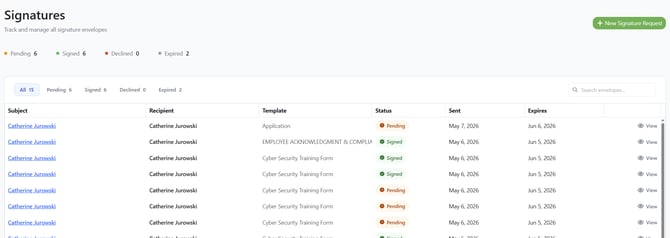
/signatures. - The page header is titled Signatures with the tagline "Track and manage all signature envelopes."
Step 2: Read the stats row
Just below the page header is a single row of stat counters with colored dots. They show, across all of your signature requests:
- Pending (orange dot) — requests that have been sent but not yet signed.
- Signed (green dot) — requests the recipient has completed.
- Declined (red dot) — requests the recipient explicitly declined to sign.
- Expired (gray dot) — requests whose signing link has expired before the recipient signed.
These counters are not filters — they just give you an at-a-glance summary.
Step 3: Use the filter tabs
The filter bar above the list lets you narrow the list to a single status. Tabs:
- All — every signature request (each tab shows a count next to it).
- Pending
- Signed
- Declined
- Expired
- Automated (for automated signature requests set at the Document Type level)
Click any tab to filter. The active tab is highlighted in blue. Click All to clear the filter.
Step 4: Search
To the right of the filter tabs is a search box labeled Search envelopes... Type any of the following to find a specific request:
- The Subject (which is the name of the expiration item the request is tied to)
- The Recipient name
- The Recipient Company (the recipient's company, if set on the contact)
- The Template name
The list updates as you type. Search and filter tabs work together — for example, you can show only Pending requests and search within them.
Understanding the Columns
The signatures list shows the following columns:
| Column | What it shows |
|---|---|
| Subject | The expiration item the request is tied to. If the item still exists, the subject is a clickable link that opens the expiration item view. |
| Recipient | The contact who was sent the signing link, with their company shown underneath when available. |
| Template | The contract template used to generate the document. |
| Status | A colored pill showing the current state of the request. See Status values below. |
| Sent | The date the request was created. |
| Expires | The date the signing link expires. All signature requests expire one month after the SENT date (meaning no signature was ever provided by the recipient). |
| View | An action link to open the signed document (only useful after the request is Signed). |
The list is sorted with the most recent requests at the top.
Status Values
Each request displays one of these status pills:
| Status | What it means |
|---|---|
| Pending | The signing link has been delivered. The recipient has not yet signed. Shown with a clock icon in orange. |
| Signed | The recipient has completed the signature. The signed PDF is auto-filed to the expiration item and the new expiration date has been applied. Shown with a green checkmark. |
| Declined | The recipient opened the link but explicitly declined to sign. Shown with a red X. |
| Expired | The signing link's expiration date has passed before the recipient signed. Shown with an hourglass icon. |
| Draft | A signature request that was started but never sent. Shown with a pencil icon. (You'll rarely see this — most users send requests directly from the Send for Signature dialog.) |
Note: When you open the Signatures page, Expiration Reminder automatically checks each Pending request — any whose signing link has passed its expiration date will be moved to Expired for you on that visit.
Opening a Request
The list does not currently have a dedicated detail view for a signature request. Instead:
- To see the tracked item the request is about: click the Subject link in the request's row. This takes you to the expiration item view, where you can see all the request's context (notes, attachments, expiration date, contact, etc.).
- To open the signed PDF: click View in the last column. (See the next section.)
Downloading the Signed Document
Once a request shows Signed status, the final, fully-executed PDF is available to download:
- Find the request in the Signatures list.
- Click View at the end of the row (the eye icon).
- The signed PDF opens in a new browser tab.
- From there, you can save it to your computer using your browser's standard download / save controls.
Note: If you click View on a request that hasn't been signed yet (or whose document isn't available yet), you'll see the toast "The signed document is not available yet." This is expected for Pending, Declined, Expired, or Draft requests.
The signed PDF is also automatically attached to the original expiration item as a document, so you'll find it on that item's Attachments tab without having to come back to the Signatures page.
Sending a New Request to Replace an Old One
Expiration Reminder does not currently support resending or cancelling (voiding) a pending request from inside the application. If you need to:
- Resend a request (for example, because the recipient lost the email): start a new signature request from the Signatures page or from the expiration item view. See Sending Documents for E-Signature for the full steps.
- Tip: Sending a fresh signature request is usually the fastest fix when a recipient's link has expired or is stuck. The expired link will automatically move to Expired status, and the new request will appear at the top of the Signatures list as Pending.
What Customers Can See About a Request
For each request, the Signatures list captures:
- Who it was sent to (Recipient + Recipient Company)
- Which Template was used
- Which expiration item it covers (Subject)
- When it was sent (Sent)
- When the link expires or expired (Expires)
- Its current Status
- The signed PDF (via View, once signed)
Tips & Best Practices
- Check Pending requests weekly. Filter by Pending to see what's still outstanding so you can follow up with recipients before the link expires.
- Use search to find a specific renewal. Searching by the recipient's name or the template name is faster than scrolling, especially as your envelope volume grows.
- Trust the auto-file. Once you see Signed status, the PDF is already attached to the expiration item and the new expiration date has been applied — you don't need to do anything manual to "close out" the request.
Troubleshooting
- Issue: A request is stuck on Pending even though the recipient says they signed it. Solution: Status updates from the signing provider can occasionally arrive with a short delay. Refresh the page after a few minutes. If the request is still Pending after an hour, contact support.
- Issue: Clicking View does nothing or a toast says "Failed to load the document." Solution: Refresh the page and try again. If the issue persists, contact support — the document may still be syncing from the signing provider.
- Issue: You don't see a request you remember sending. Solution: Clear the search box, click the All filter tab, and check the Expired tab. If it's still missing, the request may have been created against a different user account on the same organization — confirm with your team.
- Issue: The Signatures page shows an Upgrade to Professional prompt instead of the list. Solution: E-signatures require the Professional plan or higher. Click Upgrade to Professional or visit your billing page.
- Issue: A request was sent to the wrong recipient. Solution: Send a new request to the correct recipient. We don't support voids at this time.