
Before You Begin
- Plan requirement: Document Templates and e-Signatures are available on the Professional plan and above. If your account is on a lower plan, the Document Templates page will display an Upgrade to Professional prompt instead of the editor.
- Permissions: Your user role must have permission to create, edit, and delete document templates. If you don't see the Create Template button or the Delete option in the row action menu, ask your administrator to update your role.
- Related articles:
- Sending Documents for E-Signature — covers using your finished templates to send signature requests.
- Tracking E-Signature Status — covers monitoring requests after they go out.
- Creating a Document Type — many users link a default template to a document type so renewals can be sent in one click.
Step-by-Step Instructions
Step 1: Open the Document Templates page
- From the left navigation, open the Document Templates page. The URL is
/templates. - You'll see four summary cards across the top:
- Total Document Templates — count of templates in your account, with how many are Active.
- Envelopes Sent — signature requests sent this month.
- Completion Rate — percentage of sent envelopes that have been signed.
- Auto-filed — percentage of signed documents that auto-updated an expiration date.
- Below the cards is the list of templates with columns for Template Name, Status, Last Modified, Envelopes Sent, and an Actions menu.
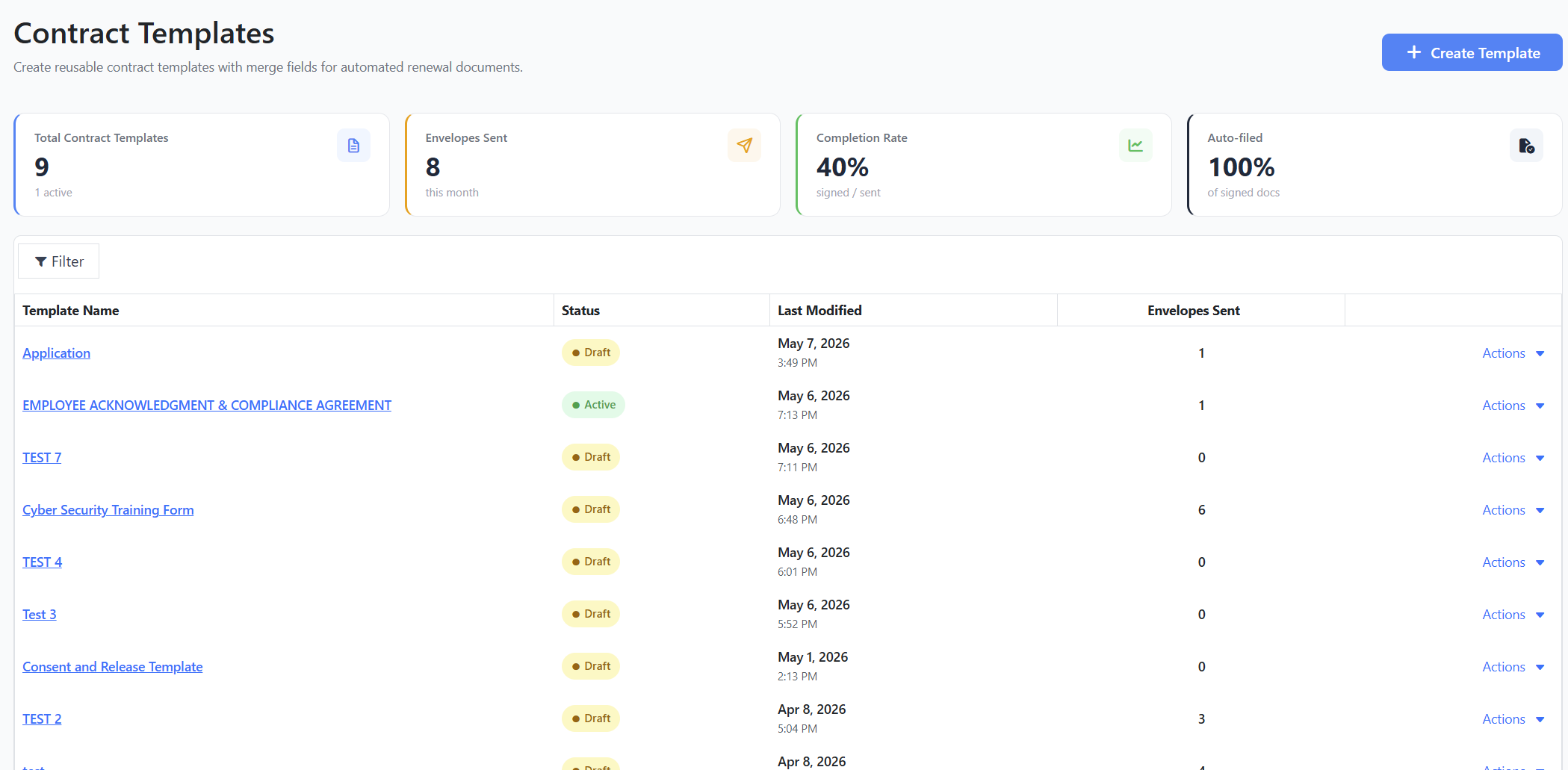
Step 2: Create a new template
- Click the Create Template button in the top right of the page.
- The template editor opens with a blank document, an empty Template name... field at the top, and a Merge Fields sidebar on the right.
Step 3: Name the template
- Click into the Template name... field at the top of the editor.
- Type a clear, descriptive name (for example, "Vendor Insurance Renewal Agreement"). The name is required and is what you'll see when you pick a template later when sending for signature.
Step 4: Build the document body
The editor is a full word-processor surface. You can:
- Type your Document or agreement text directly in the page.
- Use the editor toolbar to format text — bold, italic, headings, lists, alignment, tables, page breaks, and more.
- Paste content from another document. (Copying from Microsoft Word generally preserves formatting.)
- Open an existing DOCX file — use the Open action in the editor toolbar.
Tip: Keep paragraphs short and use headings so the document reads well once the signer opens it on a phone or tablet.
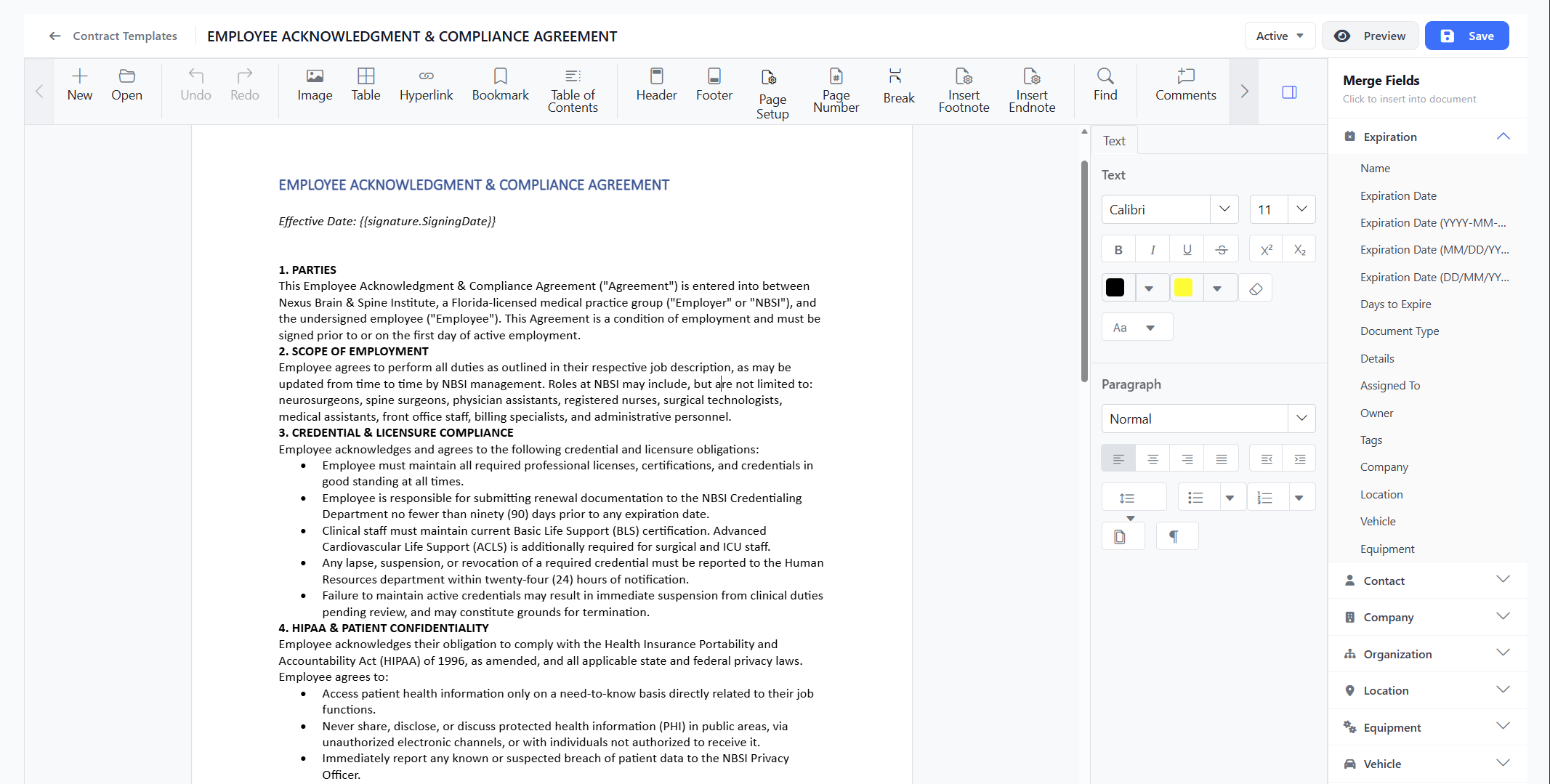
Step 5: Insert merge fields
Merge fields are placeholders that get replaced with real data (the contact's name, the expiration date, your organization name, and so on) at the moment you send a signature request.
- In the Merge Fields sidebar on the right, click a category heading to expand it. Available categories:
- Expiration (expanded by default) — fields about the tracked item: Name, Expiration Date in three formats, Days to Expire, Document Type, Details, Assigned To, Owner, Tags, Company, Location, Vehicle, Equipment.
- Contact — Full Name, First Name, Last Name, Email, Mobile, Type, Contact Number, Supervisor.
- Company — Company Name, DBA, Phone, Website, Address Line 1, City, Postal Code, Province / State.
- Organization — your organization name.
- Location — Location Name, Tags.
- Equipment — Equipment Name, Serial Number, Brand, Model, Type.
- Vehicle — Vehicle Name, VIN, License Plate, Year, Make, Model, Color.
- Signature — Sign Here (Signature Field), Signing Date, New Expiration Date.
- Place your cursor in the document where you want the field to appear.
- Click the field name in the sidebar. It is inserted into the document as a placeholder token (for example
).
Tip: Insert at least one Sign Here (Signature Field) wherever you need the signer to place their signature. The Signing Date field automatically records the date the document was signed. The New Expiration Date field is filled in with the date you set on the send dialog and is useful in clauses like "This certificate is valid until..."
Step 6: Preview your template
- Click the Preview button in the top bar.
- Your browser's print dialog opens, showing exactly how the document will be laid out on paper or PDF. Use this to check spacing, page breaks, and formatting.
Note: Preview only works after a template has been saved at least once. The button is hidden on the very first save.
Step 7: Save the template
- Click the Save button in the top bar (the blue button with the disk icon). While it saves, the button changes to Saving....
- New templates are created with a status of Draft by default.
- A toast notification appears at the bottom of the screen confirming "Template created." or "Template saved."
Step 8: Activate the template
A template must be Active before it can be used to send signature requests.
- Once the template is saved, a status button appears in the top bar showing the current status (Draft or Active).
- Click the status button and choose Active from the menu.
- A toast confirms the status change.
Note: Draft templates still appear in the Send for Signature template picker, but they're labeled "(Draft)" so you know they aren't yet ready for production use.
Editing, Duplicating, and Deleting Templates
Editing a template
- On the Document Templates page, click the template name (or open the Actions menu in that row and choose Edit).
- The editor opens with the existing content loaded. Make your changes and click Save.
Deleting a template
- On the Document Templates page, open the Actions menu at the right end of the template's row and choose Delete.
- A confirmation dialog appears: "Delete Template — This action cannot be undone." Confirm by clicking Delete.
- If the template is linked to one or more document types, you'll see an error message: "This template is linked to one or more document types. Unlink it before deleting." Open the affected document type's settings and clear the template reference, then try again.
Duplicating a template
Expiration Reminder does not currently have a one-click Duplicate action. To create a copy of an existing template:
- Open the template you want to copy.
- Select all content in the editor (Ctrl + A / Cmd + A) and copy it to the clipboard.
- Click Document Templates in the top-left of the editor to return to the list.
- Click Create Template, paste the content into the new editor, and give it a new name.
Tips & Best Practices
- Start with Draft. Build and test a template in Draft, send yourself a test signature request to confirm the layout looks right, then switch it to Active.
- Use real-looking placeholders. Wrap merge fields in natural sentences ("This Agreement is between and ...") so they read cleanly even when a value is missing.
- Link templates to document types. When a default template is assigned to a document type, the right template is preselected automatically every time you send a renewal for an item of that type.
- Limit Signature fields to one per signer. Each Sign Here field becomes a separate required signature on the document.
Troubleshooting
- Issue: The Create Template button is missing from the top of the page. Solution: Either your account is on a plan below Professional (an Upgrade to Professional card will be displayed) or your user role lacks the create-template permission. Contact your administrator.
- Issue: "Template name is required" error when saving. Solution: Type a name in the Template name... field at the top of the editor before clicking Save.
- Issue: "The document content could not be read. Please try again." Solution: This is rare and usually transient. Refresh the page and try saving again. If it persists, copy your content to a separate document as a backup and contact support.
- Issue: "This template is linked to one or more document types. Unlink it before deleting." Solution: Open the document types associated with this template, remove the template reference, and try deleting again.