
Before You Begin
- Plan requirement: E-signatures are available on the Professional plan and above.
- You need at least one Active template. Templates with Draft status will appear in the picker but are labeled "(Draft)". See Creating Contract Templates to build your first one.
- You need an expiration item to renew. Signature requests in Expiration Reminder are always tied to a tracked expiration item (for example, an insurance certificate, a vendor agreement, or a contractor licence) and a contact who will sign it. Make sure the contact has a valid email address — that's where the signing link is sent.
- Permissions: Your role needs Manage Documents permission on the Expiration Item entity. If you don't see the Send for Signature option, ask your administrator.
- Related articles:
Two Ways to Start a Signature Request
You can send a document for signature from either of these places:
| Entry point | Best for |
|---|---|
| Signatures page → New Signature Request | Sending ad-hoc requests. Lets you pick any contact in your account, then choose one of their expiration items. |
| Expiration item view → 3-dot menu → Send for Signature | Renewing a specific tracked item. The item and its contacts are preselected. |
Both options open the same Send for Signature dialog and follow the same two-step flow. Use whichever feels more natural for your task.
Method A — From the Signatures Page
Step 1: Open the Signatures page
- From the left navigation, open the Signatures page (URL:
/signatures). - Click New Signature Request at the top right of the page.
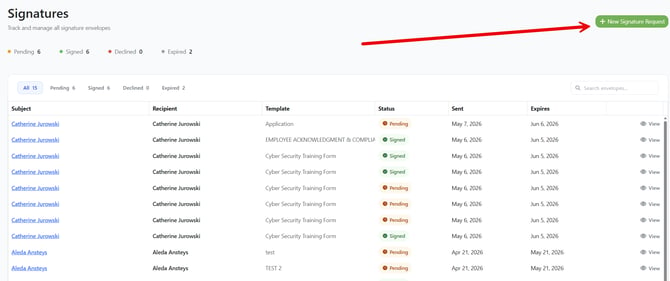
Step 2: Pick the recipient and expiration item
- In the Recipient dropdown, search for and select the contact who needs to sign. The list includes every contact in your account with their email address shown.
- The Expiration Item dropdown enables once a contact is selected. Choose one of the expiration items belonging to that contact (for example, "ACME Inc. — General Liability Insurance").
Note: If your selected contact has only one expiration item, that item is auto-selected for you.
Step 3: Pick a template and the new expiration date
- In the Template dropdown, choose the contract template to send. Active templates appear with their name; Draft templates are labeled "(Draft)".
- In the New Expiration Date picker, choose the date the item should be valid until after the document is signed. Once the recipient signs, Expiration Reminder will automatically update the expiration date on the item to this date.
Note: The New Expiration Date field is hidden if the document type for the item does not expire (for example, a one-time waiver). In that case, no date update happens after signing.
Step 4: Review "What happens next" and click Preview
Below the form is an info box titled What happens next that confirms the four-step automation:
- The system generates a PDF with merge fields resolved.
- A digital signature request is created.
- An email with the signing link is sent to the recipient.
- When signed, the PDF is auto-filed and the expiration date is updated.
When everything looks right, click Preview.
Step 5: Review the preview
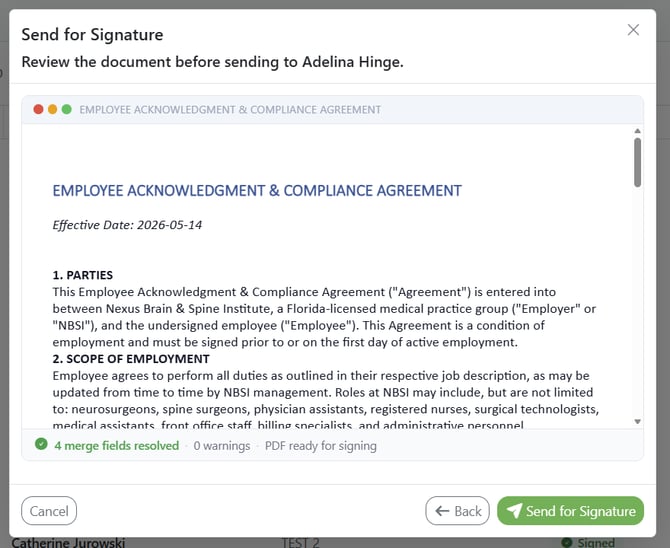
- The dialog switches to a side-by-side preview of the finished document, showing your template content with all merge fields filled in.
- Below the preview, a status line shows "X merge fields resolved · Y warnings · PDF ready for signing".
- If you see warnings, it means one or more merge fields in your template couldn't be filled in (for example, the contact has no mobile number). The unresolved tokens are removed from the document automatically — you may want to go back and adjust your template if you see consistent gaps.
- To make changes, click Back to return to step 1. To send, continue to step 6.
Step 6: Send the request
- Click Send for Signature at the bottom of the dialog.
- While the request sends, the button shows a spinner.
- When it succeeds, the dialog closes and you'll see the toast "Signature request sent successfully."
- The new request now appears in the Signatures list with a Pending status. To monitor it, see Tracking E-Signature Status.
Method B — From the Expiration Item View
This entry point is the fastest way to send a renewal for a specific item — it preselects the item and shows only contacts already associated with it.
Tip: If you're starting from a contact's profile, click into one of their expiration items first. The Send for Signature action lives on the expiration item view, not on the contact view.
Step 1: Open the expiration item
- Navigate to the expiration item you want to renew (for example, from the Expirations list or from a contact's list of items).
- The item's detail view opens.
Step 2: Open the Send for Signature dialog
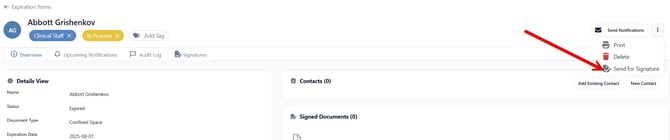
- In the top right of the item view, click the three-dot menu (the vertical ellipsis icon next to Send Notifications).
- Choose Send for Signature from the menu.
Note: The Send for Signature option only appears if your role has Manage Documents permission and your account is on Professional or above.
Step 3: Pick the template, recipient, and new expiration date
The dialog opens with the expiration item already locked in. You only need to choose:
- Template — pick an Active template. If your document type has a default template assigned, it will already be selected.
- Recipient — pick a contact from the list. Only contacts already linked to this expiration item appear in the dropdown.
- New Expiration Date — the date the item should be valid until after signing.
Note: If only one contact is linked to the item, that contact is auto-selected. If the item belongs to a document type that does not expire, the date field is hidden.
Step 4: Preview and send
- Click Preview to review the merged document.
- Click Send for Signature. You'll see the success toast and the dialog will close.
What the Recipient Sees
When you send a signature request, the contact receives an email with a unique signing link. Here's what they experience.
When they click the signing link
The link opens a clean, focused signing page (no Expiration Reminder navigation or login required). A banner across the top reads "Signing request from [Your Organization Name]".
The document is loaded directly in the page, and the recipient can:
- Scroll through the entire document.
- Click into the signature placeholder you defined with the Sign Here (Signature Field) merge field. They'll be prompted to type or draw their signature, or upload an image of their signature.
- Click Finish (or the equivalent action in the signing toolbar) to submit.
After they finish signing
The recipient sees a green confirmation overlay with:
- Title: "Document Signed!"
- Message: "Thank you for signing. Your signature has been recorded and the document has been sent for processing."
- The sending organization's name in small text below.
They can safely close the tab — no further action is required.
Other states the recipient might see
If the recipient opens the link after something has changed, they'll see one of these messages instead of the signing surface:
- Document Already Signed — "This document has already been signed. No further action is needed." Displayed in green with the signed date.
- Signing Link Expired — "This signing link has expired. Please contact [Your Organization] for a new link."
- Document Declined — "This document was declined and is no longer available for signing."
- Link Not Found — "This signing link does not exist or has been removed."
- Unable to Load Document — "There was a problem loading this document. Please try again or contact [Your Organization] for assistance."
If the recipient reports an expired or broken link, the simplest fix is to send a new signature request from your end.
What Happens After Signing
When the recipient finishes signing, Expiration Reminder automatically:
- Marks the request as Signed in your Signatures list.
- Downloads the signed PDF and attaches it to the expiration item as a document.
- Updates the item's expiration date to the New Expiration Date you chose (unless the document type doesn't expire).
You can then download the signed PDF, view the updated expiration date on the item, and continue with your normal workflow.
Tips & Best Practices
- Test with yourself first. Send a test request to your own email before sending to a real vendor. You'll see exactly what the contact will see.
- Set a generous new expiration date. Pick the date the renewal will actually run through, not the day the request is sent. If you're renewing an annual policy, the new expiration date is typically one year out.
- Double-check the contact's email. Signing links go to whatever email address is on the contact record. If the email bounces, no signing link is delivered.
- Confirm before sending. Use the preview to verify the merge fields look right — a "0 warnings" preview is a good sign that the template and the data line up.
Troubleshooting
- Issue: The Send for Signature option doesn't appear in the expiration item menu. Solution: Your account may be below the Professional plan, or your role may not have Manage Documents permission. Confirm both with your administrator.
- Issue: The template dropdown is empty or your template is missing. Solution: Go to Creating Contract Templates and verify the template exists. Both Active and Draft templates appear in the picker — if neither shows up, no templates have been created yet.
- Issue: The Send for Signature button is greyed out. Solution: Make sure all required fields are filled in (Template, Recipient, and a New Expiration Date if the field is shown).
- Issue: Toast says "Failed to send signature request. Please try again or contact support." Solution: This usually points to a temporary issue communicating with the e-signature provider. Wait a minute and try again. If it persists, contact Expiration Reminder support.
- Issue: The recipient never received the email. Solution: Ask them to check spam/junk folders. If still nothing, verify the email address on the contact record is correct, then send a new signature request.
- Issue: Preview shows warnings ("3 warnings"). Solution: This means some merge fields in your template don't have matching data on this contact / expiration item / company. The unresolved tokens are silently stripped from the final PDF. If a missing field is critical (for example, a signer's name), update the source data and try again — or remove the problematic merge field from the template.