
Before You Begin
- You need to be an account administrator, or have a custom role that includes the Settings View permission. If the Features page doesn't open for you, ask your account administrator to make the change.
- This setting affects your entire account. It turns off every upcoming reminder for every expiration item, contact, and recipient — not just one. If you only want to silence a single recipient or a specific reminder, see Adjusting Notification Delivery instead.
- Related articles:
Step-by-Step: Stop All Upcoming Notifications
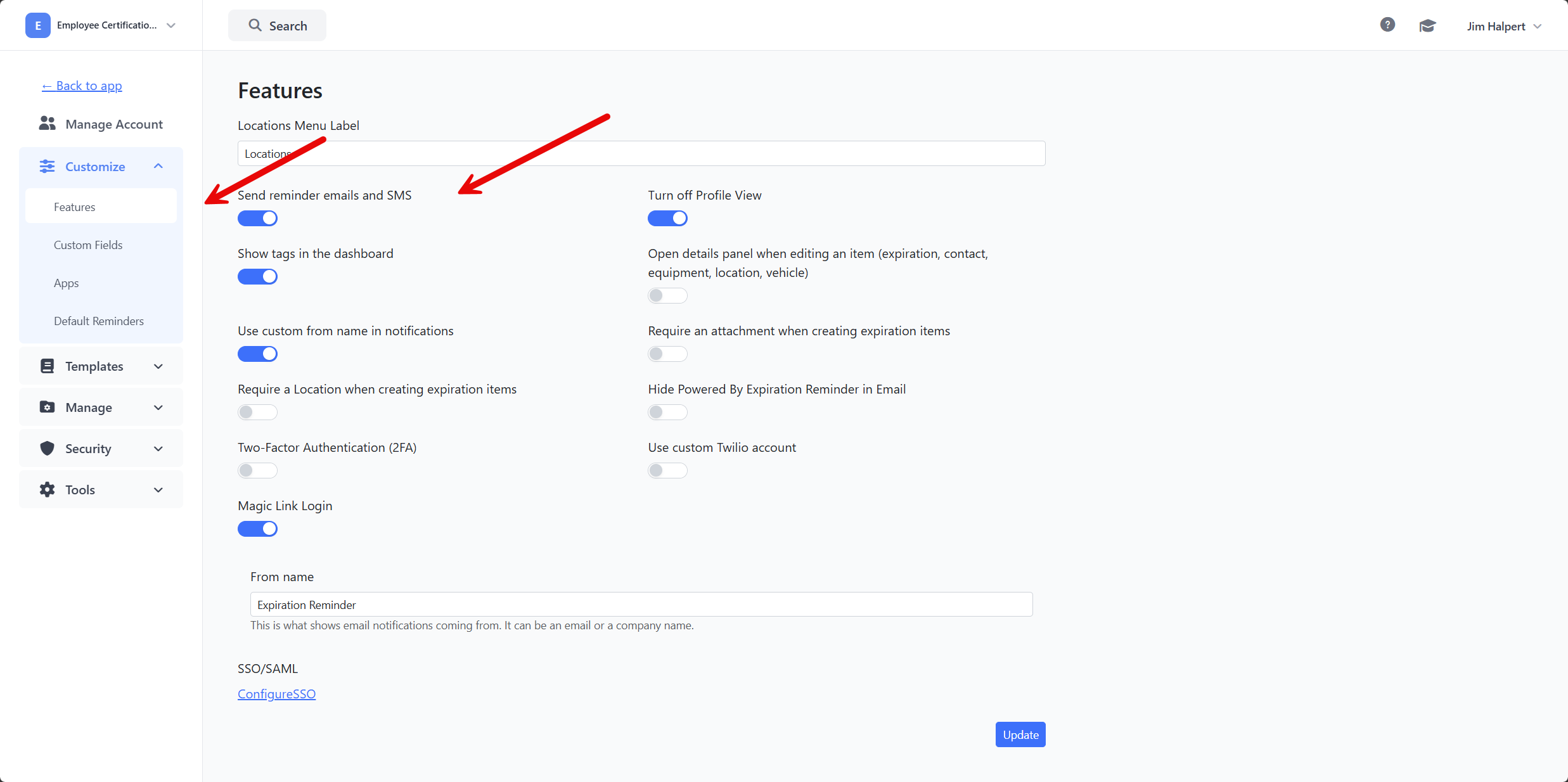
Step 1: Open the Features page
- Click the Settings icon to open the Settings menu.
- In the sidebar, expand the Customize group.
- Click Features.
The Features page opens with a list of account-wide toggles.
Step 2: Turn off the reminder toggle
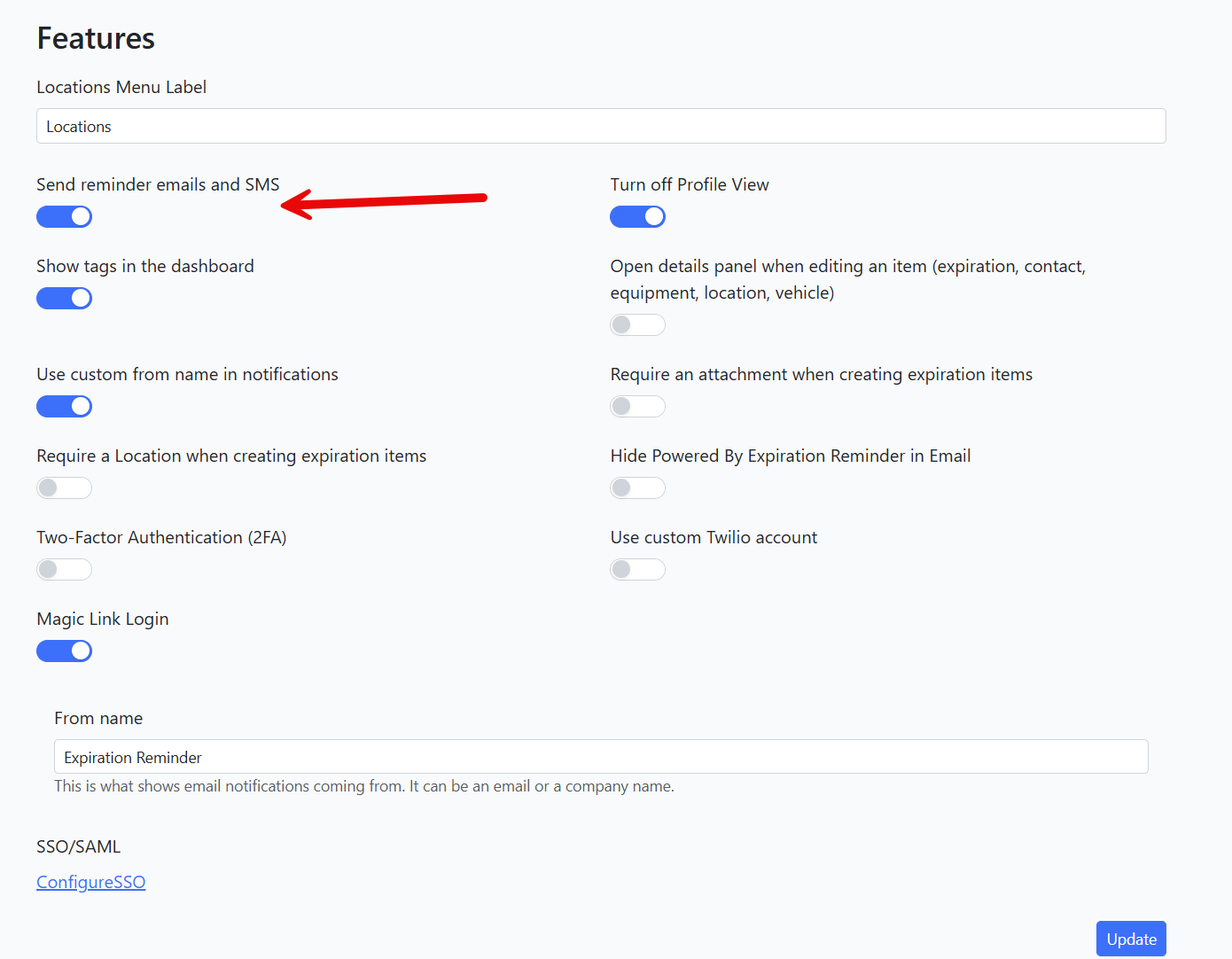
- Find the Send reminder emails and SMS toggle. It's the first switch in the list.
- Click the toggle so it moves from ON (blue) to OFF (gray).
Step 3: Save the change
- Scroll to the bottom of the page.
- Click Update.
A confirmation appears at the top of the page once the change is saved.
From this point on, no further reminder emails or SMS are sent from your account. Every upcoming notification that was scheduled to fire is held back as long as the toggle stays OFF.
Note: Turning the toggle off does not delete reminders from your account — it stops them from being sent. If you turn the toggle back on later, scheduled reminders that haven't expired resume from where they left off.
Checking What Was Scheduled
If you want to see exactly which reminders were queued up before you turned the toggle off, open the Upcoming Notifications page.
- Open the Settings menu.
- Expand the Tools group.
- Click Upcoming Notifications.
The page lists every reminder that's scheduled to send, the document type and expiration item it belongs to, the recipient, and the date the reminder is due. Use the search box and date-range filter at the top to narrow the list.
Tip: Bookmark this page if you regularly need to audit what's about to go out. It's the single source of truth for what notifications are waiting in the queue.
Turning Reminders Back On
When you're ready to resume sending reminders:
- Open Settings → Customize → Features.
- Switch Send reminder emails and SMS back to ON.
- Click Update.
Reminders resume on their original schedule. Any notification whose scheduled date is in the past is not sent retroactively — only notifications dated in the future deliver.
Tips & Best Practices
- Communicate the change. If your team is used to receiving renewal notices, give them a heads-up before you turn the toggle off so they know reminders will go quiet temporarily.
- Use this for short-term holds. Switching the toggle off is the right choice for a maintenance window, a template overhaul, or a project pause. For long-term quiet periods, look at archiving expiration items or fine-tuning notification calendars instead.
- Audit upcoming notifications before you flip the switch. Open Upcoming Notifications to see what's queued so you know what will be silenced.
Troubleshooting
- Issue: I switched the toggle off but didn't click Update, and reminders are still going out. Solution: Changes to the Features page aren't saved until you click Update. Reopen the page, toggle the switch, and click Update to apply the change.
- Issue: I'm not an administrator and the Features page won't open. Solution: Only administrators (or roles with the Settings View permission) can change these settings. Ask your administrator to make the change.
- Issue: I want to stop just one reminder, not everything. Solution: Don't change the Send reminder emails and SMS toggle — that's an account-wide switch. Instead, edit the relevant expiration item, contact, or notification template. See Adjusting Notification Delivery.