
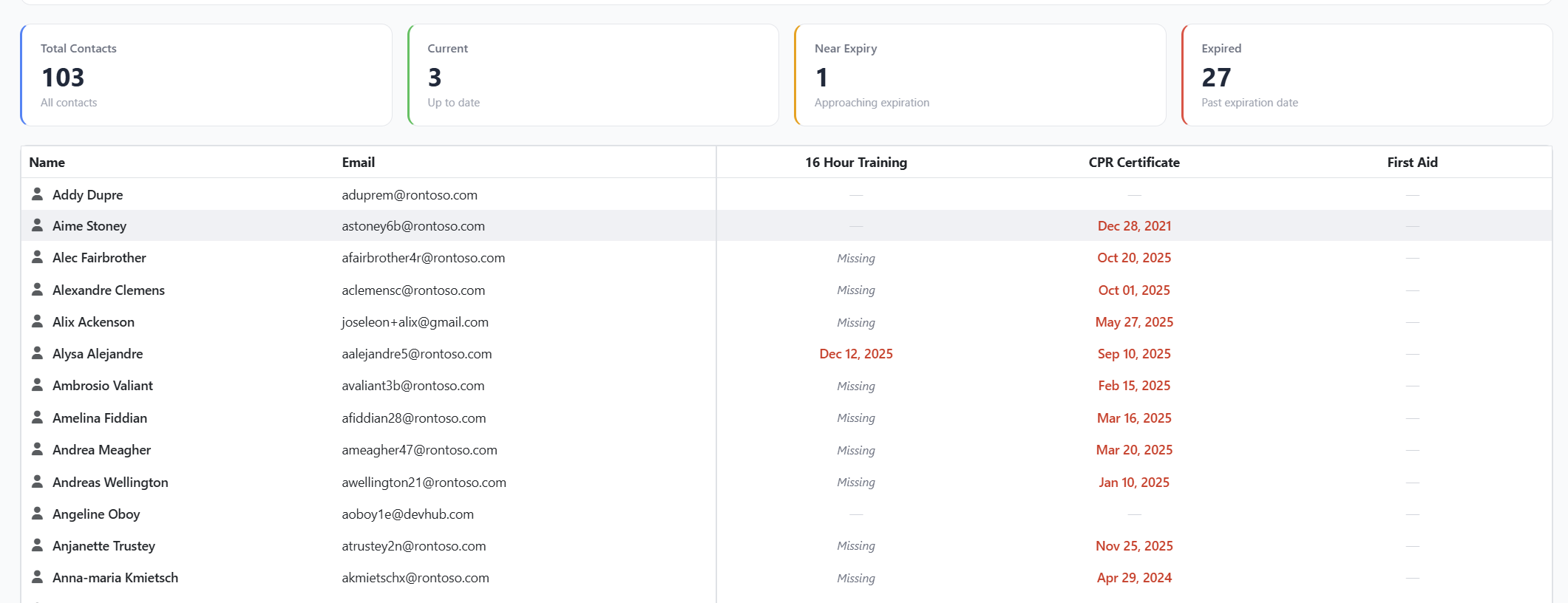
The Contact/Category Matrix Report gives you a bird's-eye view of document compliance across all your contacts. It displays each contact as a row and each selected document type as a column, with color-coded expiration dates so you can instantly spot expired, expiring, or missing items.
Before you begin
- Anyone with access to Reports can open the Contact/Category Matrix Report.
- The report only renders after you pick at least one document type (also called a "category") to include.
- The grid shows the next expiration date for each contact / document type combination, or a status label if no expiration date applies.
- Related articles:
What the report shows
A grid with:
- One row per contact.
- One column per selected document type.
- Each cell shows the next expiration date for that contact / document type, color-coded:
- Green — Current (not expired and not in the reminder window yet)
- Orange — Notifying (the reminder window has begun)
- Red — Expired
- Cells with no expiration date show a label instead:
- Missing — No expiration item exists yet for this combination
- No Date — An expiration item exists but no date is set
- N/A — The item is marked Not Applicable
- On Hold — The item is currently on hold
- A dash (—) means the contact has no record of this document type at all.
Four KPI cards at the top summarize the data:
Note: The KPI counts reflect only the document types included in the current report run. Changing your document type selection and regenerating the report will update all four counts.
- Total Contacts — number of contacts shown in the report
- Current Items — green cells across the matrix
- Notifying Items — orange cells
- Expired Items — red cells
Step-by-Step Instructions
Step 1: Open the report
- From the left sidebar, click Reports.
- Click Standard Reports.
- Under Contacts, click the Contact/Category Matrix Report card.
Step 2: Choose which document types to include
The Select Document Types panel lists every active document type in your account.
- Tick the checkbox next to each document type you want to include as a column.
- Use Select All or Clear All to speed up bulk selection.
- The status text on the right shows how many are selected.
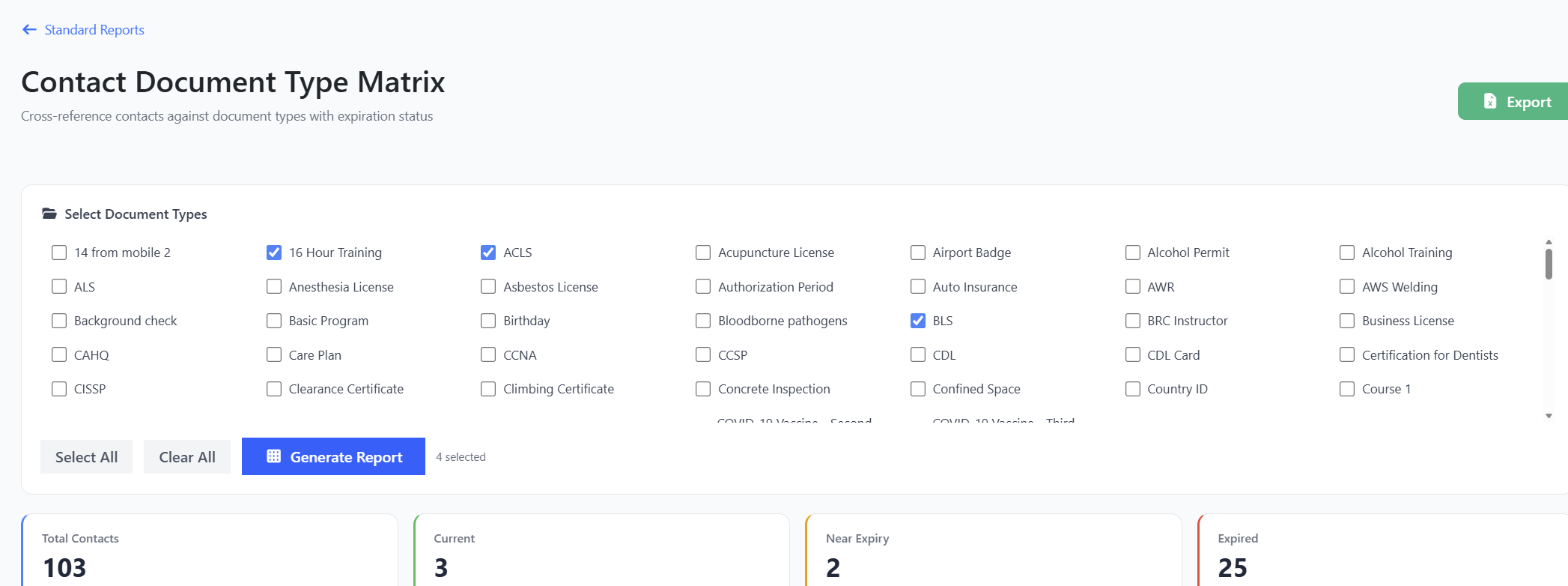
Tip: Start with just 4–6 document types so the grid stays readable. You can always rerun the report with a different selection.
Step 3: Generate the report
Click the blue Generate Report button. The grid renders below the selector panel.
If you change your mind, simply tick or untick document types and click Generate Report again.
Step 4: Read the matrix
- The Name and Email columns are frozen on the left so you can scroll the document type columns without losing track of who you're looking at.
- A red date means that document is already expired for that contact.
- An orange date means the document is within its notification window — reminders are being sent.
- A green date means the document is current and not yet in the reminder window.
- A gray label (Missing, No Date, N/A, On Hold) means there's no active date to display — read it as an action item.
Step 5: Export to Excel
- Click the green Export button in the upper right.
- The browser downloads an
.xlsxfile containing the matrix. - The exported file preserves all date values. Color coding is replaced by plain-text status labels (for example, "Expired", "Current", or "Notifying") so the data remains meaningful without color.
Tips & Best Practices
- Use it for compliance reviews. This is the fastest report for spotting which contacts are missing required documents — every dash (—) or Missing label is a gap to fill.
- Bookmark the URL. Once you've picked the document types you care about, save the page URL — re-running with the same selection is a few clicks faster than building it from scratch.
- Pair with renewals. Sort the grid by the column for any document type to push expired/notifying rows to the top, then renew them in batches.
- Add new document types here first. When you create a new compliance category, run this report immediately to see who needs to get an item for it.
Troubleshooting
- Issue: I clicked Generate Report but nothing happened.
Solution: Make sure at least one document type is selected. The button is disabled until you tick at least one box. - Issue: A contact appears with all dashes, even though I know they have documents.
Solution: The contact's documents are assigned to document types not included in your current selection. Widen your document type selection to include those types, or open the contact record directly to review all documents on file. - Issue: The grid is too wide to read.
Solution: Run the report with fewer document types selected. The Name and Email columns are frozen, so scrolling horizontally still works, but a narrower matrix is easier to scan. - Issue: The colors don't match my expectations.
Solution: Cell color is based on the document's status, not the date itself. The reminder window duration is configured per document type — to adjust it, open the document type's settings. Red means Expired, orange means Notifying (in the reminder window), and green means Current. Open the expiration item to check its actual reminder settings.