
Before you begin
- Anyone with access to Reports can open the Contact List Report.
- The report loads all contacts in your account, both Active and Archived, sorted by name.
- Related articles:
What does the Contact List Report show?
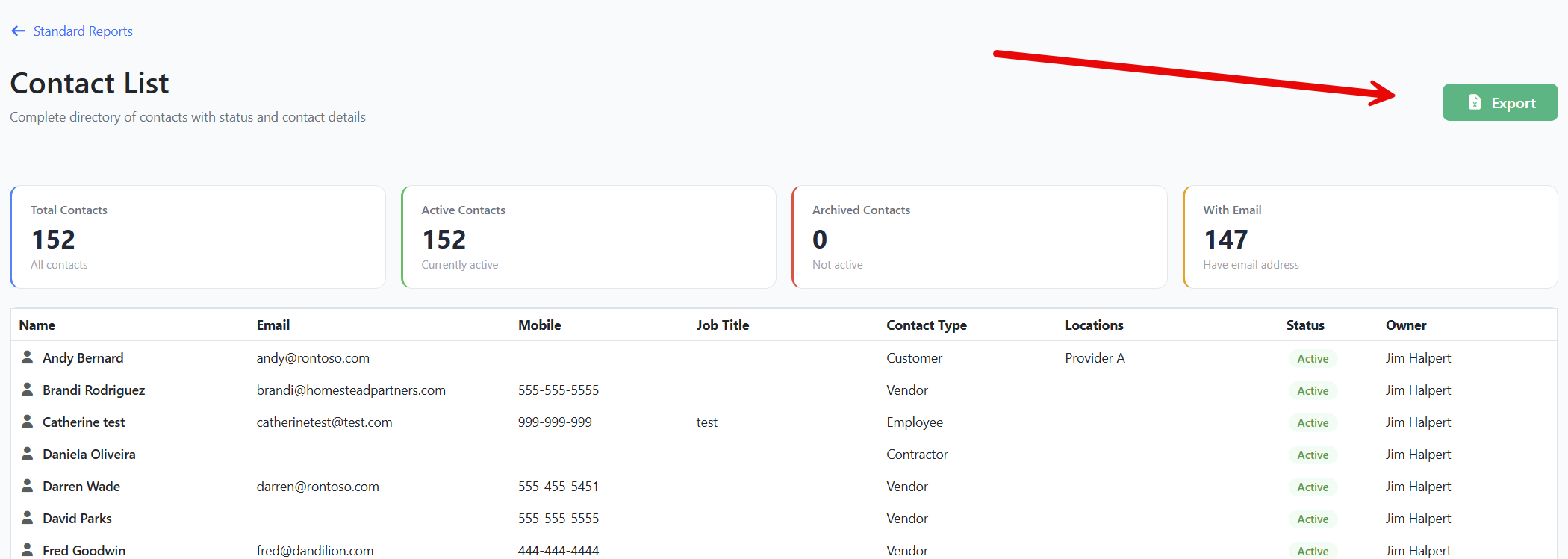
A single grid with one row per contact and the following columns:
| Column | What it shows |
|---|---|
| Name | The contact's full name. |
| Email address used for notifications. | |
| Mobile | Phone number used for SMS notifications. |
| Job Title | Free-text job title. |
| Contact Type | The type label (for example, Employee, Customer). |
| Locations | Comma-separated list of the locations this contact is linked to. |
| Status | Active (green) or Archived (red). |
| Owner | The user in your account who owns this contact. |
At the top of the page, four KPI cards summarize the data:
- Total Contacts — every contact in the account.
- Active Contacts — contacts not archived.
- Archived Contacts — contacts that have been archived.
- With Email — contacts that have an email address on file.
How do I use the Contact List Report?
Step 1: Open the report
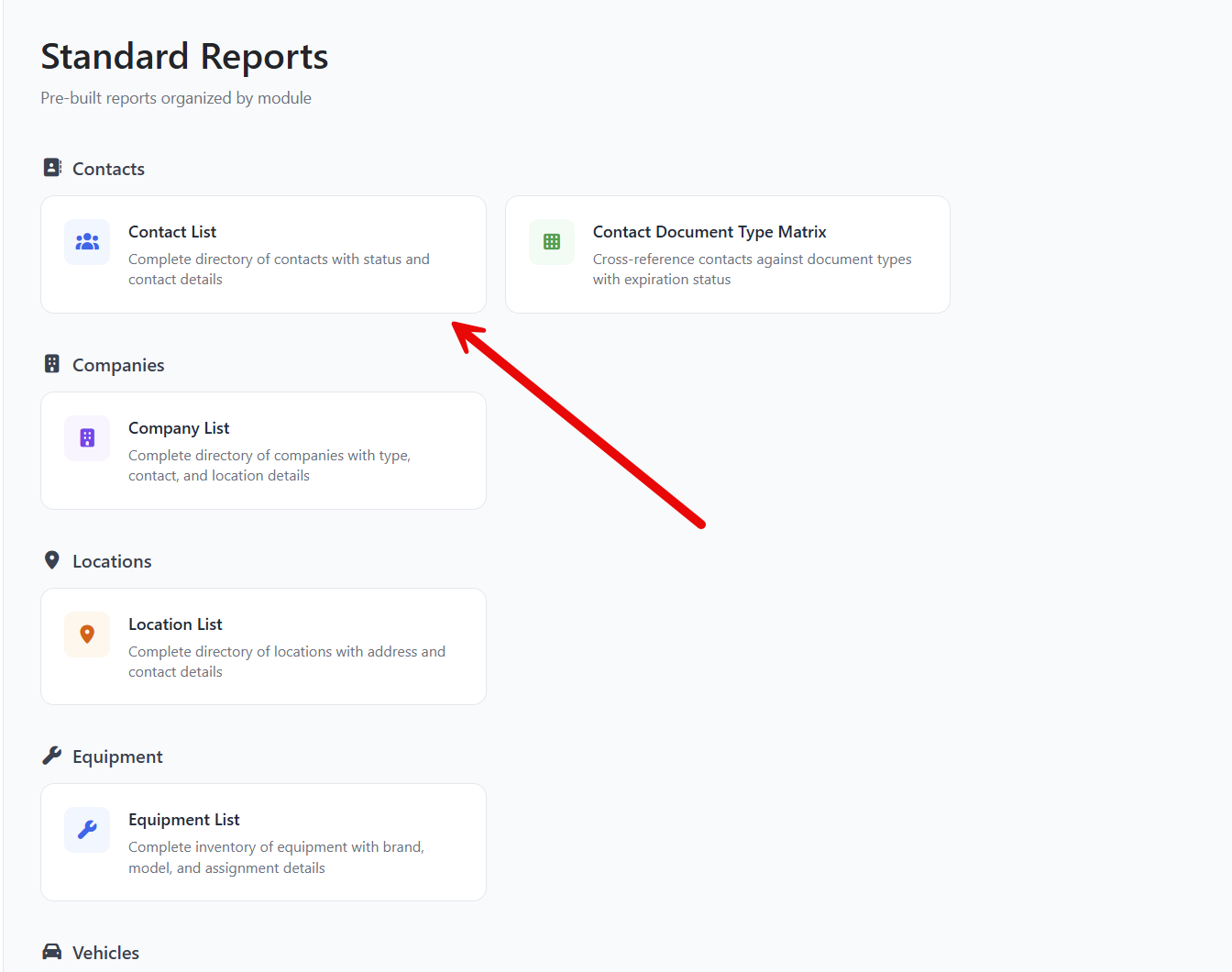
- From the left sidebar, click Reports.
- Click Standard Reports.
- Under Contacts, click the Contact List Report card.
Step 2: Review the KPI cards
Glance at the four cards along the top to get an instant sense of the total population, active vs. archived split, and how many contacts have an email address.
Step 3: Sort or scroll the grid
- Click any column header to sort by that column.
- Scroll right to see columns that don't fit on screen, like Owner.
Step 4: Export to Excel
- Click the green Export button (Excel icon) in the upper right.
- Open the downloaded
.xlsxfile in Excel or Google Sheets. - The exported file matches the grid columns.
Step 5: Return to the catalog
Click ← Standard Reports at the top of the page to choose a different report.
Tips & best practices
- Use this report for monthly contact audits. Sort by Owner to review each owner's caseload, or by Contact Type to see how your roster is broken down.
- Find contacts with no email. Sort by the Email column ascending — blanks appear at the top. Those contacts won't receive email reminders until you add an address.
- Archive cleanup. Use the Status column to spot archived contacts that should be reactivated, or active contacts that should be archived.
- For deeper compliance views, combine this report with the Contact/Category Matrix Report, which shows which document types each contact holds.
Troubleshooting the Contact List Report
- Issue: The report shows fewer contacts than I expected.
Solution: The Contact List Report respects your account's data isolation rules — for example, if you use workspaces, you'll see contacts visible to your current workspace. Check your workspace selector in the main app. - Issue: A contact I just added isn't appearing.
Solution: Refresh the page. The report queries live data on page load, but it does not auto-refresh. - Issue: The Owner column is blank for many rows.
Solution: Those contacts have no owner assigned. Open the contact and use the Owner field on the Details card to assign one — see Editing and Updating Contacts.