
Before You Begin
- You need admin permission to manage Company Types.
- Each company you create gets a Company Type, which controls how it's labeled and which custom fields appear on it.
- Custom fields defined on a Company Type only appear on companies of that type — not on every company in the account.
- Related articles:
Step-by-Step Instructions
Step 1: Open the Company Types page
- From the left sidebar, click Settings.
- Click Company Types.
You'll see a list of every Company Type currently defined in your account.
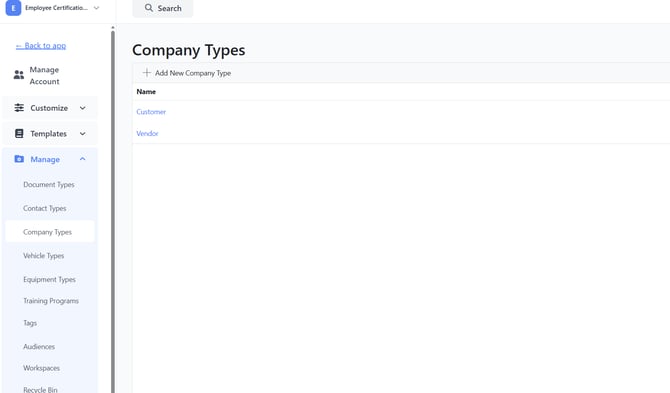
Step 2: Add a new Company Type
- Click Add New Company Type in the toolbar.
- A sidebar opens on the right. Enter the Name (for example, Subcontractor, Insurance Carrier, Property).
- Save the type.
The new type appears in the list immediately.
Step 3: View a Company Type's details
Click the type's name in the list to open the preview sidebar, where you can see how it's configured and which custom fields are attached.
Step 4: Manage custom fields for a Company Type
- In the Actions column on the type's row, click Actions → Custom Fields.
- The grid switches to show the custom fields defined for that specific Company Type.
- From here you can:
- Click Add Custom Field to create a new field that only appears on companies of this type.
- Click Sort Custom Fields to drag the fields into a different display order.
- Click the red Delete link to remove a field.
- Click ← Back at the top of the page to return to the Company Types list.
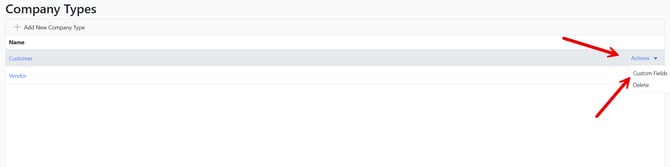
Tip: Use custom fields scoped to a Company Type when the field only makes sense for that one kind of company. For example, a Policy Number field on the Insurance Carrier type, but not on Vendor companies.
Step 5: Delete a Company Type
- In the Actions column, click Actions → Delete.
- Confirm the deletion.
The type is removed from the list. Companies that previously used this type will no longer have a type assigned.
Tips & Best Practices
- Keep the list short. Five to ten Company Types is usually plenty. Too many makes the type dropdown unwieldy when creating a new company.
- Use account-wide custom fields for shared data. If a field applies to every company (like Tax ID), create it as an account-wide custom field in Settings → Custom Fields → Companies rather than on a single Company Type.
- Reassign before deleting. If you delete a Company Type that companies are currently using, those companies lose their type — and lose access to that type's custom fields. Reassign them to a different type first.
- Sort fields for data entry. Use Sort Custom Fields to put the most important fields at the top so users see them first when creating or editing a company.
Troubleshooting
- Issue: I don't see Company Types in Settings.
Solution: Company Types are admin-only. Ask an admin to grant you the Setting View permission. - Issue: I deleted a Company Type by accident.
Solution: Recreate the type with the same name. You'll then need to manually reassign the affected companies to the new type — there's no automatic restore. - Issue: A custom field I added isn't showing up on the company I'm editing.
Solution: Custom fields are scoped to the Company Type. Make sure the company you're editing is set to the same type the field belongs to. - Issue: I can't reorder my custom fields.
Solution: Open Sort Custom Fields from the toolbar. The reordering UI is a separate dialog — you can't drag rows directly in the main fields grid.