
The Company List Report gives you a full grid of every company in your account — both Active and Archived — with sortable columns and a one-click Excel export. Use it to audit company data, review ownership, or identify companies missing a primary contact.
Before you begin
- Anyone with access to Reports can open the Company List Report.
- The report loads all companies in your account, both Active and Archived, sorted by name.
- Related articles:
What does the Company List Report show?
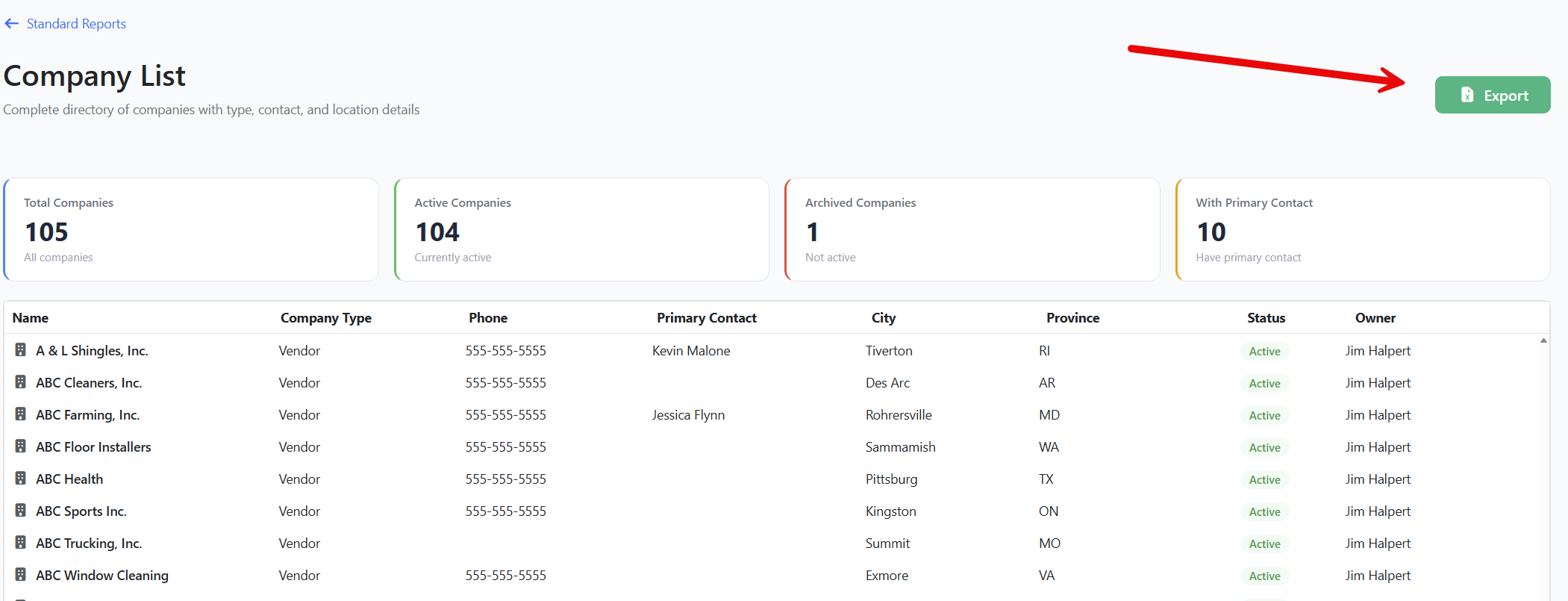
The report displays a single grid with one row per company. The table below lists each column and what it shows.
| Column | What it shows |
|---|---|
| Name | The company's name. |
| Company Type | The type label your admins created (for example, Vendor, Customer). |
| Phone | Main phone number. |
| Primary Contact | The contact marked as the company's main point of contact. |
| City | City where the company is based. |
| Province | State or province. |
| Status | Active (green) or Archived (red). |
| Owner | The user in your account who owns this company. |
Four KPI cards at the top summarize the data:
- Total Companies — every company in the account.
- Active Companies — companies not archived.
- Archived Companies — companies that have been archived.
- With Primary Contact — companies that have a primary contact assigned.
Step-by-Step Instructions
Step 1: Open the report
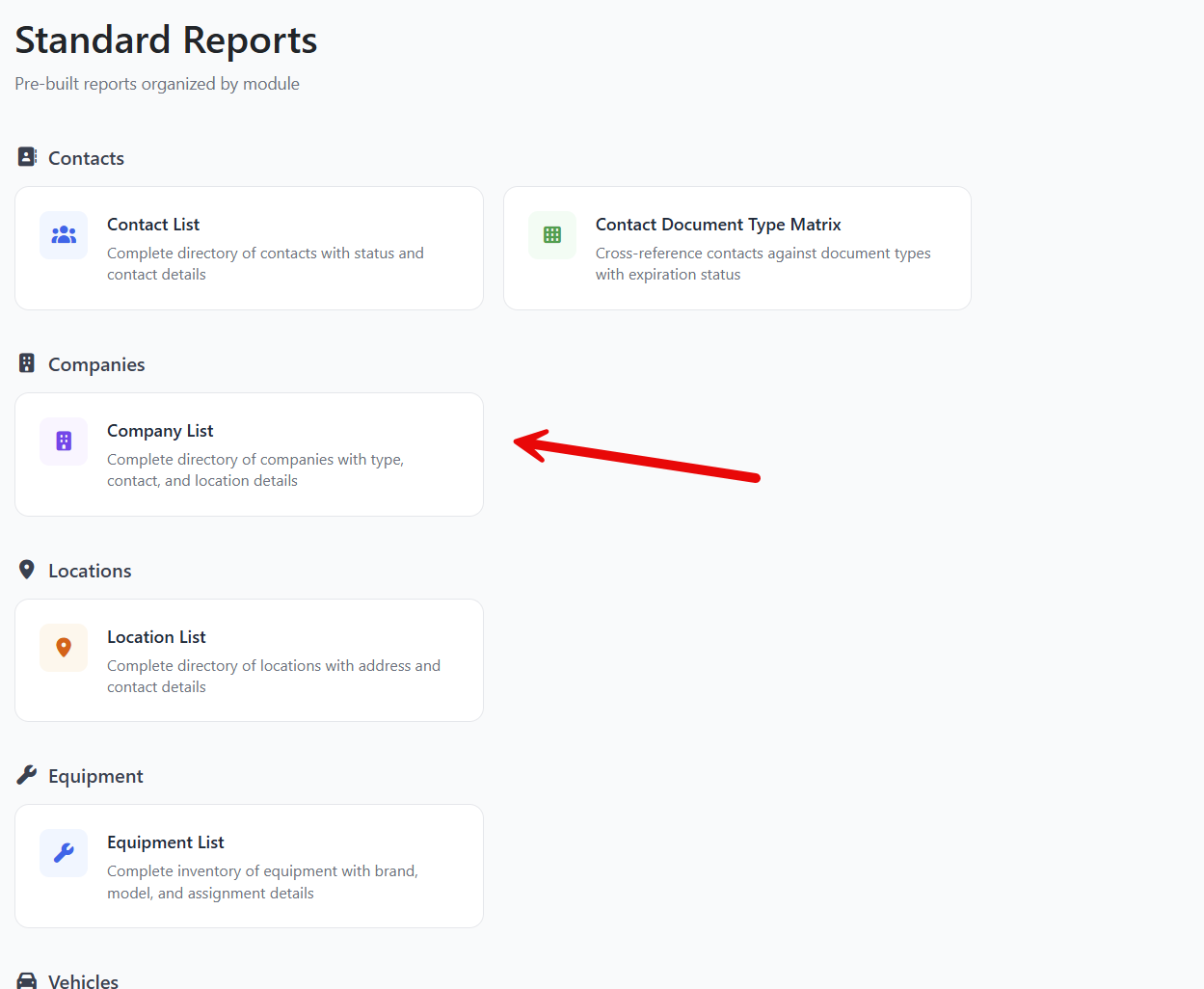
- From the left sidebar, click Reports.
- Click Standard Reports.
- Under Companies, click the Company List Report card.
Step 2: Review the KPI cards
Use the four cards at the top of the page to get an instant view of the total, active vs. archived split, and how many companies have a primary contact on file.
Step 3: Sort or scroll the grid
- Click any column header to sort. Click again to flip the sort direction.
- Scroll horizontally if you can't see every column on screen.
Step 4: Export to Excel
- Click the green Export button (Excel icon) in the upper right.
- The browser downloads an
.xlsxfile that mirrors the grid columns. - Open it in Excel or Google Sheets for further analysis.
Step 5: Return to the catalog
Click ← Standard Reports at the top of the page to choose a different report.
Tips & Best Practices
- Find companies without a primary contact. Sort by the Primary Contact column ascending — blanks rise to the top. Add a primary contact so notifications and reports route correctly.
- Audit by owner. Sort by Owner to review each owner's portfolio of companies and reassign where needed.
- Use it before a re-org. Export the list to Excel, mark up the changes in a spreadsheet, then update the companies one by one — or use bulk-edit tools in the companies list.
Troubleshooting
- Issue: The KPI for Active Companies doesn't match the count I see when I sort by Status.
Solution: The KPI counts the entire dataset regardless of how you've sorted the grid. Sorting only changes display order, not the number of rows. - Issue: A company I just added isn't appearing.
Solution: Refresh the page. The report queries live data on page load, but it does not auto-refresh. - Issue: I don't see a Reports menu in the left sidebar.
Solution: Your account may not include the Reports module, or your role doesn't have report access. Contact your account admin.