
Before You Begin
- Anyone with access to your account can use the calendar.
- The calendar shows expiration items as events on their Expiration Date. It does not show created/modified dates or non-expiration tasks.
- Items are color-coded by document type (also called "category") so you can spot what's coming up at a glance.
- Related articles:
What you see on the page
The calendar page has three columns:
- Left column — Filter & Upcoming list. Pick which document types to show, then scroll an upcoming-expirations list filtered to that selection.
- Center column — Calendar. A monthly, weekly, or daily view of every matching expiration item.
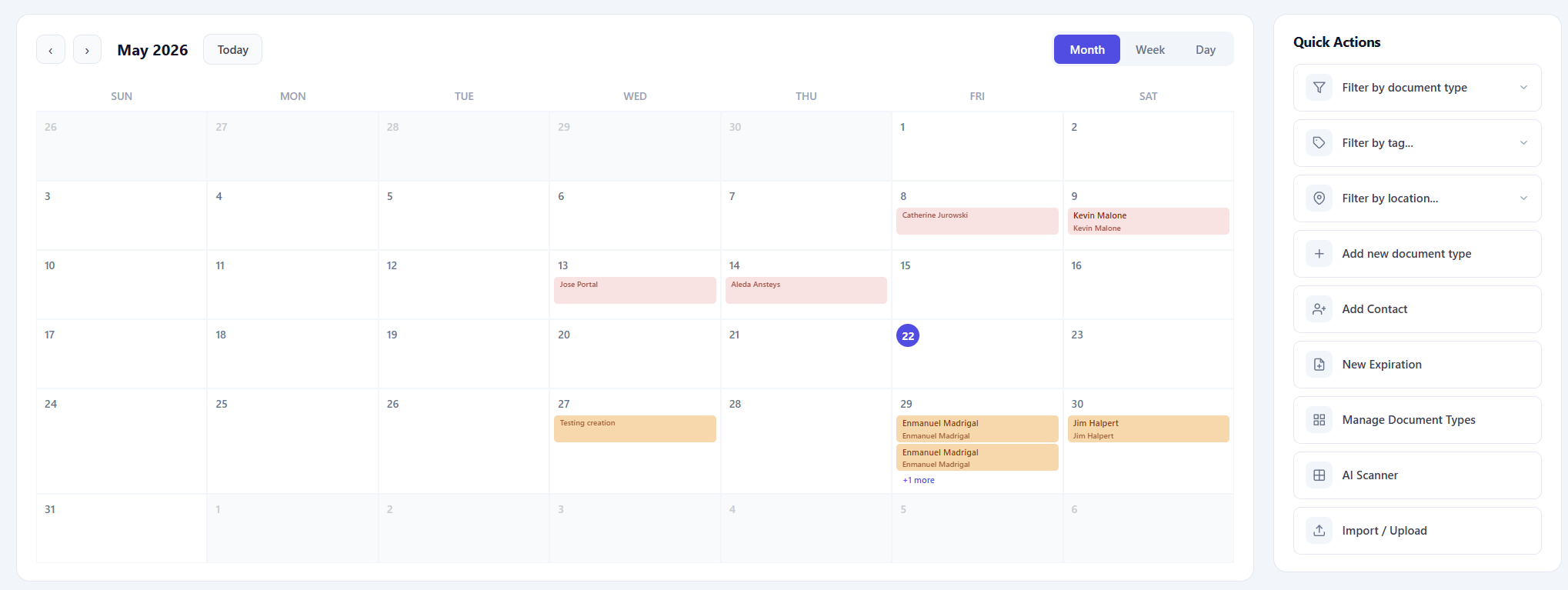
Step-by-Step Instructions
Step 1: Open the calendar
From the left sidebar, click Calendar.
The page loads with the Month view selected by default.
Step 2: Choose a view
The center column lets you switch the calendar between:
- Month — every day in the current month at a glance. Best for long-range planning.
- Week — the seven days of the current week with detail.
- Day — a single day, useful for very busy schedules.
Use the calendar's built-in navigation arrows to move forward or backward in time.
Step 3: Filter by document type
In the left column, the Filter by Type section shows color-coded chips for your most common document types.
- Click a chip to add it to the filter. The chip becomes highlighted.
- Click it again to remove it.
- Click the Other chip (with the ⋯ icon) to open a dialog listing every other document type — tick the ones you want to add.
The center calendar and the upcoming list both update instantly to match your selection.
Tip: Start with no chips selected to see everything, then add chips one by one to drill down.
Step 4: Read the calendar events
Each event on the calendar is colored to match its document type. The colored block shows the item's name.
- Click an event to jump straight to that item's full detail page.
- Click an empty day to navigate to that date.
Step 5: Scan the Upcoming Expirations list
Below the filter chips on the left, the Upcoming Expirations list shows every matching item sorted by expiration date. The count at the top tells you how many items match your current filter.
Step 6 (optional): Customize your reminders
Click the Customize Reminders link below the upcoming list to jump to your Default Reminders configuration — see Default Reminders Configuration.
Tips & Best Practices
- Use Month view for planning, Week view for action. Month gives the big picture; Week makes individual items easier to read.
- Color-coding is your friend. Assign distinctive colors to document types when you create them — the calendar relies on color to help you scan quickly.
Troubleshooting
- Issue: Items I expect to see are missing.
Solution: Check your filter chips. If any are selected, the calendar only shows items in those document types. Click each highlighted chip to remove the filter. - Issue: An expiration appears on the wrong day.
Solution: The calendar uses each item's Expiration Date in your account's time zone. If a contact's time zone is different, the reminder is sent to them in their zone, but the calendar always shows your time zone. - Issue: I clicked an event and got a "not found" page.
Solution: The item may have been deleted or you may not have permission to view it. Refresh the calendar to clear out stale events. - Issue: I don't see a Calendar menu in the left sidebar.
Solution: Some plans don't include the Calendar module. Contact your account admin to check your plan, or use the Expiration Items list as an alternative view.