
Before You Begin
- You need access to the Training Programs module. Some plans don't include it — if you don't see Training Programs in the left sidebar, ask an admin.
- A Training Program is a reusable template that you assign to one or more contacts. The contact's record then tracks completion dates and renewal cycles.
- Related articles:
Step-by-Step Instructions
Step 1: Open the Training Programs page
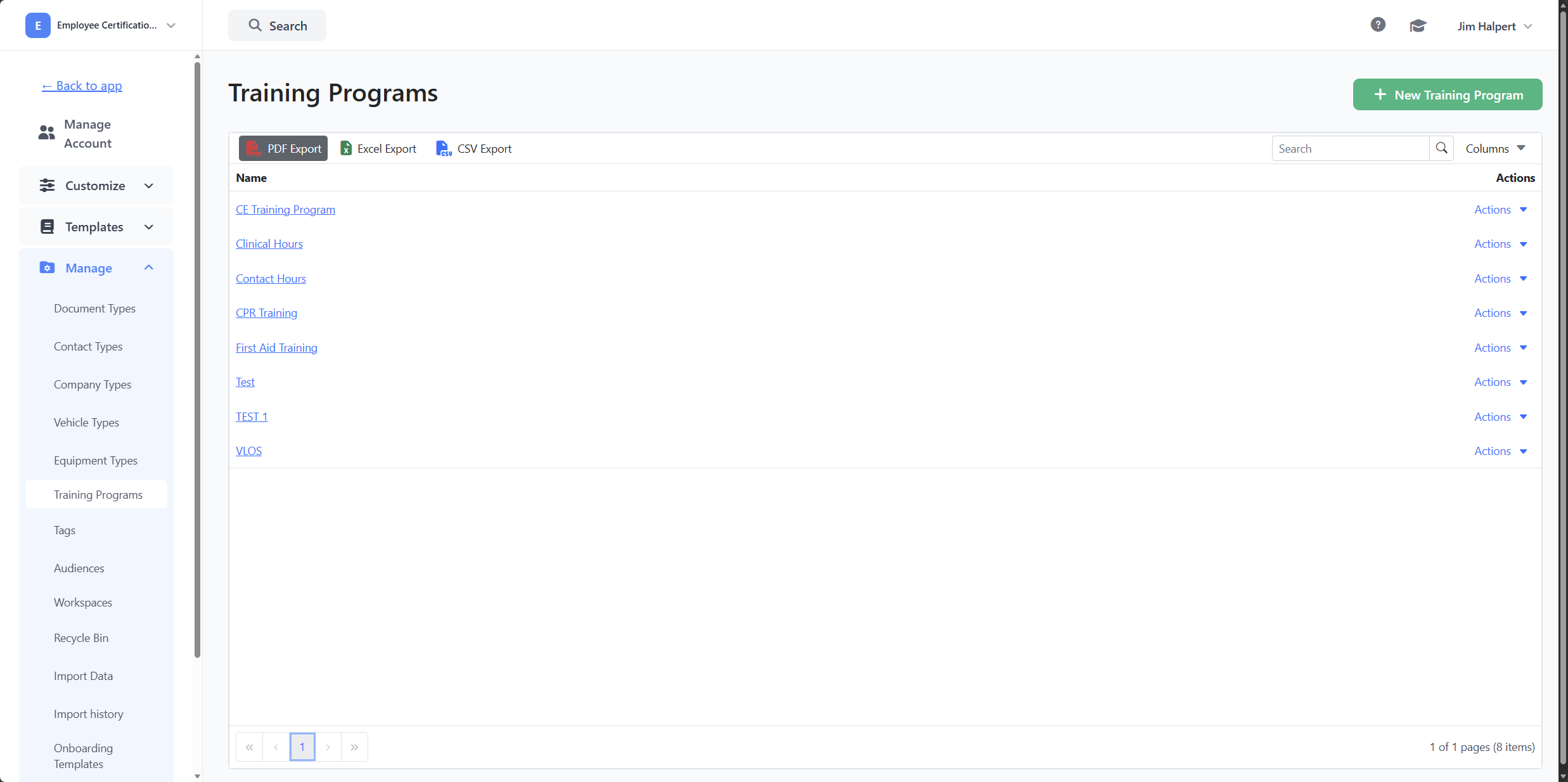
From the left sidebar, click Training Programs.
You'll see a list of every training program currently defined in your account.
Step 2: Create a new Training Program
- Click the green New Training Program button in the upper right.
- A sidebar opens on the right with the program form.
- Fill in the program's Name and any other available fields (renewal cycle, default duration, etc.).
- Save the program.
The new program appears in the list immediately.
Step 3: Search the list
If you have a long list of programs, use the grid's Search box (in the toolbar) to find one by name. The list filters as you type.
Step 4: Preview a program
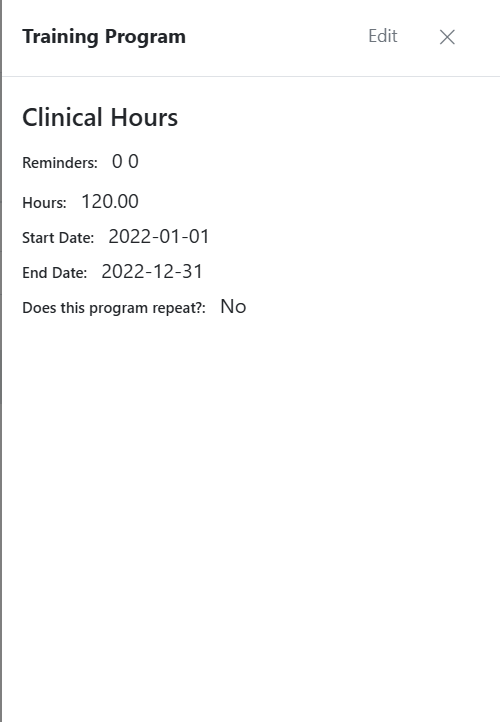
Click the program's name in the Name column to open its preview sidebar. You can review its settings, see which contacts are assigned to it, and edit its details from there.
Step 5: Delete a Training Program
- In the Actions column for that program's row, click Actions → Delete.
- Confirm the deletion in the dialog that appears.
The program is removed. Any contacts who had completed this training will lose the record.
Step 6: Export the list
Use the toolbar's export options to download the full list:
- PDF Export — a printable PDF.
- Excel Export — an
.xlsxfile you can open in Excel or Google Sheets. - CSV Export — a plain CSV.
Assigning a Training Program to a contact
To attach a Training Program to a specific person:
- Open the contact's profile page.
- Switch to the Training Programs tab.
- Click Add and select the program from the list.
- Enter the completion date if known.
The contact's record now tracks this program and will renew on the cycle the program defines.
Tips & Best Practices
- Name programs clearly. "First Aid Refresher (Annual)" is more useful than "FA" — the name appears in reports and on contact records.
- Use one program per certification. Don't combine multiple skills into one program. Smaller, focused programs make reporting and renewals much cleaner.
- Pair with reminders. Configure Default Reminders so contacts get notified before their training expires — see Default Reminders Configuration.
- Archive instead of delete when possible. Deleting a program removes historical completion records. If a program is just being retired, consider keeping it and stopping new assignments instead.
Troubleshooting
- Issue: I don't see Training Programs in the left sidebar.
Solution: Your plan may not include this module. Contact your account admin to verify. - Issue: I deleted a Training Program by accident.
Solution: Recreate the program with the same name. Contact completion history for the deleted program cannot be restored. - Issue: A contact's training program shows the wrong renewal date.
Solution: Renewal dates are calculated from the completion date and the program's renewal cycle. Open the contact's training record and verify the completion date is correct. - Issue: The New Training Program button is missing.
Solution: Your role doesn't include create permission for this module. Ask an admin to update your role.