
How to Edit a Contact
In Expiration Reminder, you can update any contact's details — including name, email, phone, time zone, and custom fields — directly from the contact's profile page using inline editing. No separate edit dialog is needed. This article walks you through each editing option step by step.
Before You Begin
- You need permission to edit contacts. If the Save and edit (pencil) icons don't appear next to a field, your role is set to Viewer or Reader — ask an admin to update your role.
- Some fields (like Email and Phone) drive notification delivery, so changes take effect on the next scheduled reminder.
- Related articles:
Step-by-Step Instructions
Step 1: Open the contact you want to edit
- From the left sidebar, click Contacts.
- In the contacts list, click the contact's name to open their profile page.
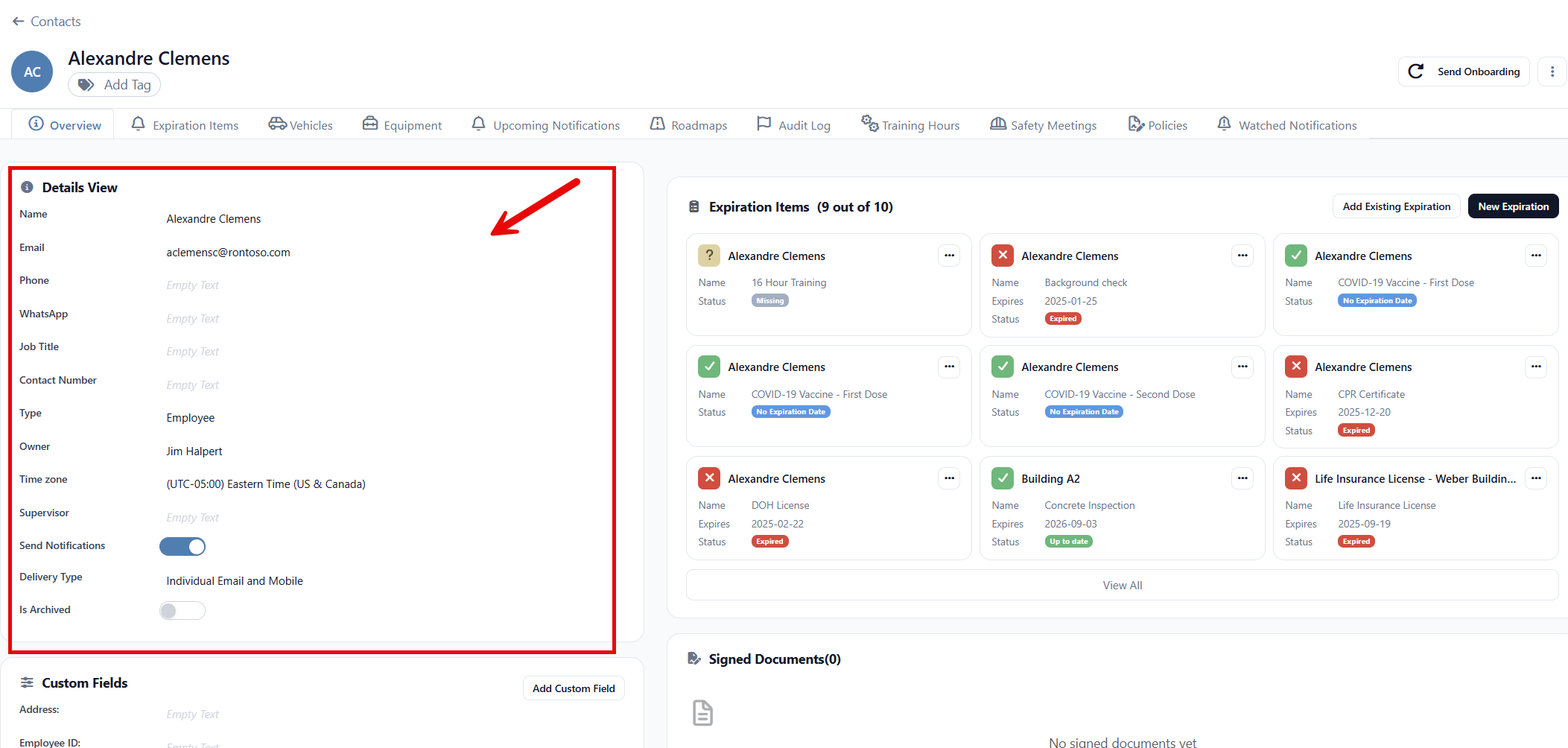
You'll land on the Overview tab, where every editable field is grouped inside the Details card.
Step 2: Edit a single field inline
Every row in the Details card is independently editable — you don't need to open a separate edit dialog.
- Hover over the field you want to change (for example, Name, Email, or Phone).
- Click the value or the pencil icon that appears.
- Type the new value.
- Click the green checkmark to save, or the red x to cancel.
A success toast appears at the bottom-right of the screen once the change is saved.
Step 3: Update common contact details
The following fields can be edited the same way from the Details card:
- Name — the contact's full name shown throughout the app and in notifications.
- Email — used for email reminders. If the address was previously bouncing, a Bouncing badge appears next to the field with a Remove Bouncing button you can click after correcting the address.
- Phone — used for SMS reminders. An Undelivered badge appears if a previous SMS could not be delivered. To clear this badge, correct the phone number and then contact support or wait for the next successful delivery to reset the status.
- WhatsApp — separate number used for WhatsApp reminders if your plan includes them.
- Job Title and Contact Number — free-text fields for your records.
- Type — pick from the list of contact types your admin has created.
- Owner — the user in your account who is responsible for this contact.
- Time Zone — controls the time of day notifications are sent to this contact.
- Supervisor — the contact's manager. Used by automation rules and supervisor digests.
- Send Notifications — turn email and SMS reminders for this contact on or off.
- Delivery Type — choose which channels to use (email, SMS, WhatsApp, or any combination).
- Archived — toggle to archive or unarchive the contact. Archiving hides the contact from active lists without deleting their history.
Tip: "Send Notifications" controls whether the contact receives any reminders at all. If you only want to mute a single channel, leave Send Notifications on and change Delivery Type instead.
Step 4: Edit custom fields
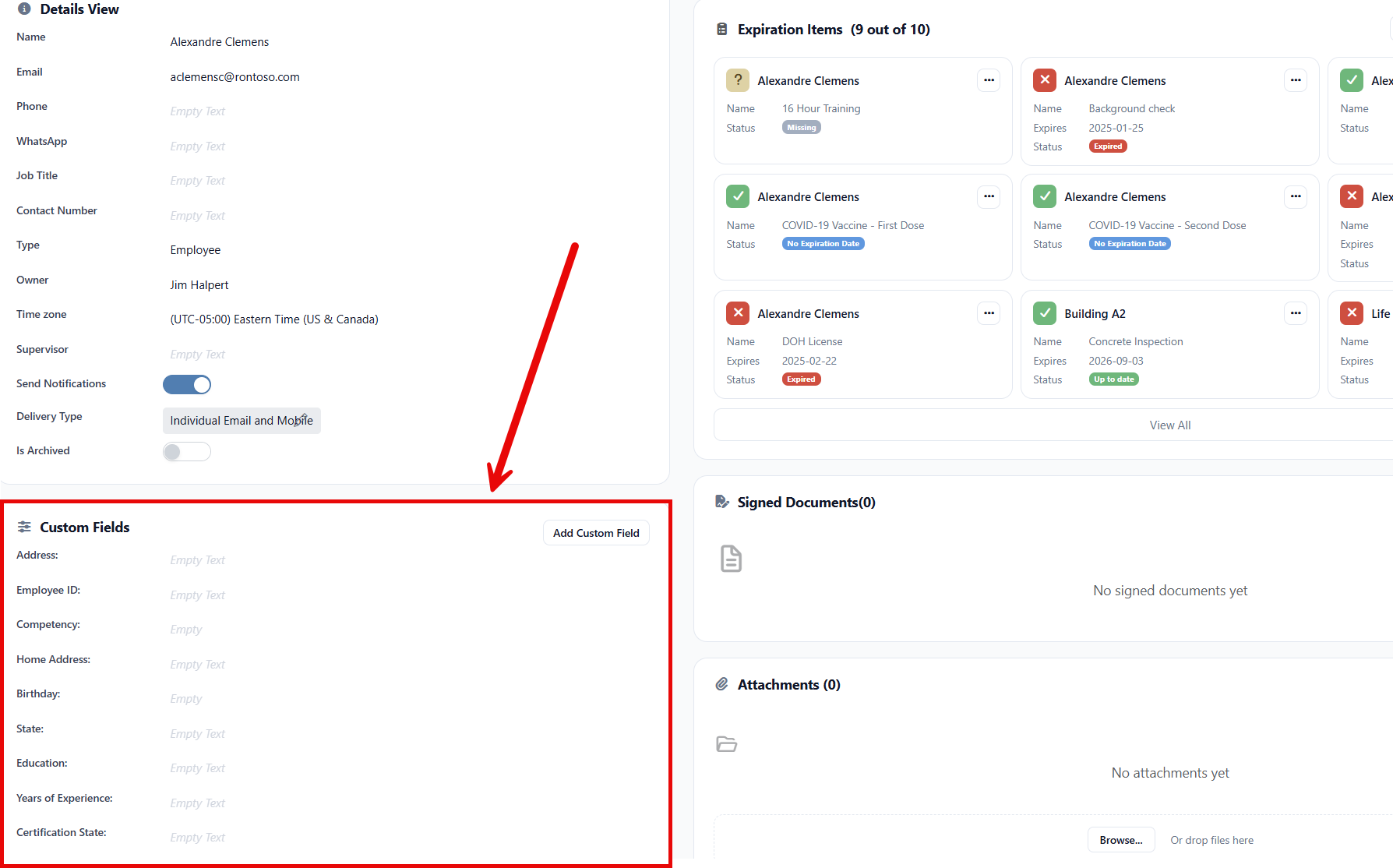
If your account uses custom fields for contacts, scroll down to the Custom Fields card on the left side of the page. Click any custom field value to edit it inline, exactly like the standard fields above.
Step 5: Update the contact's profile picture
- Click the round avatar at the top of the contact page.
- Upload a new image (JPEG, PNG, or GIF; recommended size 200×200 px or larger), or remove the existing one.
- The new photo appears immediately throughout the app.
Tips & Best Practices
- Bouncing emails: If an email keeps bouncing, fix the address first, then click Remove Bouncing to allow notifications again. Until you click it, the system will keep skipping that contact.
- Time zone matters: Reminders are queued based on each contact's Time Zone, not yours. Set this correctly for contacts in different regions.
- Owner field: Many automation rules and reports group contacts by Owner. Keep this up to date when responsibilities change.
- Bulk changes: To update many contacts at once, use the Bulk Edit option from the contacts list — see Importing Contacts if you'd rather upload changes from a spreadsheet.
Troubleshooting
- Issue: I don't see a pencil icon or my edits aren't saving.
Solution: Your role doesn't include edit permission. Ask an account admin to assign you a role with Contact Update permission, or change your role from Viewer/Reader to User or higher. - Issue: I changed the email address but reminders are still going to the old one.
Solution: Reminders are queued ahead of time. New addresses take effect from the next scheduled send. If the contact had a Bouncing badge, also click Remove Bouncing so the system stops skipping them. - Issue: I can't find a "delete contact" button.
Solution: Contacts are archived rather than hard-deleted, so historical data is preserved. Toggle Is Archived on the contact's Details card, or follow the steps in Archiving a Contact.