
Before You Begin
- You need permission to view policies. The page is read-only if your role doesn't include Policy Update or Policy Delete permissions.
- A Policy is a document your contacts need to read and acknowledge (for example, a Code of Conduct). An Acknowledgement is a specific request you send out for that policy, scoped to an audience and a date range.
- Related articles:
What the tracking page shows
When you open a policy acknowledgement, you see:
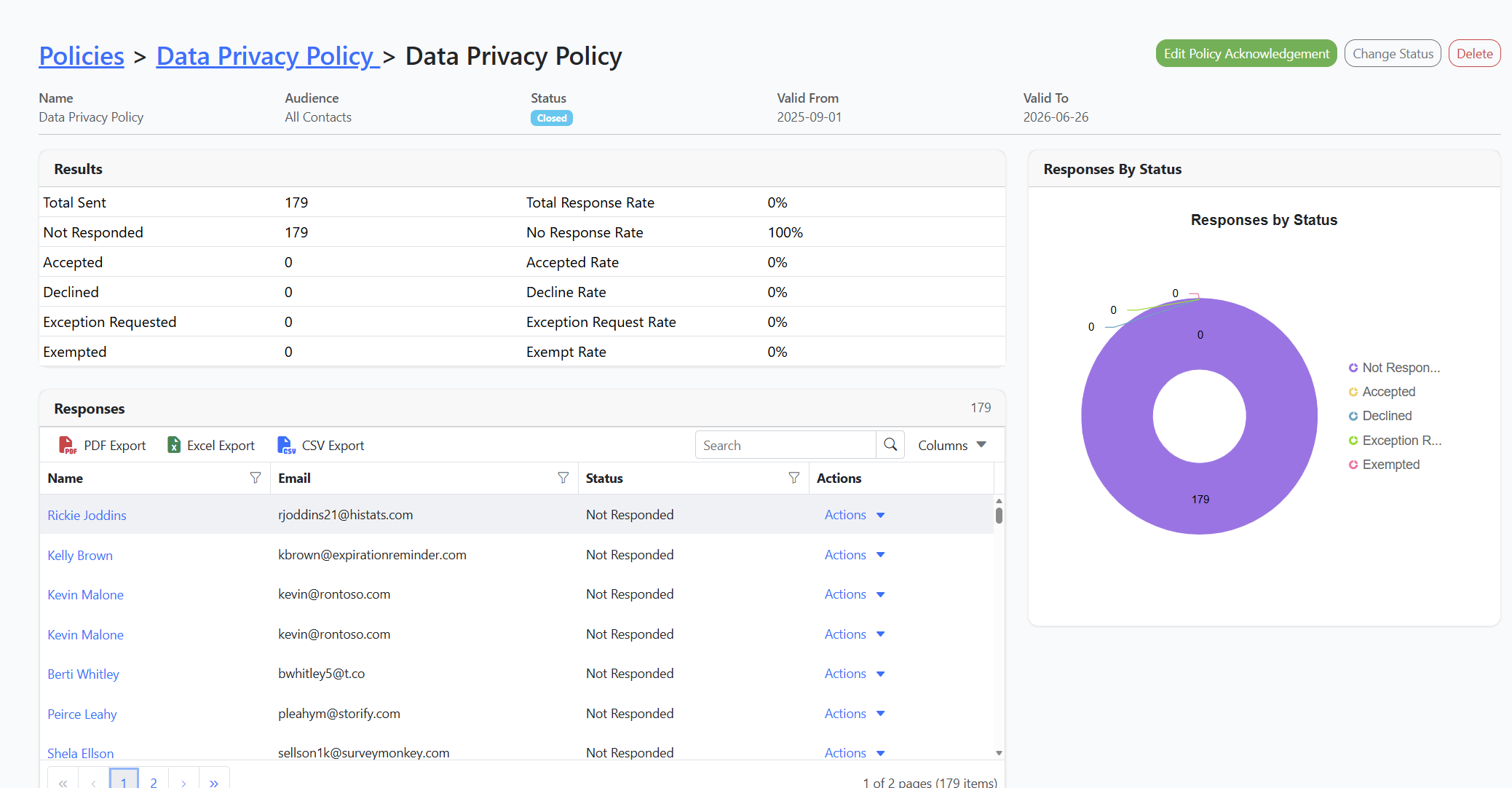
- Header details — the acknowledgement's Name, Audience, Status, Valid From, and Valid To dates.
- Results card — a summary table with counts and rates:
| Metric | What it means |
|---|---|
| Total Sent | How many contacts the acknowledgement was sent to. |
| Total Response Rate | Percentage of recipients who have replied (accepted, declined, requested an exception, or were exempted). |
| Not Responded | Contacts who haven't replied yet, plus the corresponding No Response Rate. |
| Accepted | Contacts who accepted, plus the Accepted Rate. |
| Declined | Contacts who declined, plus the Decline Rate. |
| Exception Requested | Contacts who asked for an exception, plus the Exception Request Rate. |
| Exempted | Contacts you marked as exempt, plus the Exempt Rate. |
- Responses grid — every contact who received the acknowledgement, with their name, email, current status, and an actions menu.
- Responses by Status pie chart — a quick visual breakdown of the response mix.
Step-by-Step Instructions
Step 1: Open the acknowledgement
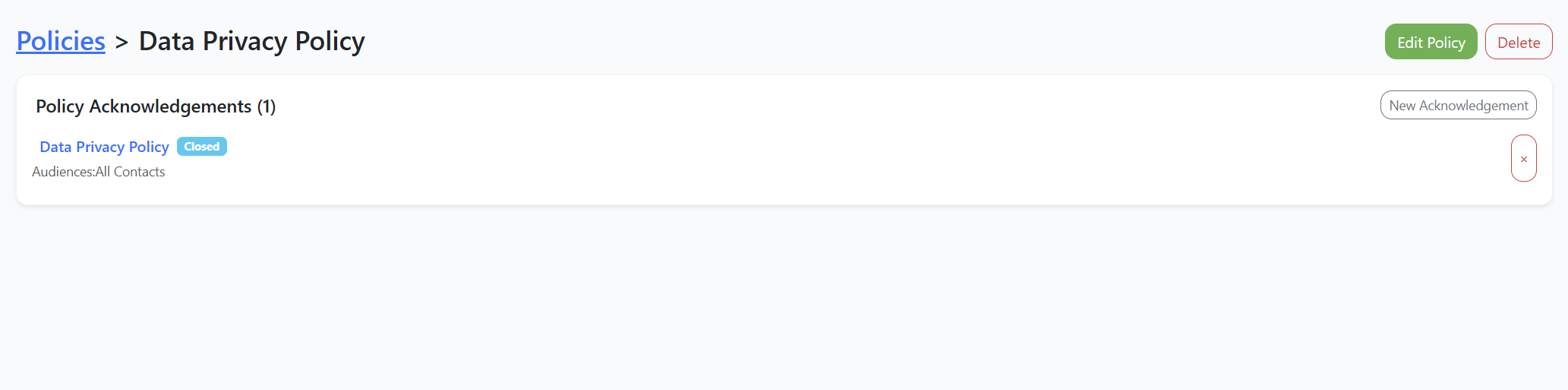
- From the left sidebar, click Policies.
- Click the policy you want to inspect.
- In the Policy Acknowledgements card, click the acknowledgement name.
Step 2: Review the Results card
Scan the Results table to see how the acknowledgement is performing at a glance.
- A high No Response Rate means many recipients haven't replied yet — consider following up.
- A high Decline Rate or Exception Request Rate flags content or audience issues worth investigating.
Step 3: Drill into the Responses grid
The Responses grid lists each recipient and their current status (for example, Accepted, Declined, Exception Requested, or blank if they haven't replied).
- Sort by Status to group everyone with the same response together.
- Search by name or email using the grid's search box.
- Click a contact's name to open a quick-preview of that contact.
Step 4: View an individual response
In the Actions column for any row, click Actions → View to open a detailed page for that contact's response. You'll see exactly what they replied and when.
Step 5: Export the responses
Open the grid's toolbar (the three-dot menu / Excel Export / PDF Export options) to download the full responses list.
Step 6 (optional): Update the acknowledgement
If you need to make changes:
- Click Edit Policy Acknowledgement in the header to update the audience, dates, or message.
- Click Change Status to mark the acknowledgement as complete or cancelled.
- Click Delete to remove the acknowledgement entirely (this also removes its responses).
Tips & Best Practices
- Use the chart for stakeholder updates. The Responses by Status pie chart is a quick visual to drop into a compliance review or board meeting.
- Follow up with non-responders. Sort the Responses grid by blank status, then send a message to the contacts who haven't replied.
- Exempt people, don't decline for them. If someone shouldn't have received the acknowledgement, use the Exempt action rather than clicking Decline on their behalf. Exemptions preserve compliance evidence.
- Lock acknowledgements after the window closes. Once the Valid To date passes, use Change Status to mark the acknowledgement complete so it stops appearing in contact dashboards.
Troubleshooting
- Issue: A contact says they responded but they show as Not Responded in the grid.
Solution: Refresh the page. If they still appear as not responded, check that their email matches the one in the audience — replies are matched by email address. - Issue: The Total Sent doesn't match my audience size.
Solution: The audience may have changed after the acknowledgement was sent. Audiences are evaluated at send time, so removing a contact from the audience later doesn't reduce the Total Sent count. - Issue: I can't click Edit Policy Acknowledgement.
Solution: Your role doesn't include the Policy Update permission. Ask an admin to grant it, or have them make the change for you. - Issue: The acknowledgement was sent but no one received the email.
Solution: Check the audience contacts have valid email addresses and that Send reminder emails and SMS is on in Settings → Customize → Features.