
Before You Begin
- You need permission to view the expiration item and the Manage Documents permission to upload files. If the upload area doesn't appear on the expiration item, ask your account administrator to update your role.
- Supported formats: PDF, Word (
.doc,.docx), Excel (.xls,.xlsx), JPG, JPEG, PNG, GIF. - Maximum file size: 20 MB per file.
- Related articles:
- Adding an Expiration Item
- Including Expiration Files in Notifications
- Using the Document Library
Uploading a Document from the Expiration Item Page
Step 1: Open the expiration item
- In the left navigation, click Expirations → Expiration Items.
- Click the name of the expiration item you want to add the document to.
The expiration item's detail page opens.
Step 2: Find the Attachments card
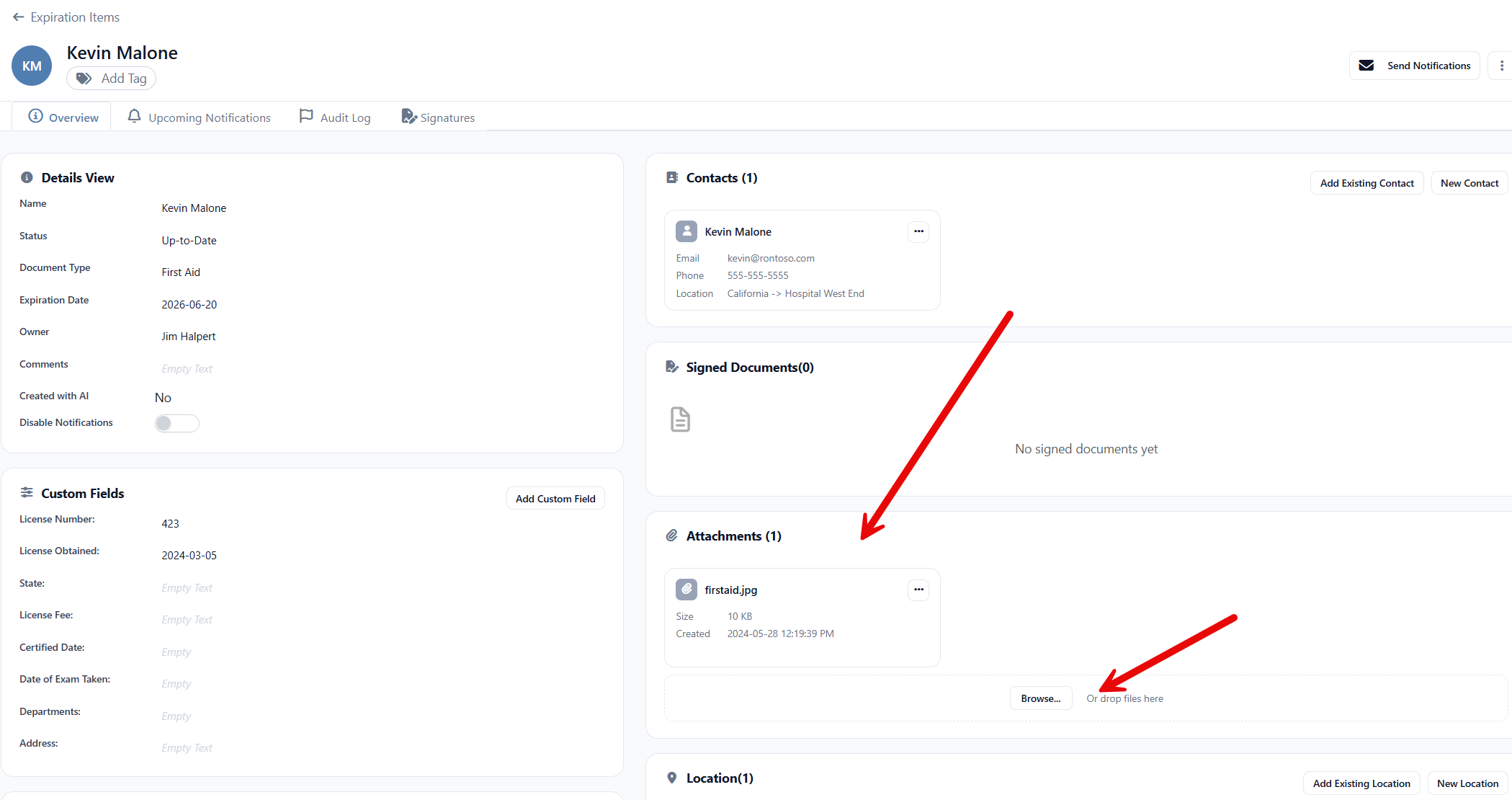
Scroll down the detail page until you see the Attachments card. The card shows the file count and lists any documents that are already attached.
If no documents have been added yet, the card displays the message "No attachments yet".
Step 3: Upload the file
You have two ways to add a file:
- Drag and drop — drag a file from your desktop onto the upload area at the bottom of the Attachments card. The hint reads "Or drop files here".
- Browse — click the upload area to open your computer's file picker, then choose a file.
The upload starts automatically as soon as the file is added. A progress indicator appears next to the file name and the attachment appears in the list when the upload finishes.
Tip: You can add several files in one go. Select multiple files in the file picker, or drag a group of files into the upload area together. Each one is uploaded in turn.
Step 4: Confirm the document is attached
The new document appears in the Attachments card with its file name and the date it was uploaded. Click the file name to preview it; use the three-dot menu on the card to rename or delete it.
Uploading by Dragging a File onto a Row
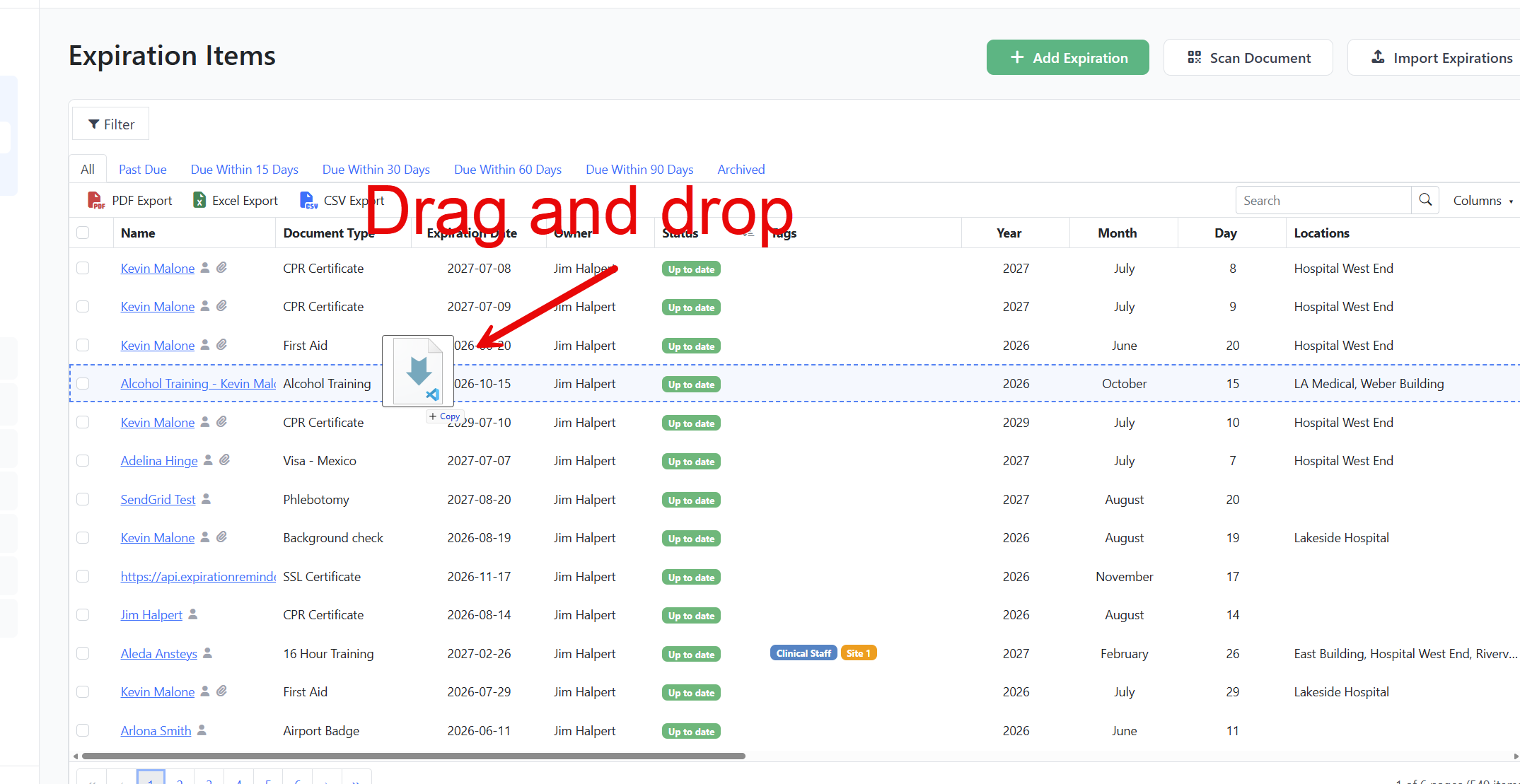
If you're working from the Expiration Items list and don't want to open the record first, you can drop a file directly onto the row.
- In the left navigation, click Expirations → Expiration Items.
- Find the row you want to attach the file to.
- Drag a file from your desktop and drop it onto the row.
The row highlights as you hover, and the file uploads automatically. A confirmation appears when the attachment is saved.
Replacing or Removing a Document
Rename a document
- In the Attachments card, find the file you want to rename.
- Click its action menu and choose Rename.
- Type the new name and confirm.
Remove a document
- In the Attachments card, find the file you want to remove.
- Click its action menu and choose Delete.
- Confirm in the dialog.
The file is removed from the expiration item but kept in the Recycle Bin for an administrator to restore if needed.
Tips & Best Practices
- Name files clearly before uploading. A descriptive file name (for example, ACME-Insurance-2026-renewal.pdf) makes the attached document easier to find later.
- Keep file sizes lean. Large PDFs with scanned images can hit the 20 MB ceiling. Run them through your scanner's compression option or "Reduce File Size" in your PDF tool before uploading.
- Attach the document before you set the reminder schedule. You can include the file directly in renewal notifications — see Including Expiration Files in Notifications.
- Use drag-and-drop on the list view for quick bulk loads. It's the fastest way to add files when you have one document per expiration item.
Troubleshooting
- Issue: "File too large" appears after I drop a file. Solution: The file exceeds the 20 MB per-file limit. Compress the file or split it into smaller pieces.
- Issue: The upload area doesn't appear on the expiration item page. Solution: Your role doesn't include the Manage Documents permission for expiration items. Ask your account administrator to grant it.
- Issue: "Invalid file" appears when I upload. Solution: Only PDF, Word, Excel, JPG/JPEG, PNG, and GIF files are accepted for expiration items. Convert the file to one of the supported formats and try again.
- Issue: The upload times out on a large file. Solution: Compress the file or use a faster network connection. Files near the 20 MB limit are more likely to time out on slow connections.