
Before You Begin
- You need permission to view and edit templates. Most accounts let any user view templates, but only admins can edit them.
- A Digest Template is a special kind of email template designed to summarize many expirations into one message — different from a single-item reminder template.
- Related articles:
Step-by-Step Instructions
Step 1: Open the Digest Templates page
- From the left sidebar, click Settings.
- Click Templates.
- Click Digest Templates.
You'll see a list of every Digest Template currently saved in your account.
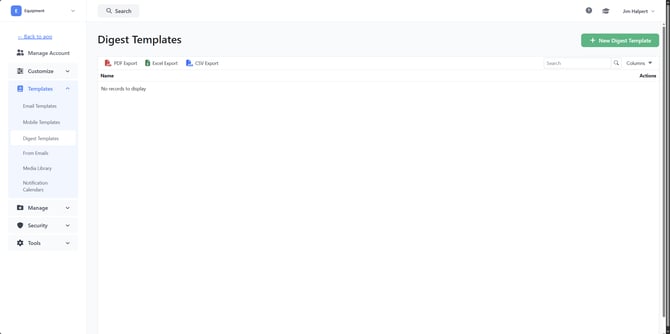
Step 2: Create a new Digest Template
- Click the green New Digest Template button in the upper right.
- A sidebar opens with a form.
- Enter a Name for the template (for example, "Weekly Supervisor Digest").
- Save to create the template — you'll be taken to the template editor to fill in the body.
Step 3: Edit a Digest Template
- From the list, click the template's name. The editor opens.
- Use the editor to set:
- Subject line — the email subject the recipient will see.
- Body — the email content, including merge tags for expiration item lists, contact names, dates, and more.
- Save the template.
Step 4: Search the list
If you have many templates, use the search box in the toolbar to filter the list by name as you type.
Step 5: Copy a template
To clone an existing template as a starting point:
- In the Actions column, click Actions → Copy.
- A dialog asks you to enter a name for the copy.
- Click Confirm to create the duplicate. Edit it the same way as any other template.
Step 6: Delete a template
- In the Actions column, click Actions → Delete.
- Confirm the deletion.
Caution: If the template is referenced by a workflow or scheduled digest, removing it will leave that workflow without a template. Either reassign first or be ready to update the affected workflow.
Step 7: Export the list
Use the toolbar's export buttons to download the full list:
- PDF Export
- Excel Export
- CSV Export
Tips & Best Practices
- Name templates by purpose, not content. "Weekly Supervisor Digest" is more useful than "Sept 2025 v3" — the name should make it obvious which workflow uses it.
- Start by copying an existing template. Use Actions → Copy instead of starting from scratch — your existing layout and merge tags carry over.
- Test before sending broadly. When you finish a new template, assign it to a workflow that sends to just yourself first. Review the output, then expand to a wider audience.
- Keep the merge-tag list handy. Digest templates support special tags for listing multiple items. See the Email Templates reference for the full tag list.
Troubleshooting
- Issue: I don't see the Templates → Digest Templates menu.
Solution: Your role doesn't include the Setting View permission. Ask an admin. - Issue: I copied a template, but the copy doesn't appear in the list.
Solution: Refresh the page. The list reloads from the server on refresh. - Issue: I deleted a template and now a digest workflow stopped sending.
Solution: The workflow no longer has a template to use. Open the affected workflow and assign a different template. - Issue: My merge tags show up as raw text in the sent email.
Solution: Merge tags must use the exact syntax shown in the template editor. Check for typos or missing curly braces.