
Before You Begin
- You need the Delete permission for expiration items. If the Delete option doesn't appear in the actions menu, ask your account administrator to update your role.
- Restoring an item from the Recycle Bin requires an administrator account.
- Consider archiving instead of deleting if you might need the record later. See Managing an Expiration Status.
- Related articles:
Deleting a Single Expiration Item
You can delete an expiration item from two places: the Expiration Items list, or the expiration item's own page.
From the Expiration Items list
- In the left navigation, click Expirations → Expiration Items.
- Find the row you want to delete.
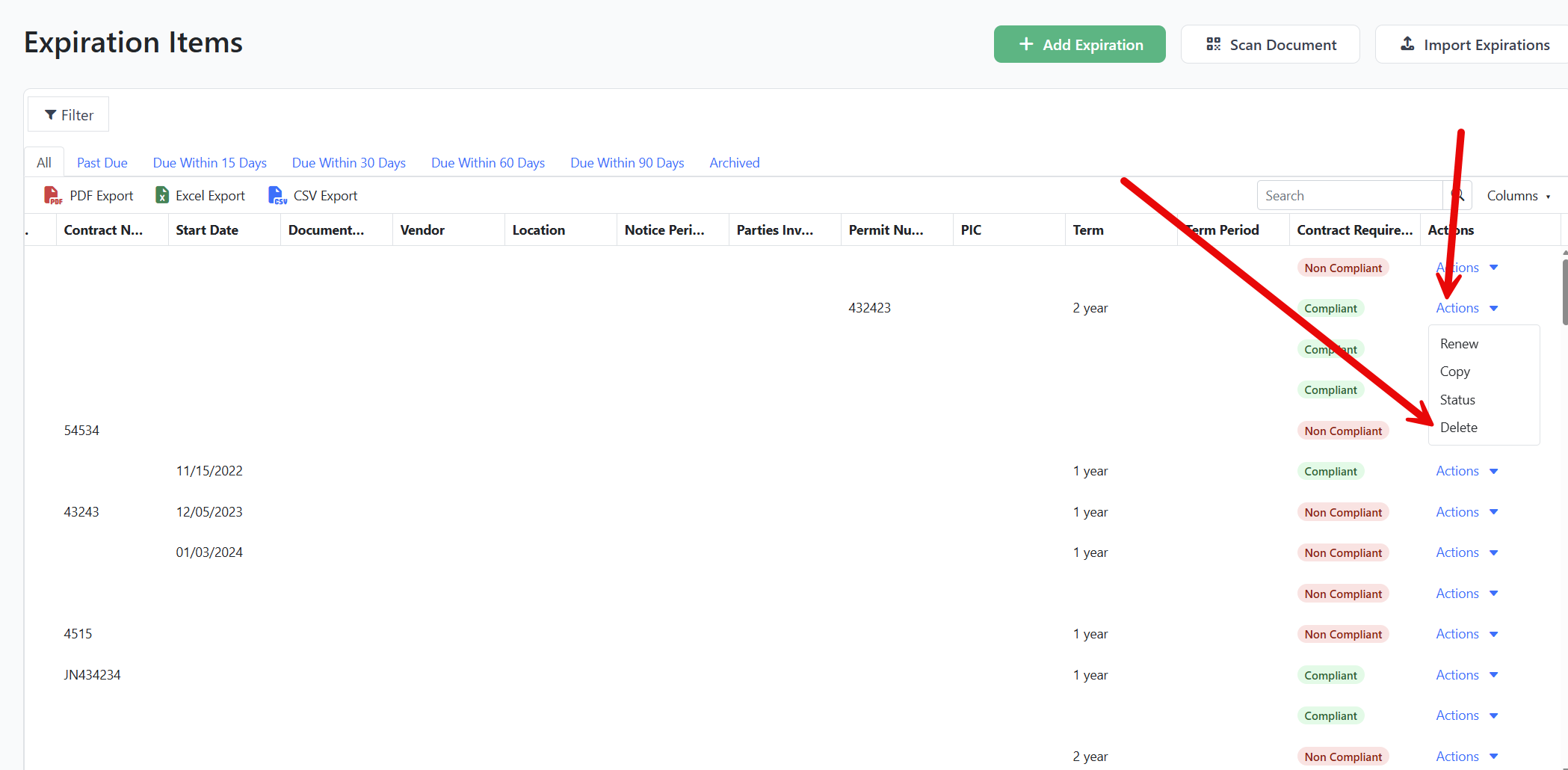
- Click the Actions button at the far right of the row.
- Choose Delete.
- In the Delete Expiration dialog, click OK to confirm.
A confirmation appears and the row is removed from the list.
From the expiration item's page
- Open the expiration item by clicking its name in the list.
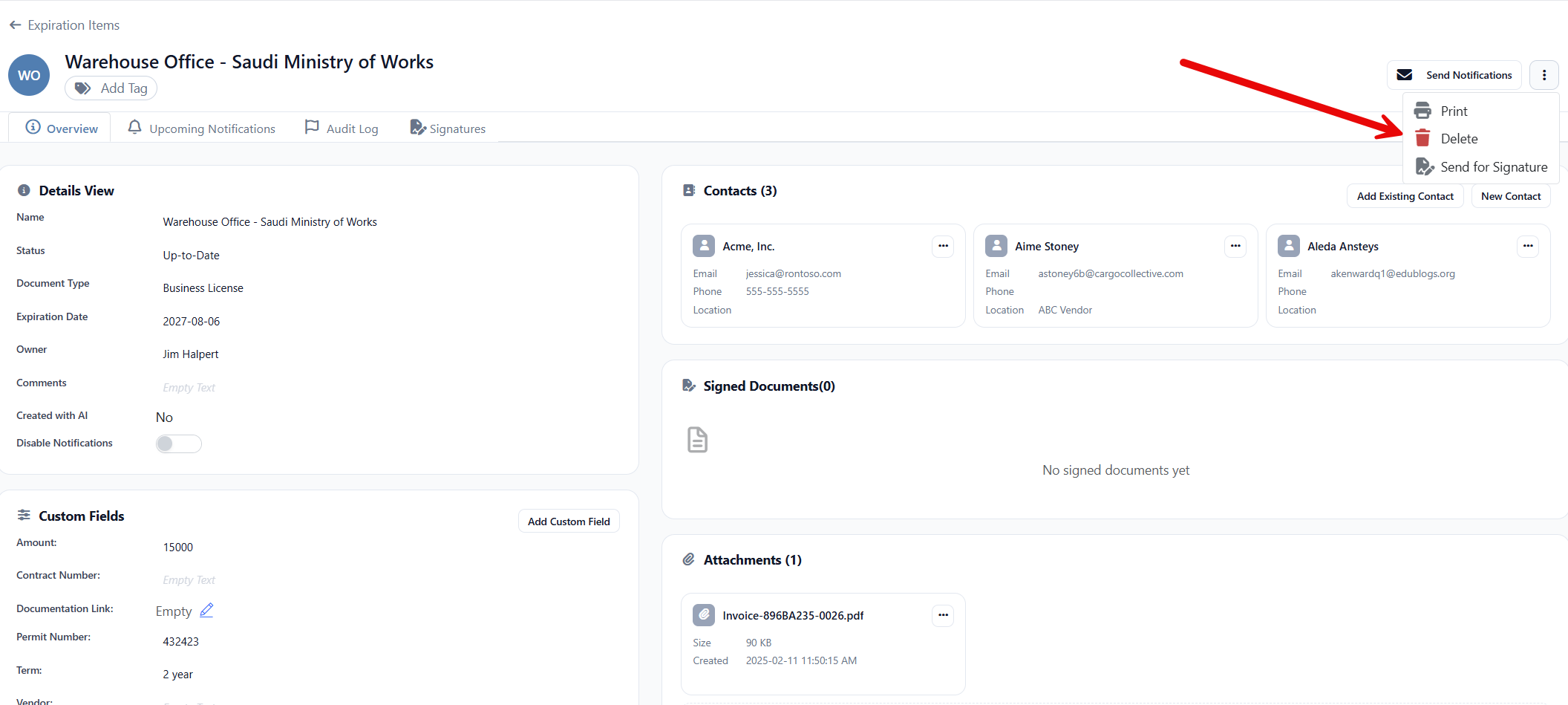
- At the top right of the page, click the three-dot menu (the vertical ellipsis).
- Choose Delete.
- In the Delete Expiration dialog, click OK to confirm.
You're returned to the Expiration Items list.
Note: Deleted items move to the Recycle Bin instead of being permanently removed. An administrator can restore them — see Restoring an Item from the Recycle Bin below.
Deleting Multiple Expiration Items at Once
When you have several items to clean up, the Multi Edit action lets you delete them in a single step.
Step 1: Select the rows
- In the left navigation, click Expirations → Expiration Items.
- (Optional) Use the filter panel above the grid or the column filters to narrow the list to the items you want to delete.
- Tick the checkbox at the start of each row you want to include. Tick the checkbox in the column header to select every row on the current page.
When at least one row is selected, two new toolbar buttons appear: Multi Edit and Bulk Edit All.
Step 2: Open the bulk action panel
- Click Multi Edit to act on only the rows you've selected.
- Click Bulk Edit All to act on every item that matches your current filter and search (not just the visible page).
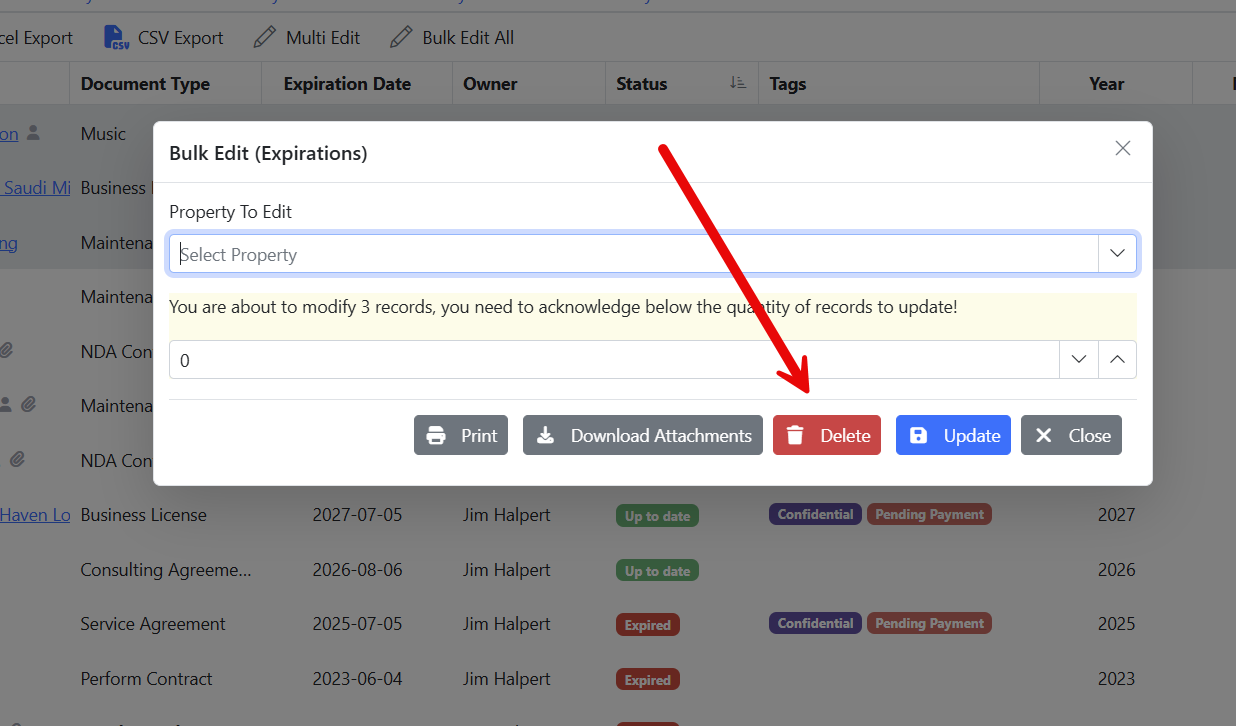
The Edit X Expirations dialog opens.
Step 3: Delete the selected items
- In the bottom-right corner of the dialog, click the red Delete button.
- The Delete Expiration Items confirmation appears with the message "Are you sure you'd like to delete the selected expirations?"
- Click OK to confirm.
A confirmation appears once the deletion is complete and the rows are removed from the list.
Tip: Combine the filter panel with Bulk Edit All to clean up large groups quickly. For example, filter by an old document type, then Bulk Edit All → Delete to remove every match at once.
Restoring an Item from the Recycle Bin
Deleted expiration items live in the Recycle Bin until they are restored or permanently removed. Only administrators can open the Recycle Bin.
Step 1: Open the Recycle Bin
- Open the Settings menu.
- Expand the Manage group.
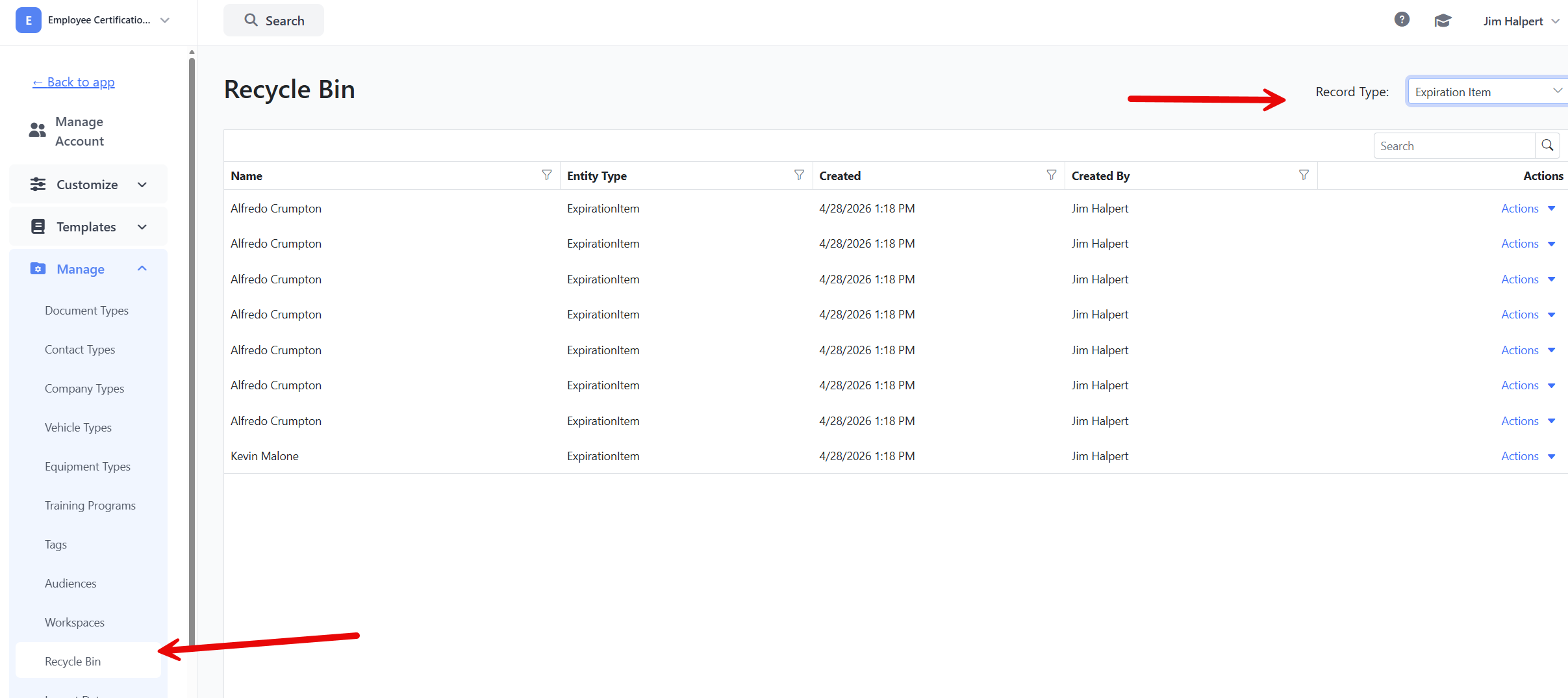
- Click Recycle Bin.
The Recycle Bin opens with a list of every deleted record across your account.
Step 2: Narrow the list to expiration items
- In the Record Type dropdown at the top right, choose Expiration Item.
- The grid updates to show only deleted expiration items, sorted with the most recent at the top.
You can also use the search box in the toolbar to filter the list by name.
Step 3: Restore the item
- Find the item you want to bring back.
- Click the Actions dropdown at the end of the row.
- Choose Restore.
- In the confirmation dialog ("Are you sure you want to restore this item?"), click OK.
A confirmation appears and the expiration item is moved back to the Expiration Items list with its original details intact.
Permanently deleting an item
If you're sure you'll never need a deleted item again, you can remove it from the Recycle Bin so it no longer takes up space.
- In the Recycle Bin, click Actions on the row.
- Choose Permanent Delete.
- Confirm in the dialog ("Are you sure you want to permanently delete this item?").
Permanently deleted items cannot be recovered.
Tips & Best Practices
- Archive first, delete later. Archiving keeps the historical record (notifications, attachments, audit trail) intact. Delete only when the item has no value going forward.
- Use filters before bulk deleting. A misplaced filter could include items you didn't mean to delete. Double-check the row count in the dialog header before confirming.
- Train one administrator on the Recycle Bin. Restoring is the only way to undo an accidental delete, and it requires an administrator account.
Troubleshooting
- Issue: The Delete option doesn't appear in the actions menu. Solution: Your role doesn't include the Delete permission for expiration items. Ask your account administrator to grant it.
- Issue: I can't find the Recycle Bin in the Settings menu. Solution: The Recycle Bin is only visible to administrators. If you're not an administrator, ask one to restore the item for you.
- Issue: A restored item is missing some details. Solution: Most fields restore exactly as they were. If a related record (for example, a contact) was deleted while the expiration was in the bin, that link can't be restored automatically — re-add it manually.
- Issue: I deleted the wrong items in bulk. Solution: An administrator can open the Recycle Bin, filter by Expiration Item, and restore the items one at a time.