
If you are already using the 'Watched Expirations' tool to receive reminder emails to which you are not an assigned contact (see How To Set Up Watched Expirations), you can also select to receive email alerts for the expiration items you are 'watching' if a contact/email reminder recipient self renews an expiration item in their employee/vendor portal, so long as this access is enabled (see Using the Portal Link for Contacts).
If you wish to be alerted by email when a contact renews an expiration item in their employee/vendor portal, you can adjust this setting under the Watched Notifications tab, which is found on your contact profile.
Step 1: Locate your contact in the People/Contacts module
Step 2: Click into the contact record and locate the 'Watched Notifications' tab
Step 3: Turn on the 'Expiration Item Acknowledged' toggle button
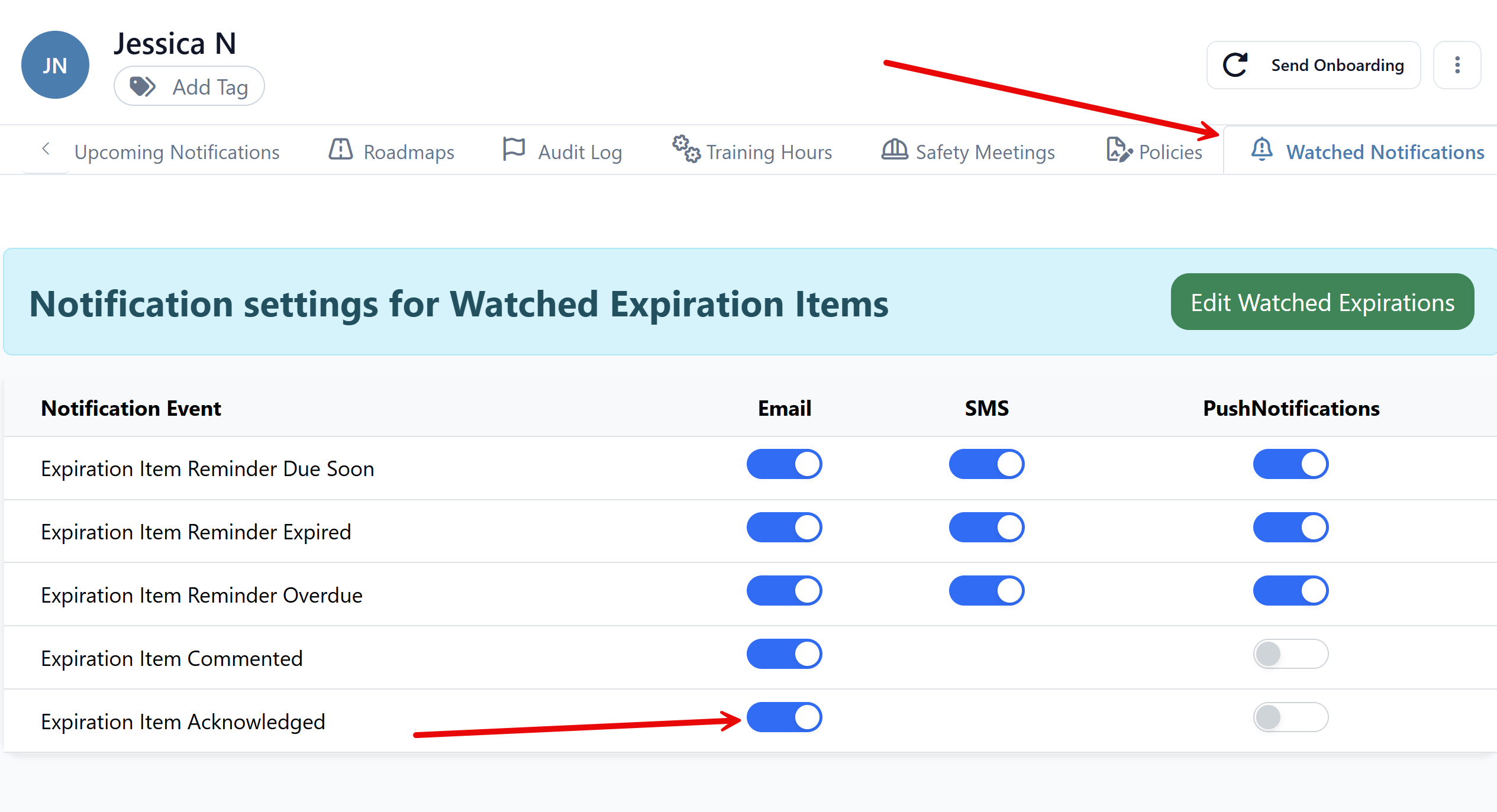
Step 4: Be sure to click 'Update Notification Settings' in the bottom right hand corner to save this change.
Now going forward, for any expiration items you are already watching (once again to learn more about adjusting your Watched Expirations see How To Set Up Watched Expirations) you will get an email alert that tells you that the item has been renewed by the contact who received the email reminder. This only works if you have enabled the employee/vendor portal on the document type of the expiration item in question, to allow contacts to securely self renew in their portal. The update will reflect in your account, so you will also see the updated expiry date when logged into your account.
The email will look something like the below;
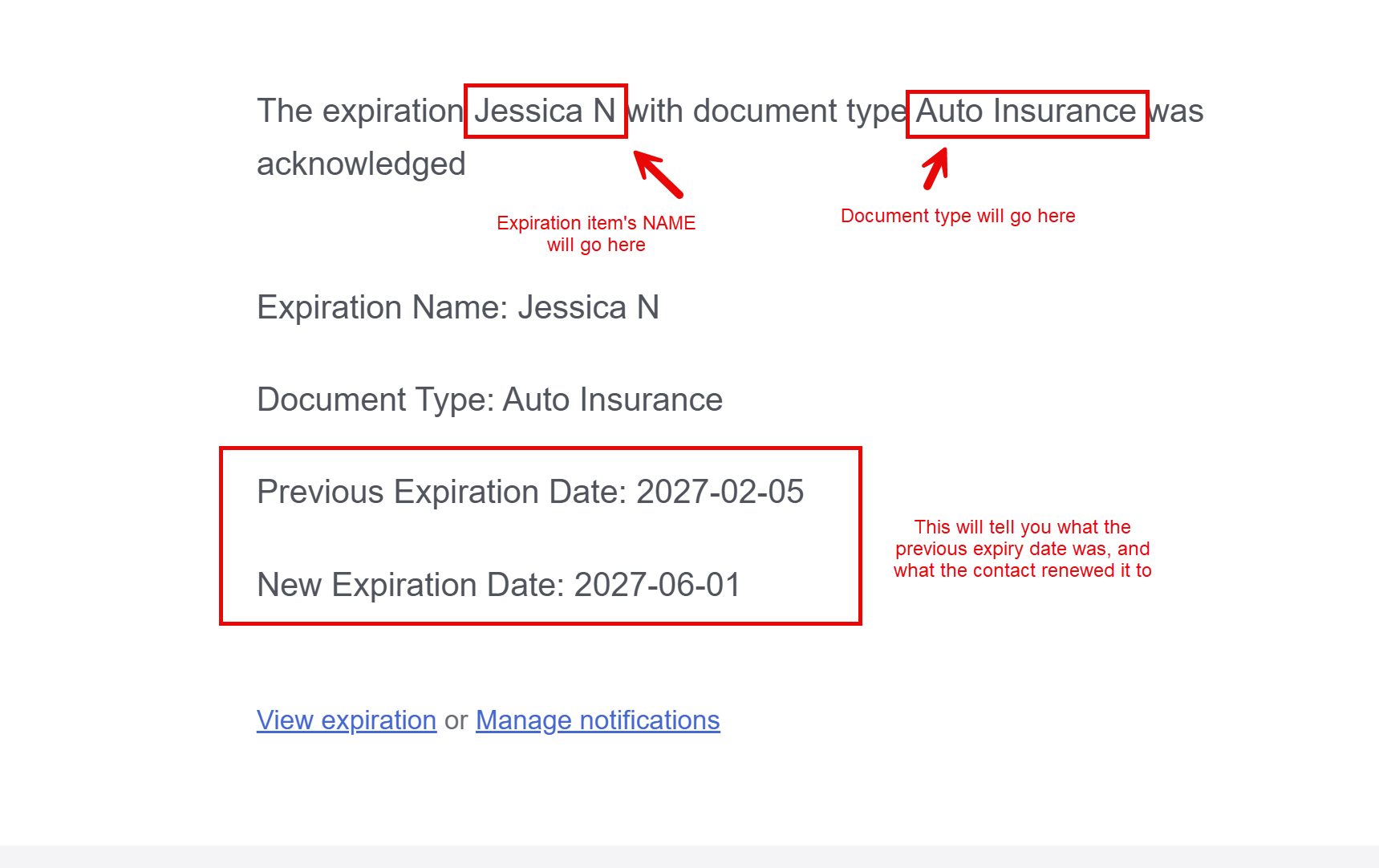
The above email will not tell you explicitly if an attachment has been uploaded or not, but you can click on 'View expiration' to see directly.
You can also select to receive email alerts when a fellow user adds any value to the COMMENTS field on an expiration item, for any expiration item you are 'watching' with the Watched Expirations feature. 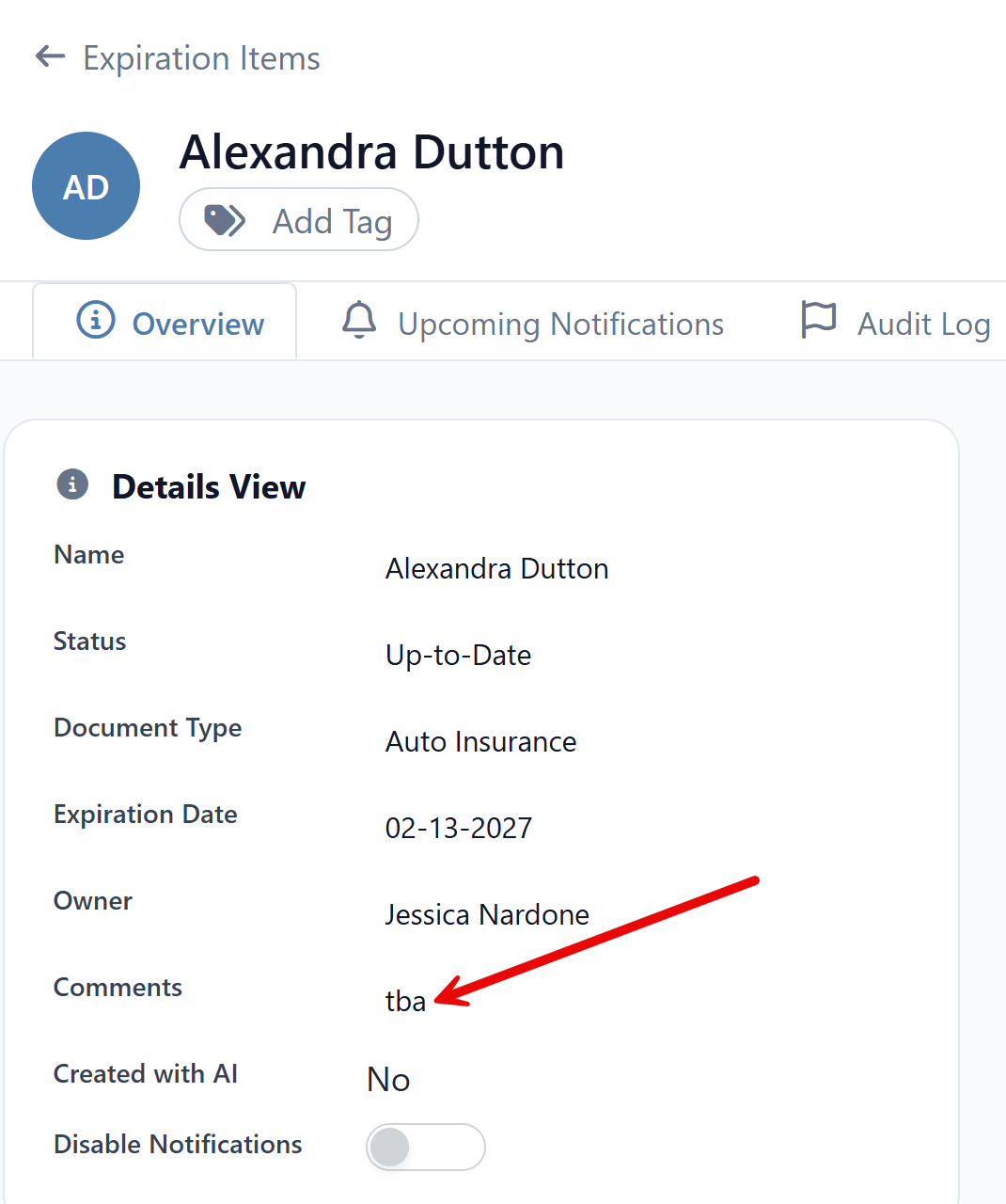
Likewise when you enabled the Acknowledgments above, you will similarly return to your contact profile, then to the Watched Notifications tab to turn on the 'Expiration Item Commented' button, then proceed to save your changes by clicking 'Update Notification Settings'.
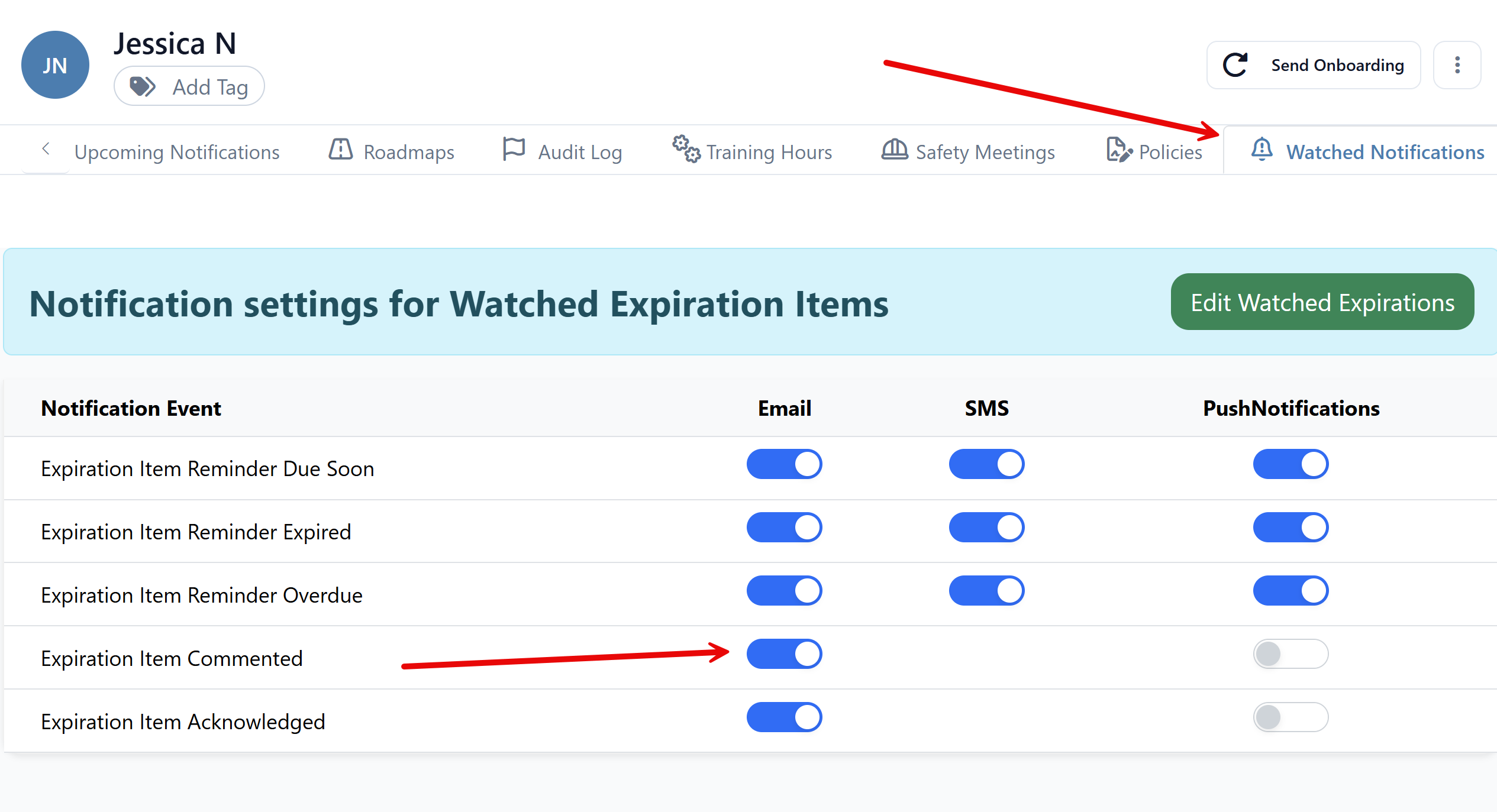
Once that is toggled ON, you will receive an email alert anytime another user adds a comment to an expiration item that is on your Watched Notifications list.