
Instead of responding to each expiration item individually, recipients can use the one-time magic link included in their notification to access their expiration information in one place.
From the portal, recipients can review items that need their attention and make updates such as:
- Renewing or updating an expiration date
- Uploading new files or attachments
- Viewing files related to an expiration
- Answering questions, when configured for the expiration
This makes it easier for recipients to keep their expiration information up to date without needing access to your main Expiration Reminder account.
Enabling the Employee/Vendor Portal Link
The Employee/Vendor Portal Link is enabled at the Document Type level.- Go to Document Types.
- Select the Document Type you’d like to update.
- Turn on the Employee/Vendor Portal Link option - called "Include Employee/Vendor Portal Link"
- Configure the available options based on the information you want recipients to be able to update. These options typically include:
- Allow recipients to renew or update the expiration date.
- Allow recipients to upload new files or attachments.
- Allow recipients to view files related to the expiration.
- Include questions for recipients to answer when accessing the portal.
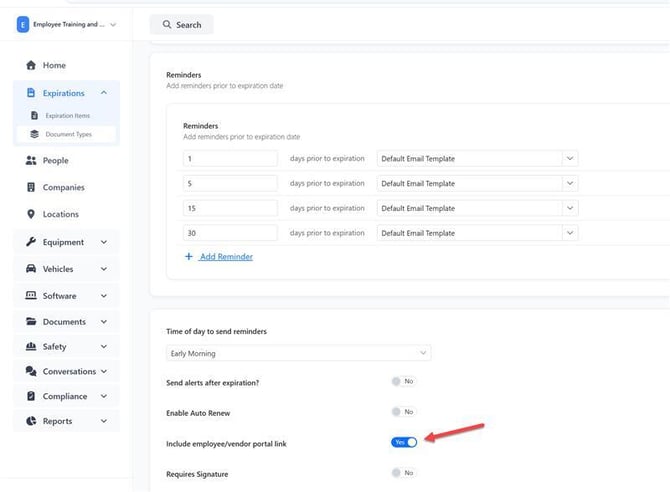
When the Portal Link is enabled for a Document Type, Contacts receiving reminders for expiration items associated with that Document Type will receive a URL in their reminder email.
Using the Employee/Vendor Portal
When a Contact receives a reminder containing the Portal Link, they can select the link to begin the one-time magic link process. The magic link is only available for a limited time — check your account settings for the exact duration.
Once they access the portal, the expiration item associated with the notification will appear on their dashboard for them to action.
The Contact can review the item and make any necessary updates, such as renewing the expiration or uploading a new attachment.
Viewing Other Expiration Items
After accessing the portal, Contacts can select Expiration Items from the side menu to view expiration items assigned to them.
This list can include expiration items associated with Document Types where the Employee/Vendor Portal Link is not enabled.
For these items:
- The Contact will not receive a Portal Link URL in the reminder email.
- The item will not appear on their portal dashboard.
- The item can still appear in the Expiration Items section once the Contact has accessed their portal through a Portal Link.
- From there, the Contact can update or renew the expiration and upload documents as needed.
Note: The Employee/Vendor Portal Link uses a one-time magic link. Contacts do not need to have a user account to access the portal unless you have specifically configured the settings to require login.
How Contacts Access the Portal
Contacts access the Employee/Vendor Portal by selecting the link in their expiration notification email, confirming their email address, and using the one-time magic link that is sent to them. The magic link is valid for a limited time.Contacts can access the Employee/Vendor Portal through the link included in their expiration notification.
- Receive the notification
When a Contact receives an email notification for an expiration item with the Employee/Vendor Portal Link enabled, they’ll see a link at the bottom of the email.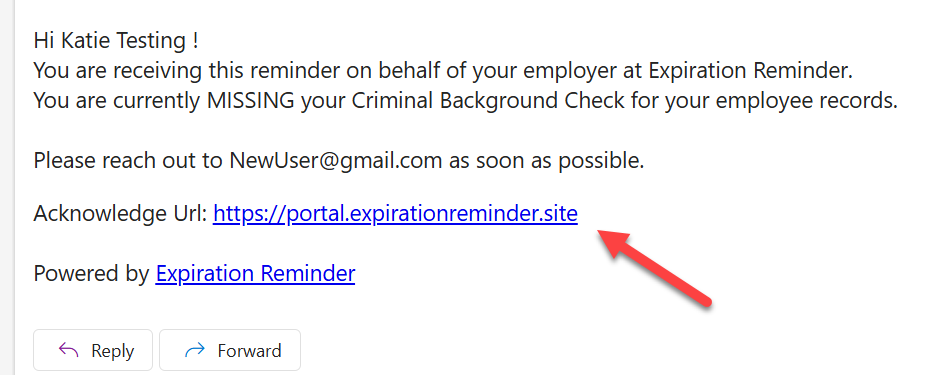
- Confirm their email address
After selecting the link, the Contact will be asked to confirm their email address. - Receive the magic link
Once their email is confirmed, a one-time magic link will be sent to their email address. This link will be able to be used for 15 minutes. - Access the portal
The Contact can select the magic link (valid for a limited time) to securely access their Employee/Vendor Portal. The expiration item associated with the notification will appear on their dashboard for them to review and update. - Manage expiration items
From the portal, the Contact can select Expiration Items from the side menu to view other expiration items assigned to them. They can update or renew expiration items and upload documents as needed, all from one convenient location.
From the portal, the Contact can select Expiration Items from the side menu to view other expiration items assigned to them. They can update or renew expiration items and upload documents as needed, all from one convenient location.