
Before You Begin
- A user account with permission to view standard reports.
- At least one safety meeting in your account so the reports have data to display. The more meetings (and the wider the date range), the more useful the reports become.
- Familiarity with the meeting and attendance statuses used throughout the app — see Tracking Safety Meeting Attendance and Completion for a quick reference.
Related articles:
- Getting started with Safety Meetings
- Creating and Scheduling a Safety Meeting
- Using the Safety Meeting Kiosk for Sign-In
- Managing Safety Topics
- Tracking Safety Meeting Attendance and Completion
How to Open the Reports
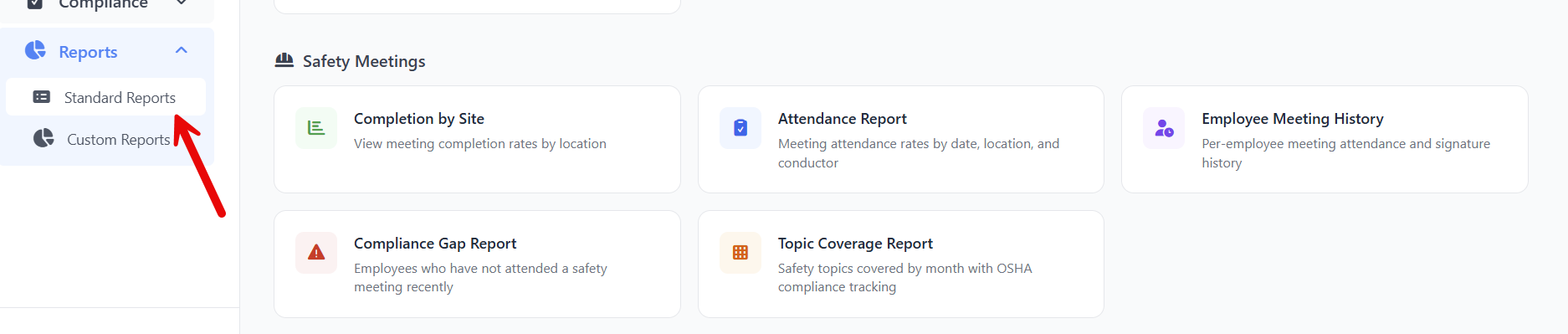
All five reports live together in the Standard Reports library:
- From the left sidebar, click Reports.
- Click Standard Reports.
- Scroll to the Safety Meetings section.
You'll see five report cards. Click any card to open the report in full screen. To get back to the library, click the ← Standard Reports link in the upper-left of any report.
Conventions Shared Across All Reports
Before diving into each report, a few patterns apply across the whole library:
- Date range — Every report (except Compliance Gap) opens with January 1 of the current year through today preselected. Adjust the Select date range picker in the upper-right to refocus the data. The numbers, KPI cards, and grid all update automatically.
- KPI cards — A row of color-coded summary cards sits at the top of every report. They reflect whatever date range (or threshold) is currently applied.
- Color-coded rates — Where a report shows a percentage, the same threshold rule is used everywhere:
- Green — 75% or higher
- Yellow / amber — 50% to 74%
- Red — below 50%
- Excel export — Most reports include a green Export button (with the Excel icon) in the upper-right that downloads the currently visible grid as an
.xlsxfile. The exception is the Topic Coverage Report — see below. - Clickable meeting links — Anywhere a meeting title appears as a link, clicking it takes you to that meeting's detail page.
The Five Standard Reports
The rest of this article walks through each report in detail. Use the links below to jump straight to the one you need:
- Completion by Site
- Attendance Report
- Employee Meeting History
- Compliance Gap Report
- Topic Coverage Report
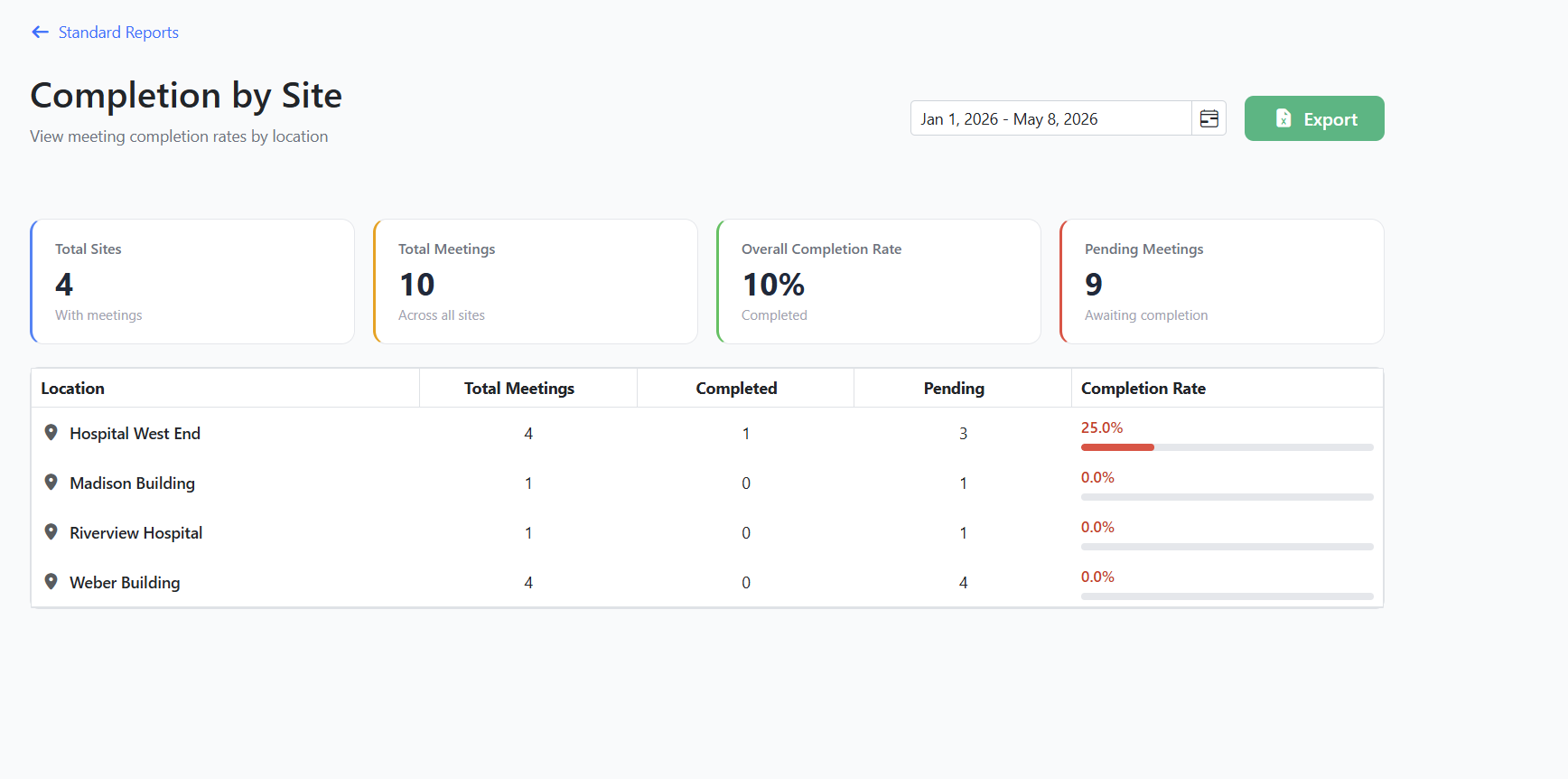
Completion by Site
Use it to answer: "Which job sites are running the most meetings, and which have the lowest completion rate?"
Where to find it: Reports → Standard Reports → Completion by Site card.
Filters
- Select date range — Defaults to January 1 of the current year through today. Change it to focus on the current quarter, the last 30 days, etc.
KPI cards
- Total Sites — How many locations had at least one meeting in the date range.
- Total Meetings — Sum of meetings across every site.
- Overall Completion Rate — Total Completed meetings divided by total meetings, expressed as a percentage.
- Pending Meetings — How many meetings across every site are still awaiting completion.
Grid columns
| Column | What it shows |
|---|---|
| Location | The job site name. |
| Total Meetings | All meetings at that site in the date range. |
| Completed | Of those, how many reached Completed status. |
| Pending | Meetings still in Draft, Scheduled, In Progress, or Pending Signatures. |
| Completion Rate | The percentage with a color-coded bar — green at 75%+, yellow at 50–74%, red below 50%. |
Export
Click the green Export button to download the grid as an Excel file.
Tip: Sort by Completion Rate ascending to surface the sites that are falling behind. Then drill into one of those sites by clicking back to Safety Meetings and filtering by location.
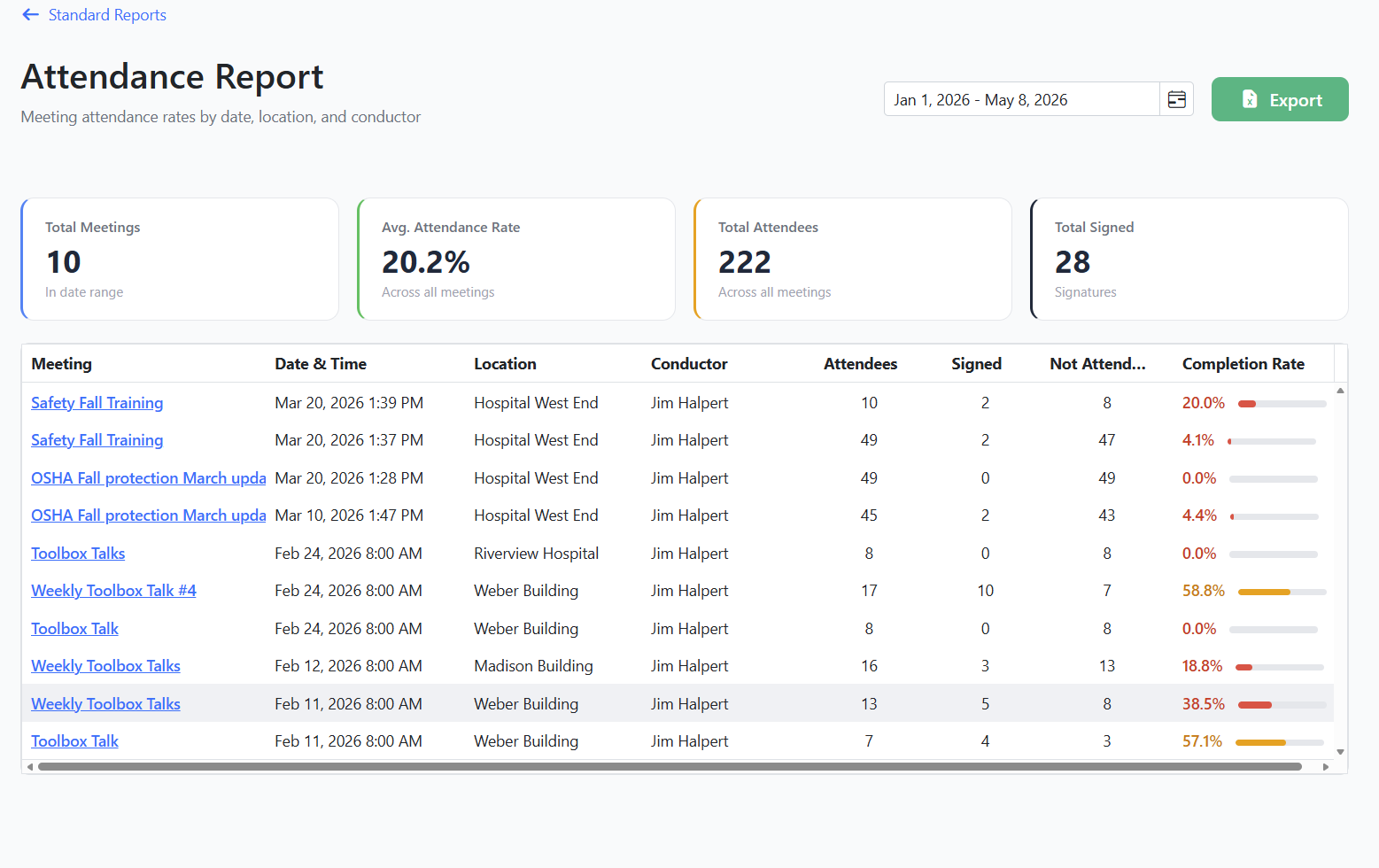
Attendance Report
Use it to answer: "Meeting by meeting, what's our attendance rate and who facilitated each one?"
Where to find it: Reports → Standard Reports → Attendance Report card.
Filters
- Select date range — Defaults to January 1 of the current year through today.
KPI cards
- Total Meetings — Meetings in the selected date range.
- Avg. Attendance Rate — Average of the per-meeting completion percentages across the visible rows.
- Total Attendees — Sum of every roster across the visible meetings.
- Total Signed — Total signatures captured across those meetings.
Grid columns
| Column | What it shows |
|---|---|
| Meeting | The meeting title (clickable — opens the meeting detail page). |
| Date/Time | When the meeting was scheduled, formatted as e.g. Mar 14, 2026 9:00 AM. |
| Location | The job site. |
| Facilitator | The facilitator who ran the meeting. |
| Attendees | Total roster size for that meeting. |
| Signed | How many of them signed. |
| Not Attended | How many were marked Not Attended for that meeting. |
| Completion Rate | Per-meeting percentage with a color-coded bar — green at 75%+, yellow at 50–74%, red below 50%. |
Export
Click the green Export button to download the grid as an Excel file.
Tip: Click any meeting title to open it directly. The Attendance Report makes a great starting point for a weekly review — sort by Completion Rate ascending and you'll see your lowest-attendance meetings first.
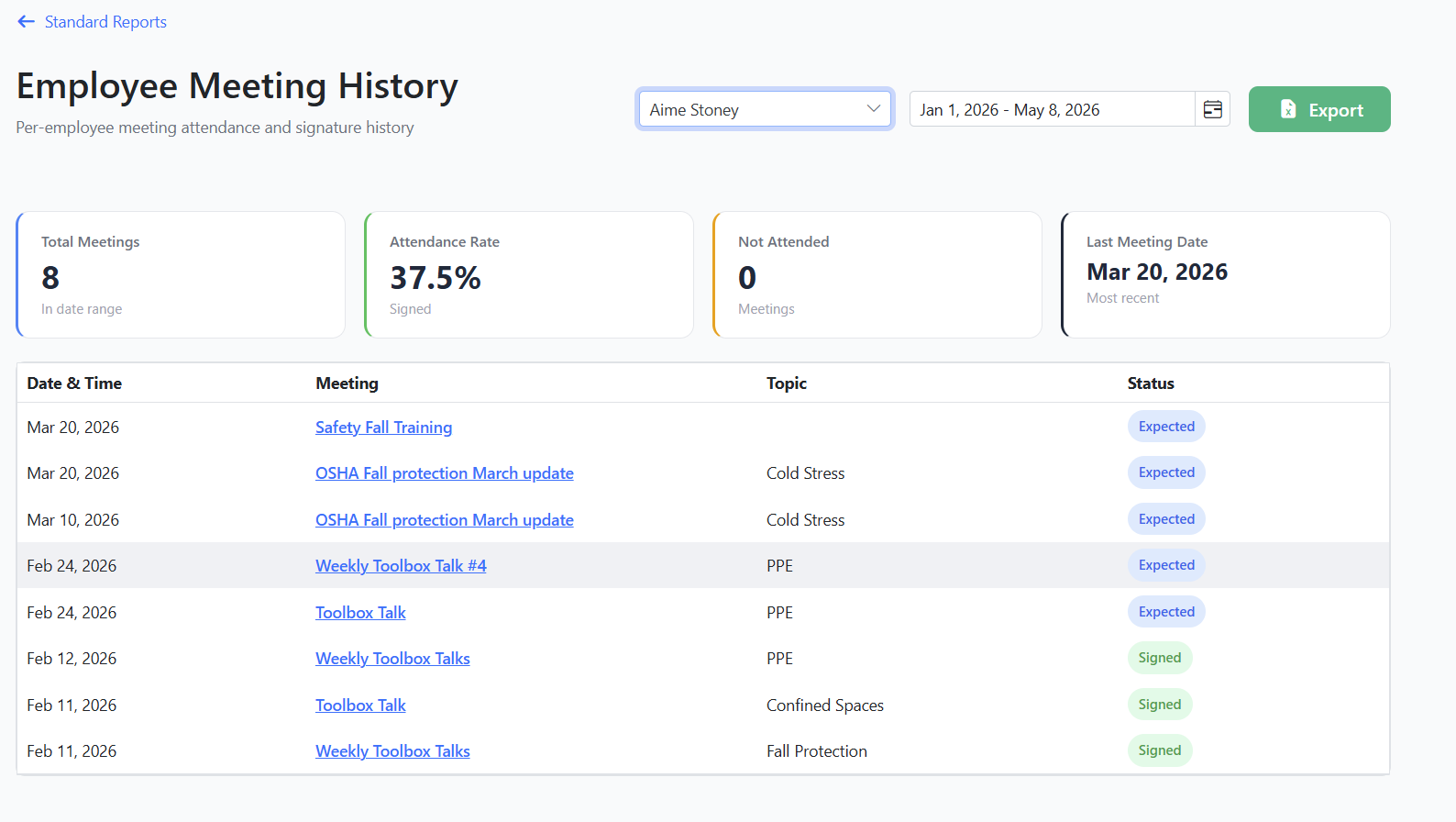
Employee Meeting History
Use it to answer: "How many safety meetings has Maria attended this year? Which ones did she miss?"
Where to find it: Reports → Standard Reports → Employee Meeting History card.
Filters
- All Employees — A dropdown listing every contact in your account. Pick one person to see only their history; leave it on All Employees to see every attendee on every meeting in the range.
- Select date range — Defaults to January 1 of the current year through today.
KPI cards
- Total Meetings — How many meeting-attendee rows are in the visible range.
- Attendance Rate — Of those, the percentage where the person actually signed.
- Not Attended — How many rows are marked Not Attended.
- Last Meeting Date — The most recent meeting date in the visible rows.
Grid columns
| Column | What it shows |
|---|---|
| Date/Time | The meeting's scheduled date. |
| Meeting | Meeting title (clickable — opens the meeting detail page). |
| Topic | The Safety Topic the meeting was tagged with (blank if none). |
| Status | The attendee's status for that meeting, shown as a color-coded badge: Expected (blue), Signed (green), Not Attended (red), or Excused (gray). |
Export
Click the green Export button to download the grid as an Excel file.
Tip: A faster way to see one person's history is to open their contact profile and click the Safety Meetings tab — it gives the same picture plus filters for attendance status. Use Employee Meeting History when you want to compare one employee across many meetings, or sweep across multiple employees in one date range.
Compliance Gap Report
Use it to answer: "Who's overdue for a safety meeting? Anyone we need to chase up before next week?"
Where to find it: Reports → Standard Reports → Compliance Gap Report card.
This report works differently from the others: instead of a date range, you set a threshold in days and the report shows everyone who has gone longer than that without attending a meeting.
Filters
- Threshold (days) — A numeric input next to the Export button. Default is 14 days. Minimum is 1, maximum is 365. Change it and the grid and KPIs refresh instantly.
KPI cards
- Total Employees — Every contact in your account that has any meeting history.
- Below Threshold — How many of them are past the threshold (this is the count of rows in the grid).
- Avg. Days Since — Average gap in days across the people who are behind.
Grid columns
| Column | What it shows |
|---|---|
| Employee | The person's name. |
| Department | Their department, if it's set on their contact profile. |
| Last Meeting Date | The date of their most recent Signed meeting attendance. If they've never signed in to a meeting, this column shows Never. |
| Days Since | A color-coded badge showing how many days have passed: gray when at or just past the threshold, orange as a warning, and red once the gap reaches 30+ days. |
The grid only lists people who are behind the threshold. Everyone else is hidden.
How "attendance" is counted in this report
A few specific rules apply only to the Compliance Gap report:
- Only signed meetings count. A person's "Last Meeting Date" is the date of their most recent meeting where their attendance status is Signed. Being added to a roster is not enough — they must have signed in. (The fastest way to record a missing signature after the fact is to re-open the meeting in the Kiosk.)
- Cancelled meetings are ignored. Meetings with status Cancelled never count toward this report.
- "Never" means never signed. If you see Never in the Last Meeting Date column, that person has no signed-in meeting in their history. New hires often appear here until their first meeting is captured.
Export
Click the green Export button to download the grid as an Excel file.
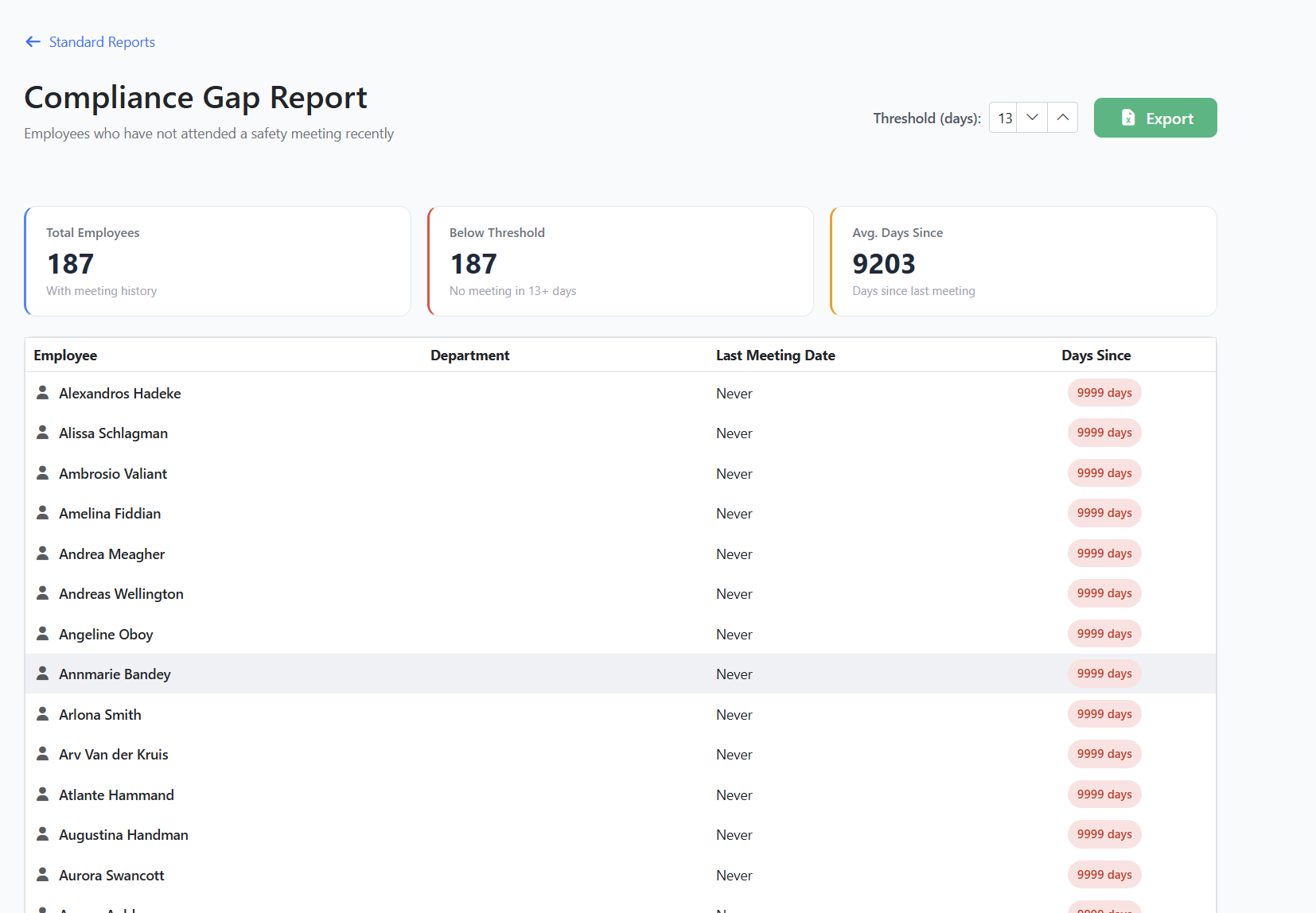
Tip: Lower the threshold to 7 days to find people who haven't been to a meeting this week. Raise it to 30, 60, or 90 days to find longer-running gaps you may want to escalate.
Topic Coverage Report
Use it to answer: "Are we covering every safety topic our crew needs? Which topics haven't we run lately?"
Where to find it: Reports → Standard Reports → Topic Coverage Report card.
Filters
- Select date range — Defaults to January 1 of the current year through today. The set of months in the matrix below adjusts automatically to the range you pick.
KPI cards
- Topics Covered — How many topics from your catalog were used in at least one meeting in the date range.
- Total Topics — Total topics in your catalog (active and archived combined).
- Coverage Rate — Topics Covered divided by Total Topics, as a percentage.
- Uncovered Topics — Total Topics minus Topics Covered. These are the topics you haven't run any meetings on in the range.
Layout
This report uses a coverage matrix instead of a flat grid:
- Each row is a Safety Topic from your catalog. The topic name appears on the left, with the OSHA reference number (if set) shown as a small blue badge next to it.
- Each column is a month within the selected date range.
- Each cell shows the number of meetings that covered that topic in that month. Cells with at least one meeting are highlighted green; empty cells are highlighted red.
- The Total column on the far right sums each row across the date range.
Rows are sorted by total coverage (highest first), with topics you've never run dropping to the bottom.
Export
The Topic Coverage Report does not include an Excel export button — its layout is a coverage matrix, not a flat list. To capture it, take a screenshot of the matrix or note the Uncovered Topics count and chase those topics down individually.
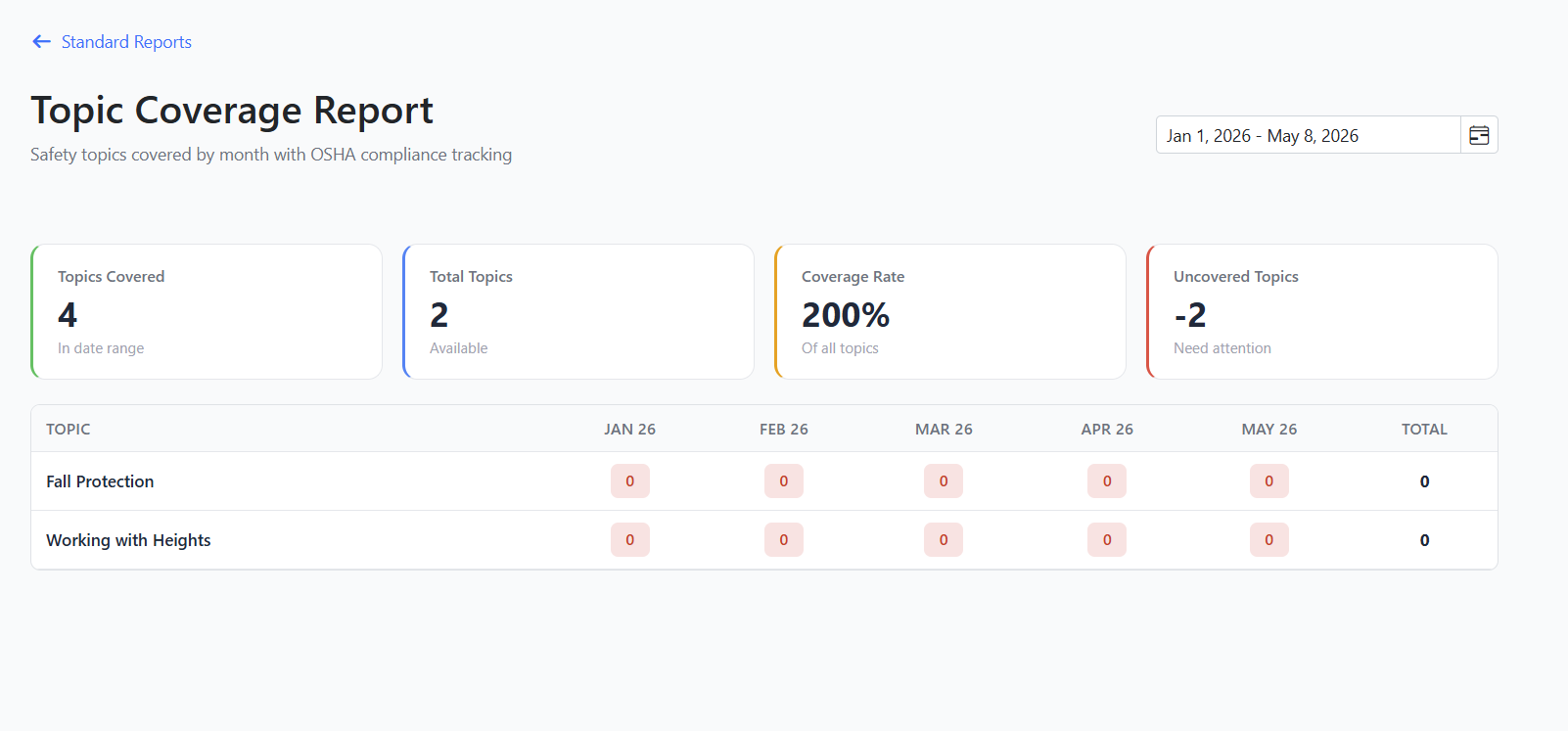
Tip: Run this report once a month. The red cells are the most actionable thing in the whole report library — each one is a topic you should consider scheduling a meeting on next.
Tips & Best Practices
- Run the Compliance Gap report weekly. A 14-day threshold is a sensible starting point for most crews; tighten it to 7 days if you require weekly toolbox talks, or relax it to 30 days for monthly cadences.
- Run the Topic Coverage report monthly. It's the easiest way to confirm you're rotating through your full topic catalog instead of repeating the same handful of topics.
- Pair Completion by Site with Attendance Report. Use Completion by Site to spot underperforming locations, then jump into Attendance Report and filter the date range to those sites' meetings to see which specific sessions had low signatures.
- Use Employee Meeting History for one-on-ones. Before a safety review with an individual employee, run their history for the year and bring the export to the meeting.
- Capture late signatures via the Kiosk. A meeting that wasn't signed at the time still counts toward the Compliance Gap and Attendance reports if you re-open the Kiosk and capture the signature. See Using the Safety Meeting Kiosk for Sign-In.
- Keep employee departments up to date. The Compliance Gap report shows a Department column. If contacts don't have a department set, that column is blank for them and you lose the ability to slice the data by team.
Troubleshooting
- Issue: A report opens with no data, but I know there are meetings in my account.
Solution: Check the date range in the upper-right. Reports default to January 1 of the current year through today — meetings outside that window won't appear. Widen the range and the data should reload automatically. (The Compliance Gap report uses a Threshold instead of a date range; lower the threshold to see more people.) - Issue: The Compliance Gap report says someone has Never attended a meeting, but I know they were at one.
Solution: The report only counts attendees whose status is Signed. If they were on the roster but never signed in (for example, the Kiosk was passed over them), they don't count as having attended. Re-open the relevant meeting in the Kiosk and capture their signature — the report updates the next time you open it. - Issue: I clicked Export but nothing happened.
Solution: Some browsers block downloads inside an embedded view or behind a pop-up blocker. Check your browser's download bar. If you still don't see a file, refresh the page and try again. Note that the Topic Coverage Report intentionally has no Export button — its layout is a coverage matrix, not a flat list. - Issue: The Avg. Attendance Rate on the Attendance Report looks lower than the Attendance Rate KPI on the Safety Meetings dashboard.
Solution: They're computed differently. The dashboard KPI is a single average across every meeting in your account ever; the Attendance Report's KPI is the average across the meetings currently visible in your selected date range. Tighten the date range to compare like-for-like. - Issue: A meeting I cancelled is still showing up on the Attendance Report.
Solution: Only the Compliance Gap report excludes Cancelled meetings. The other reports include every non-deleted meeting in the date range, regardless of status, so you can audit cancellations. To remove a cancelled meeting from the data permanently, open it from the Safety Meetings page and delete it. - Issue: The Topic Coverage matrix is empty even though I've held meetings.
Solution: The matrix only counts meetings that have a Safety Topic assigned. Meetings created without a topic don't appear here. Open the affected meetings, click Edit, pick a topic, and click Save Changes. See Managing Safety Topics if you need to add a topic to your catalog first. - Issue: A topic I archived is still showing up in the Topic Coverage matrix.
Solution: That's expected. The matrix shows every topic in your catalog (active and archived) so historical coverage stays visible. Archived topics don't appear in the dropdown when scheduling new meetings, but past data is preserved.