
Before You Begin
Safety Topics are managed in your account Settings, not on the main Safety Meetings page. They're separate from the meetings themselves — you set up the topic catalog once, then anyone scheduling a meeting can pick from it.
Make sure you have the following before you start:
- A user account with admin access to Settings (the gear icon in the top navigation). If you don't see Settings, ask your account administrator for access.
- A general idea of the topics you want to track (for example: "Fall Protection," "Lockout/Tagout," "PPE," "Hazard Communication").
Heads up: Your account comes pre-loaded with a starter library of common safety topics so you don't have to build the list from scratch. You can edit, archive, or add to that starter list at any time.
Related articles:
Step-by-Step Instructions
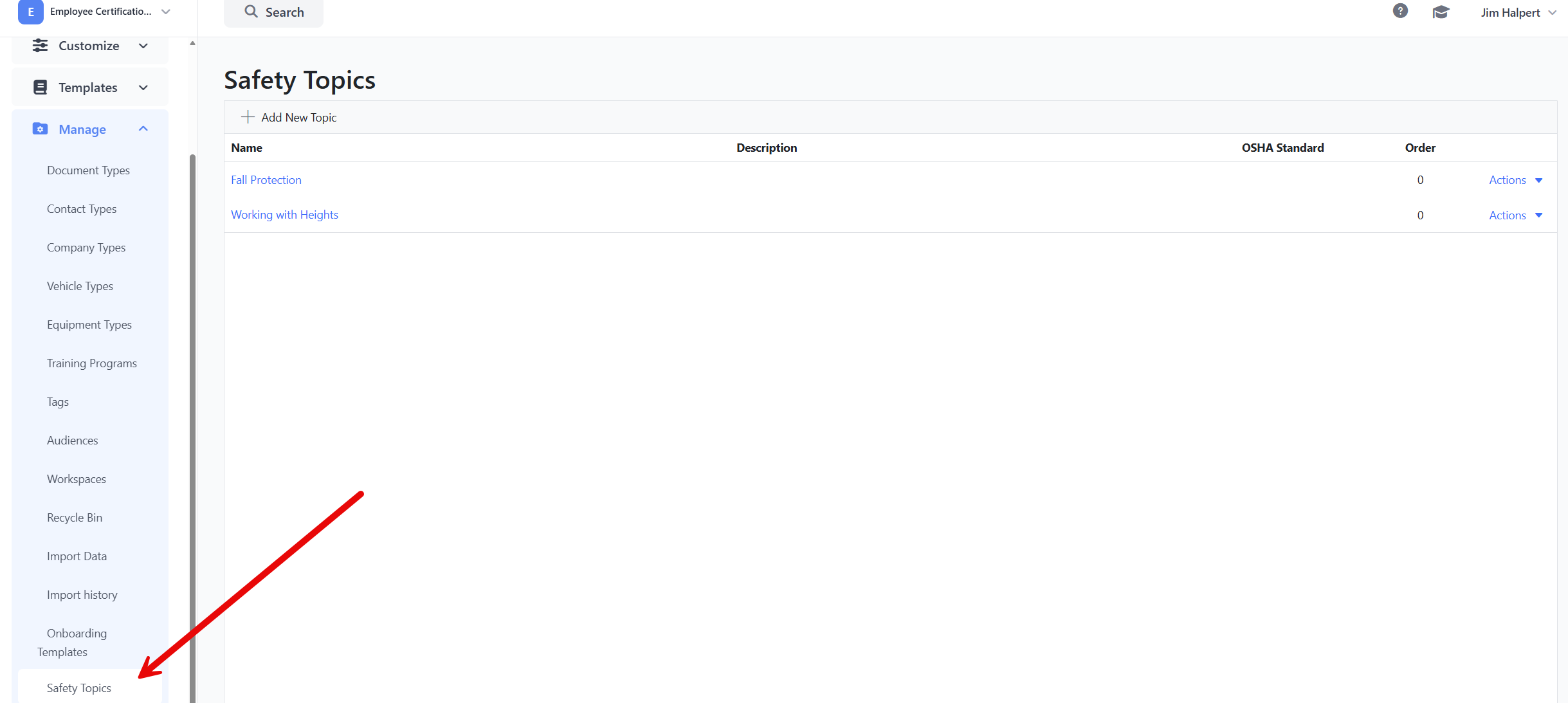
Step 1: Open the Safety Topics page
- In the top navigation bar, click the gear icon and choose Settings.
- In the Settings sidebar on the left, expand the Manage group.
- Click Safety Topics.
The Safety Topics page appears, showing every topic in your account in a sortable list with Name, Description, OSHA Standard, and Order columns.
Step 2: Add a new topic
- In the upper-right area of the page, click Add New Topic.
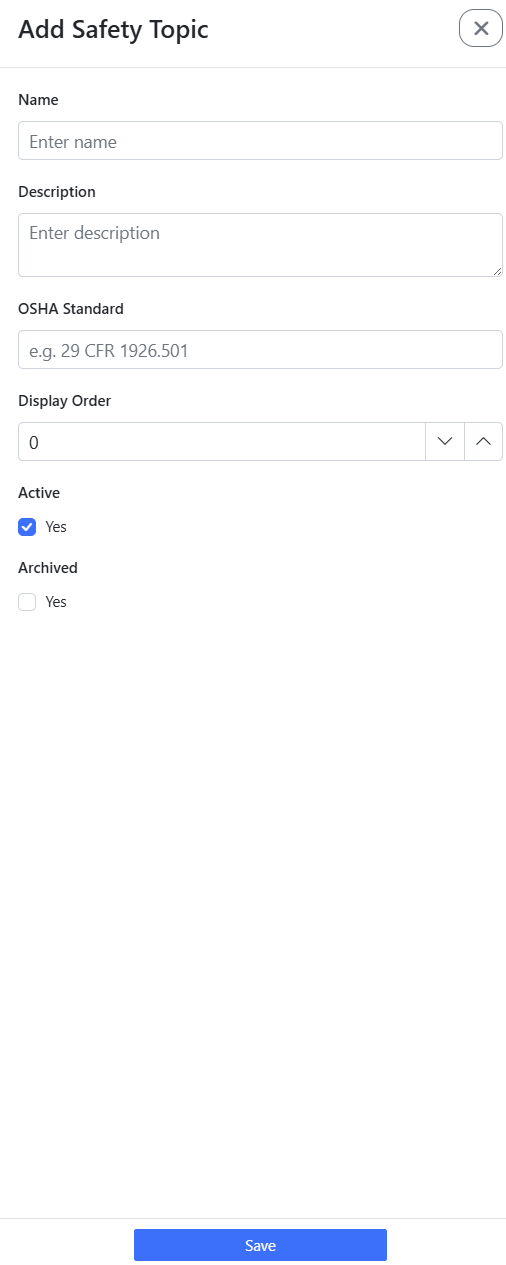
A panel slides in from the right titled Add Safety Topic.
- Fill in the topic details:
- Name — A short, recognizable name for the topic (for example, "Fall Protection"). This field is required.
- Description — A short summary of what this topic covers. Helpful for facilitators picking a topic from the dropdown later.
- OSHA Standard — The OSHA reference number associated with the topic, if any (for example, "29 CFR 1926.501"). Leave blank if not applicable.
- Display Order — A whole number that controls where this topic appears in the dropdown when scheduling a meeting. Lower numbers appear first. Use 0 if you don't care about ordering.
- Active — Leave checked (the default) so the topic appears in the meeting dropdown. Uncheck to hide it from new meetings without archiving it.
- Archived — Leave unchecked when creating a new topic. (Archiving is normally done later via the Actions menu — see Step 4.)
- Click Save at the bottom of the panel.
The panel closes and the new topic appears in the list. It's now available in the Safety Topic dropdown when anyone in your account creates a new safety meeting.
Tip: If you don't see the topic in the meeting dropdown after saving, double-check that Active is checked. Inactive topics don't show up to facilitators.
Step 3: Edit an existing topic
- On the Safety Topics page, click the name of the topic you want to edit.
A panel slides in from the right showing the topic's current values.
- Update any field — Name, Description, OSHA Standard, Display Order, Active, or Archived.
- Click Save.
Your changes are saved immediately and appear in the list.
Important: Renaming a topic changes the label everywhere it's used — including on previously scheduled or completed meetings that reference it. If you want to retire a topic without affecting historical meetings, archive it (see Step 4) instead of renaming or deleting.
Step 4: Archive a topic you no longer use
When a topic becomes obsolete (for example, because the relevant standard was retired), archive it instead of leaving it cluttering the dropdown.
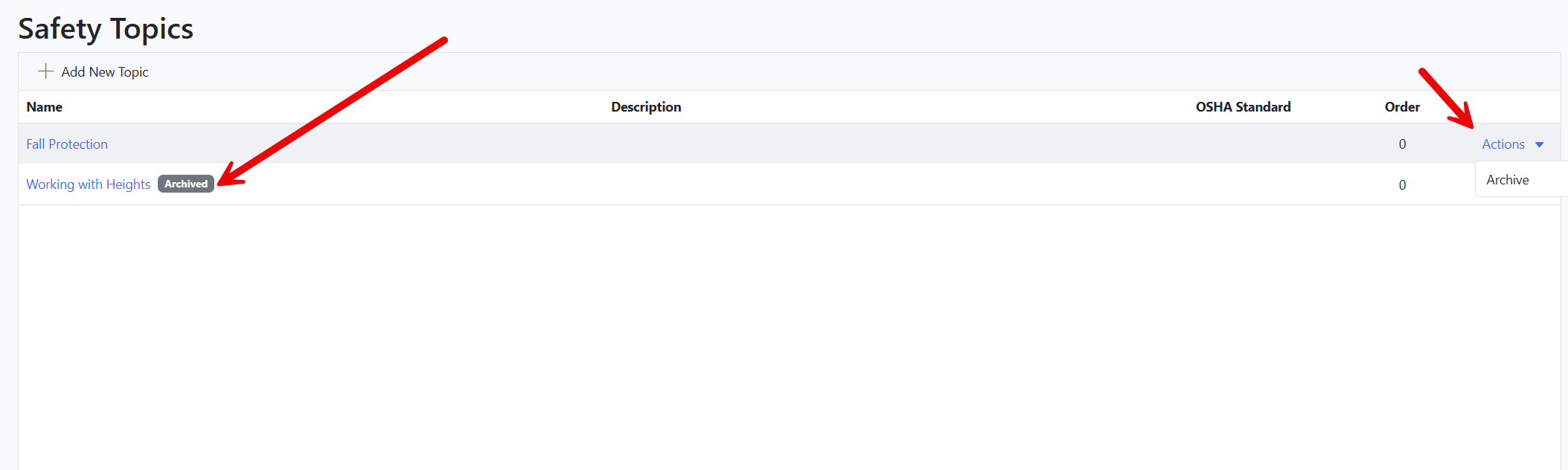
- On the Safety Topics page, find the row for the topic.
- In the Actions column, click the Actions dropdown.
- Click Archive.
The topic stays in the list with an Archived badge next to its name, but it no longer appears in the Safety Topic dropdown when scheduling new meetings. Past meetings that already use the topic are not affected.
Step 5: Restore an archived topic
- On the Safety Topics page, find the archived topic (it'll have an Archived badge next to its name).
- In the Actions column, click the Actions dropdown.
- Click Unarchive.
The badge disappears and the topic is available again in the Safety Topic dropdown.
How Topics Are Used on Safety Meetings
Once a topic is set up and active, it's available to anyone in your organization who schedules a safety meeting. On the New Safety Meeting page, the Safety Topic field is a dropdown populated with every active, non-archived topic — sorted by Display Order, then by name.
Picking a topic on a meeting:
- Helps the facilitator and attendees see at a glance what the meeting is about.
- Lets you filter and report on meetings by topic later.
- Powers the Generate with AI button on the New Meeting form — picking a topic gives the AI enough context to draft starting talking points.
The Safety Topic field is optional, so meetings can still be created without one — but using topics makes reporting and follow-up much easier.
To learn how to schedule a meeting and pick a topic, see Creating and Scheduling a Safety Meeting.
Tips & Best Practices
- Start with the seeded library. The starter topics that come with your account cover the most common OSHA categories. Review them first and only add new topics for things specific to your operation.
- Keep names short and recognizable. Facilitators see the Name in a dropdown when they're scheduling a meeting — long names get cut off and slow them down.
- Use the OSHA Standard field. Even if you only fill it in for some topics, having the reference number on the meeting record makes audits and inspections much easier.
- Archive instead of delete. Archiving keeps your historical reports intact while cleaning up the dropdown for future meetings.
- Use Display Order to surface your most-used topics. If your team runs the same five topics weekly, give them low display-order numbers (1, 2, 3, 4, 5) so they sit at the top of the dropdown.
Troubleshooting
- Issue: A topic I just created doesn't appear in the Safety Topic dropdown when I try to schedule a meeting.
Solution: Open the topic from the Safety Topics page and confirm that Active is checked and Archived is not checked. Inactive or archived topics are hidden from the meeting dropdown. - Issue: I see a "Topic name is required." error when saving.
Solution: Fill in the Name field. Every topic must have a name; the other fields are optional. - Issue: I don't see Settings in the top navigation.
Solution: You don't have admin access to your account's Settings. Contact your account administrator to request access. - Issue: I want to remove a topic permanently.
Solution: Topics aren't deleted permanently — archive them instead. Archiving hides the topic from new meetings while preserving the topic name on any historical meetings that already reference it. - Issue: I renamed a topic and now an old meeting shows the new name.
Solution: That's expected. Renaming a topic updates every meeting that references it, including past meetings. If you want to retire a topic without changing historical records, archive it and create a new topic with the new name instead.