
Getting Started with Safety Meetings
The Safety Meetings feature in Expiration Reminder helps you schedule, conduct, and document safety meetings — also known as toolbox talks — for your team. Whether you're running weekly jobsite briefings or monthly safety trainings, you can manage the entire process — from creating meeting content to capturing attendance signatures — all in one place.
This article covers what the Safety Meetings feature does, how to access it, and walks you through the key steps to get your first meeting set up.
What Are Safety Meetings?
In Expiration Reminder, a safety meeting (also called a toolbox talk) is a documented briefing where a supervisor or safety officer reviews a safety topic with employees. These meetings are scheduled, conducted, and recorded entirely within the platform. Industries like construction, electrical, plumbing, and manufacturing often require documented proof that these meetings happen — especially during OSHA inspections or compliance audits.
Expiration Reminder's Safety Meetings module gives you a centralized place to:
- Schedule meetings — Create one-time or recurring meetings and assign them to specific locations, shifts, and conductors.
- Build meeting content — Choose from pre-built topic categories (like Fall Protection, Electrical Safety, or PPE) or create your own custom content. You can also use AI-generated content or upload a PDF as your meeting material.
- Capture attendance with digital signatures — Use Kiosk Mode on a tablet at the jobsite, or have employees sign through the Portal from their own device.
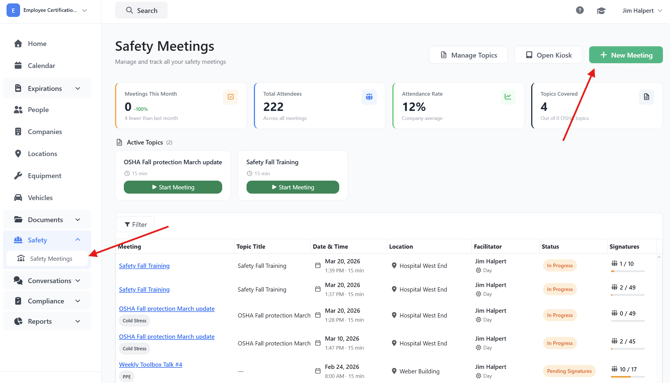
- Track completion and compliance — See at a glance which meetings are complete, which employees have signed, and who still needs to sign.
- Run reports — Generate attendance reports, compliance gap analysis, topic coverage breakdowns, and per-employee meeting histories.
Accessing Safety Meetings
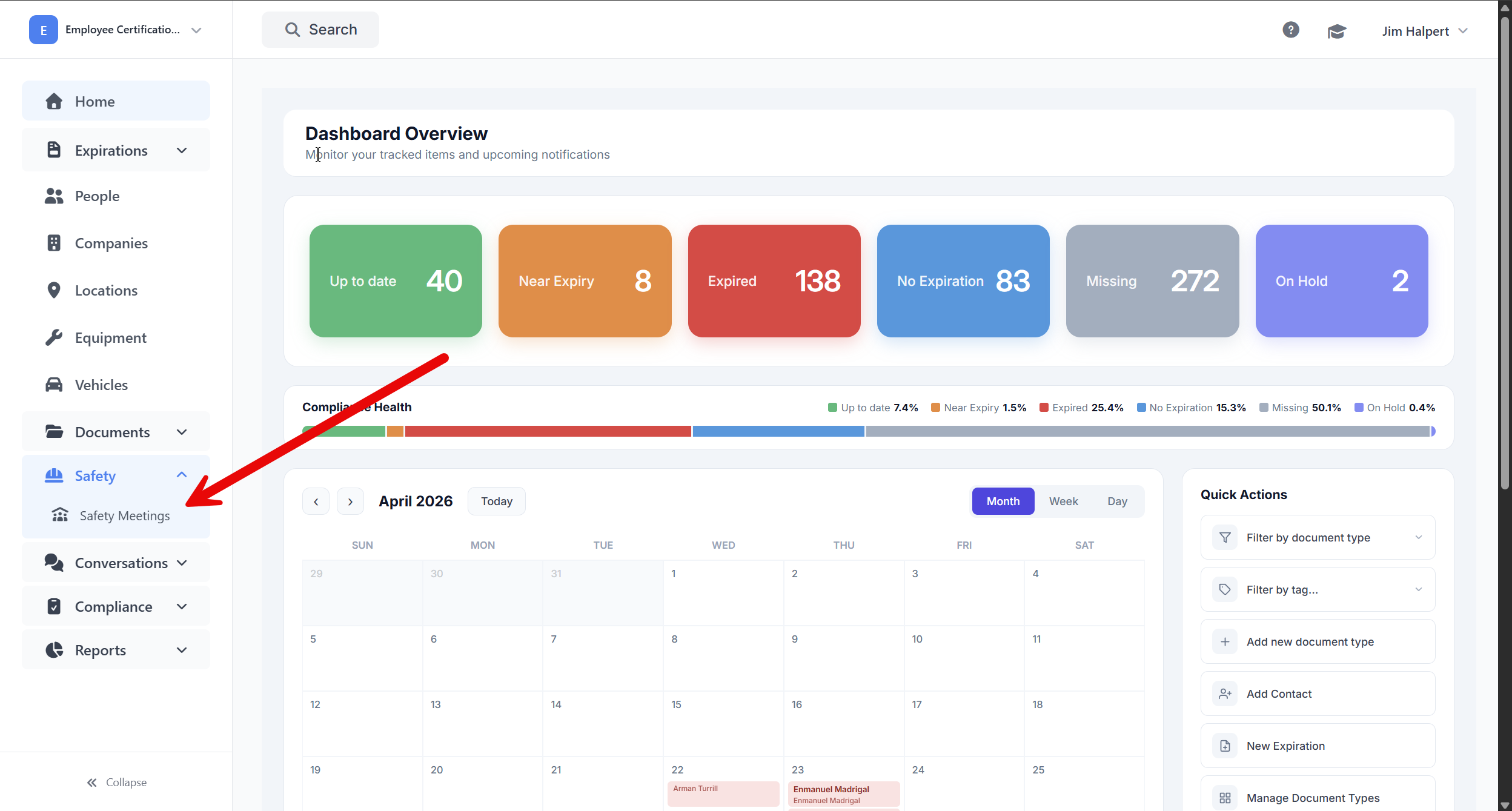
To access Safety Meetings, click Safety Meetings in the left-hand navigation menu. This opens the Safety Meetings index page, where you can see all of your scheduled, in-progress, and completed meetings.
Note: Safety Meetings is a feature that must be enabled for your account. If you don't see it in your navigation menu, contact your account administrator or reach out to the Expiration Reminder support team.
Key Concepts
Before creating your first meeting, it helps to understand a few terms:
- Conductor — The person leading the safety meeting (typically a supervisor, foreman, or safety officer). The conductor is responsible for delivering the content and ensuring attendees sign in.
- Topic Category — A broad safety subject area, such as Fall Protection, Confined Spaces, Hazard Communication, Scaffolding, Fire Safety, Lockout/Tagout, and more. Each category maps to relevant OSHA standards.
- Topic — A specific talking point or lesson within a category. Topics contain the actual meeting content that gets presented to attendees.
- Attendees — The employees expected to attend the meeting. Attendees are pulled from your existing Contacts in Expiration Reminder.
- Kiosk Mode — A full-screen signature capture interface designed for tablets and iPads at the jobsite. Employees select their name and sign directly on the screen.
- Meeting Status — Every meeting moves through a lifecycle: Draft → Scheduled → In Progress → Pending Signatures → Completed (or Cancelled).
Creating Your First Safety Meeting
Follow these five steps to create and schedule your first safety meeting in Expiration Reminder:
Step 1: Start a New Meeting
From the Safety Meetings page, click New Safety Meeting. This opens the meeting creation form.
Step 2: Choose a Topic
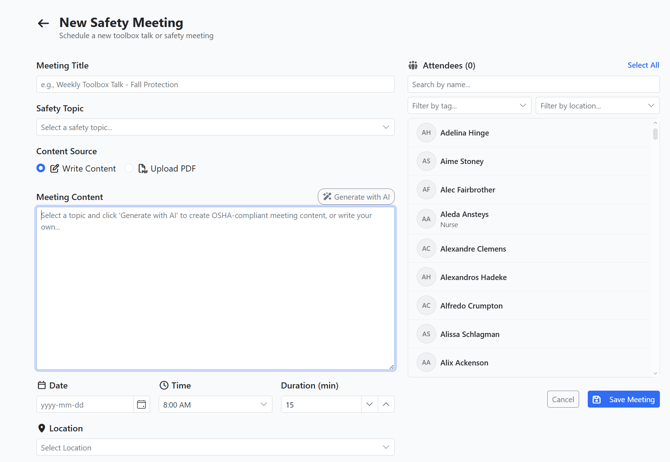
Select a Topic Category (e.g., Fall Protection, Electrical Safety, PPE) and then pick a specific topic within that category. The topic content will be pre-loaded into the meeting automatically. You can still edit the content before saving.
You have four options for meeting content:
- Template — Use a pre-built topic template from the library.
- AI-Generated — Let AI generate OSHA-compliant meeting content based on your selected topic.
- Custom — Write your own content from scratch or edit any of the above.
- PDF Upload — Upload an existing PDF document as the meeting material.
Step 3: Set the Details
Fill in the meeting details:
- Title — Give the meeting a clear name (e.g., "Weekly Fall Protection Toolbox Talk").
- Date and Time — Set when the meeting is scheduled to take place.
- Duration — The default is 15 minutes, but you can adjust this.
- Location — Select the jobsite or office where the meeting will be held.
- Shift — If applicable, specify the shift (Day or Night).
- Conductor — Assign the person who will lead the meeting.
- Signature Deadline — Optionally set a deadline by which all attendees must sign.
Step 4: Add Attendees
Select the employees who should attend from your existing contacts. You can add individual contacts or select groups.
Step 5: Save and Schedule
Save the meeting. It will appear on your Safety Meetings list with a Scheduled status, and the assigned conductor will receive a reminder one hour before the meeting time.
Conducting a Meeting and Collecting Signatures
When it's time to hold the meeting, open the meeting from your Safety Meetings list and click Start Meeting to transition it to In Progress. The conductor reviews the meeting content with the group, then collects signatures using Kiosk Mode or the Portal.
Using Kiosk Mode (Recommended for Jobsites)
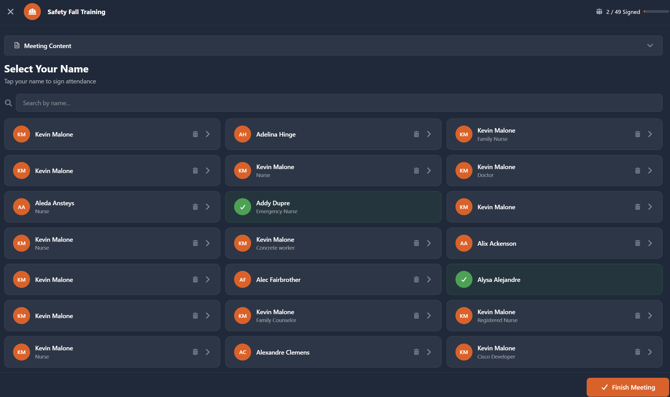
Kiosk Mode turns a tablet or iPad into a self-service sign-in station:
- Open the meeting and click Kiosk Mode.
- The screen enters a full-screen interface with large, touch-friendly controls.
- Each employee selects their name from the attendee list.
- They draw their signature on the screen and confirm.
- The kiosk automatically advances to the next attendee.
Kiosk Mode also supports walk-ins — employees who weren't on the original attendee list can be added and signed in on the spot.
Signing Through the Portal
Employees can also sign meetings remotely through the Expiration Reminder Portal. When a meeting requires their signature, they'll see an action item on their Portal dashboard. They can review the meeting content, acknowledge it, and submit their signature from any device.
Meeting Statuses Explained
As a meeting progresses, its status updates automatically:
| Status | What It Means |
|---|---|
| Draft | The meeting has been created but not yet finalized or scheduled. |
| Scheduled | The meeting is confirmed and attendees have been notified. |
| In Progress | The meeting is currently being conducted. |
| Pending Signatures | The meeting content has been delivered and the system is waiting for attendees to sign. |
| Completed | All required signatures have been collected and the meeting record is finalized. Once completed, the record is locked and cannot be edited. |
| Cancelled | The meeting was cancelled. A cancellation reason is captured for the record. |
Important: Once a meeting is marked Completed, it becomes an immutable record. This means it cannot be edited or deleted — ensuring you always have a reliable audit trail for compliance purposes.
Recurring Meetings
If you hold the same type of meeting on a regular schedule — for example, a weekly toolbox talk every Monday morning — you can set up a recurring meeting series instead of creating each meeting individually.
When creating a meeting, configure the Recurrence setting to repeat weekly, biweekly, or monthly. You can also set a recurrence end date or limit the number of occurrences. Expiration Reminder will automatically generate future meeting instances based on your schedule.
Notifications and Reminders
Notifications in Expiration Reminder's Safety Meetings module are sent automatically — no configuration is required. The following notifications fire based on meeting activity and scheduling:
The Safety Meetings module includes built-in notifications to keep everyone on track:- Conductor Reminder — The meeting conductor receives a reminder one hour before the scheduled meeting time.
- Unsigned Meeting Reminder — If attendees haven't signed within 24 hours after the meeting, they receive a reminder.
- Signature Deadline Warning — If a signature deadline is set, attendees who haven't signed receive a warning 4 hours before the deadline.
- Manager Escalation — If an employee misses 3 or more meetings within a 30-day period, their manager is automatically notified.
- Weekly Compliance Summary — Organization admins receive a weekly summary (Mondays) with aggregate statistics on meetings held, attendance rates, and gaps.
- Meeting Completed — Admins are notified when a meeting is marked complete.
Reports
Expiration Reminder's Safety Meetings module includes five built-in reports to help you monitor compliance and track trends:
- Attendance Report — View total meetings held, average attendance rate, and per-meeting breakdowns of who signed, who didn't attend, and completion percentages. Filter by date range and location, and export to Excel.
- Completion by Site — See meeting completion rates broken down by location, so you can identify which jobsites are keeping up and which are falling behind.
- Compliance Gap — Find employees who haven't attended a safety meeting within a configurable number of days. This is especially useful for audit preparation.
- Employee History — View a specific employee's full meeting attendance history, including dates, topics covered, and attendance status.
- Topic Coverage — Analyze which safety topics have been covered over a given period with a monthly breakdown, helping you ensure all required topics are addressed throughout the year.
To access these reports, navigate to Reports in the left-hand navigation menu and select Safety Meetings from the report category list.
Linking Meetings to Documents
Safety meetings can be linked to related compliance documents in Expiration Reminder. For example, if you conduct a Fall Protection safety meeting, you can link it to your employees' Fall Protection certification records. This creates a connected compliance trail between training activities and the documents that track them. To link a meeting to a document, open the completed meeting record and use the Linked Documents section.
Tips for Getting Started
- Set up your Topic Categories and Topics first. Go to the Topics page and review the pre-built categories. Add any custom topics your organization needs.
- Start with a single recurring meeting. Get comfortable with the workflow — create, conduct, collect signatures — before rolling it out across all your locations.
- Use Kiosk Mode for in-person meetings. It's the fastest way to collect signatures and requires minimal effort from your crew.
- Check the Compliance Gap report weekly. It's the quickest way to catch employees who are falling behind on required safety training.
- Link meetings to related certifications. This builds a more complete compliance picture and makes audits smoother.
Next Steps
Now that you understand the basics of Safety Meetings in Expiration Reminder, explore these related articles to go deeper:
- Creating and Scheduling a Safety Meeting — Detailed walkthrough of the meeting creation form and all available options.
- Managing Safety Meeting Topics — How to create, organize, and manage your topic library.
- Using the Safety Meeting Kiosk for Sign-In — A guide to setting up and using Kiosk Mode on tablets.
- Tracking Attendance and Completion — How to monitor who has signed and manage incomplete meetings.
- Safety Meeting Reports — A detailed look at each report and how to use them for compliance.