
Before You Begin
- You must be an Admin (or have a custom role with the Setting View permission) to invite users.
- The invitation is sent by email — the new user clicks the link in that email to set a password and log in.
- A user is different from a contact. Users can log into the app; contacts are the people you track expirations for. Inviting someone as a user also creates a matching contact record automatically.
- Related articles:
Step-by-Step Instructions
Step 1: Open the Invite User page
- From the left sidebar, click Settings.
- Click Users.
- Click the Invite User (or Add User) button at the top of the users list.
You'll land on the invite form.
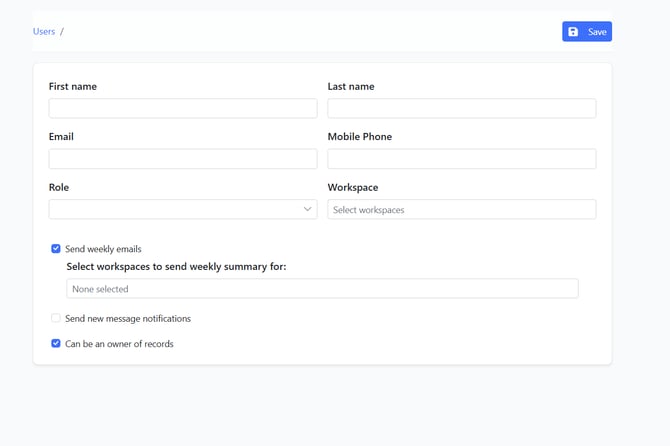
Step 2: Enter the user's basic details
Fill in the following fields:
- First Name and Last Name — the user's name as it will appear in the app.
- Email — the email address the invitation will be sent to. This also becomes their login.
- Mobile Phone — optional, used for SMS notifications.
Step 3: Choose a role
The Role dropdown lists every role available in your account.
- If your account uses custom roles, pick the role that matches the access you want this user to have.
- Otherwise, choose from the built-in roles (for example, Admin, User, Viewer, Reader).
The role controls what the user can see and do — see User Roles & Permissions.
Step 4: Assign workspaces
In the Workspace multi-select, pick one or more workspaces the user should have access to. The user will only see data from the workspaces you select.
Tip: If you only have one workspace, leave this field set to the default.
Step 5: Set notification and ownership options
Tick or untick the checkboxes for:
- Send weekly emails — sends the user a weekly summary email. If you turn it on, a second multi-select appears so you can choose which workspaces' data to include in their weekly summary.
- Send new message notifications — emails the user whenever they get a new in-app message.
- Can be an owner of records — lets you assign records (contacts, items, etc.) to this user as the owner.
Step 6 (optional): Configure a Record Set
If your plan includes Record Sets, you'll see a section to either:
- Use an existing Record Set — choose a saved Record Set from the dropdown.
- Use a custom Record Set — define rules per entity type (Expiration Items, Contacts, Companies, Locations, Equipment, Vehicles) for what this user can view and update.
Skip this section if Record Sets aren't enabled on your plan.
Step 7: Send the invitation
- Click the Save button in the upper-right action bar.
- The user is created, and an invitation email is sent to their email address automatically.
- You're returned to the Users list.
The user can now click the link in the invitation email, set their password, and log in.
Tips & Best Practices
- Double-check the email address. The invitation goes to the address you enter, and changing it later requires resending. Double-check before saving to avoid needing to resend.
- Match the role to the job. Don't default everyone to Admin — most people need only User or a custom role with limited permissions.
- Use a custom role for repeat patterns. If you find yourself adjusting permissions for every new user, build a custom role once and reuse it.
- Stagger workspace access. Users only see what's inside the workspaces you assign. Keep new hires limited until they're trained, then expand.
Troubleshooting
- Issue: The user didn't receive the invitation email.
Solution: Ask them to check spam/junk. If it's not there, open the user from the Users list and resend the invitation, or have the user go to the login page and use the Forgot Password link to set a new password and log in. - Issue: I can't see the Users page in Settings.
Solution: User management is admin-only. Ask an account admin to grant you the Setting View permission, or have them invite the user for you. - Issue: The Role dropdown is empty.
Solution: Your account has no roles defined yet. Set up custom roles in Settings → Roles first, or switch to the built-in role list. - Issue: The user logs in but can't see any data.
Solution: Check the Workspace assignment on their user record. If no workspaces are ticked, they'll see nothing.