To learn more about the Employee/Vendor Portal, please read Using the Portal Link for Contacts
There may be instances where you want your contacts who have access to renew their own expiration items, to be able to decline an item instead of renewing it. For example, a health care facility may send out reminders to their staff to remind them of a yearly vaccine that is required for compliancy. Some staff due to various reasons, may be eligible to decline this vaccine, so instead of renewing it upon getting vaccinated, they have the option to decline instead.
To enable the option to decline, a user must turn this on for each Document Type that they want contacts to be able to decline. For example, if you are tracking Covid-19 vaccines for staff, you will enable the Decline option under your Covid-19 document type.
Enabling the option to DECLINE an Expiration Item in the Employee/Vendor Portal:
1. Go to Document Types.
2. Click on the Document Type that you want to enable the Decline option.
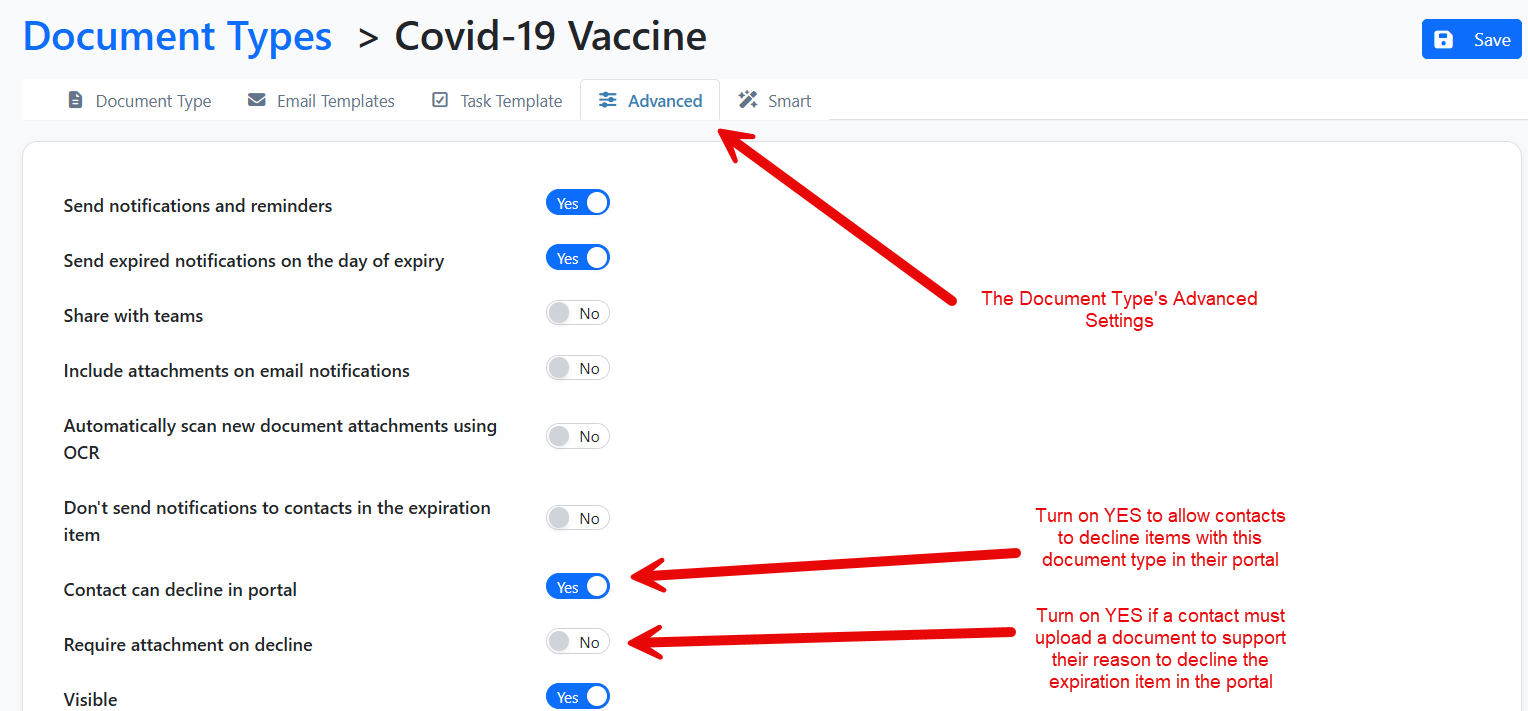
3. Click on the "Advanced" Tab to access the Document Type's advanced settings.
4. From this list of Settings, turn on the toggle button that reads, "Contact can decline in portal".
5. Once this button is turned to YES, another field will pop up below, prompting the user to select 'Require attachment on decline'. If this is turned on to YES, this means that when a contact declines an item with this Document Type in their portal, they must also upload an attachment that supports their reason for declining.
6. Click the blue SAVE button in the top right-hand corner.
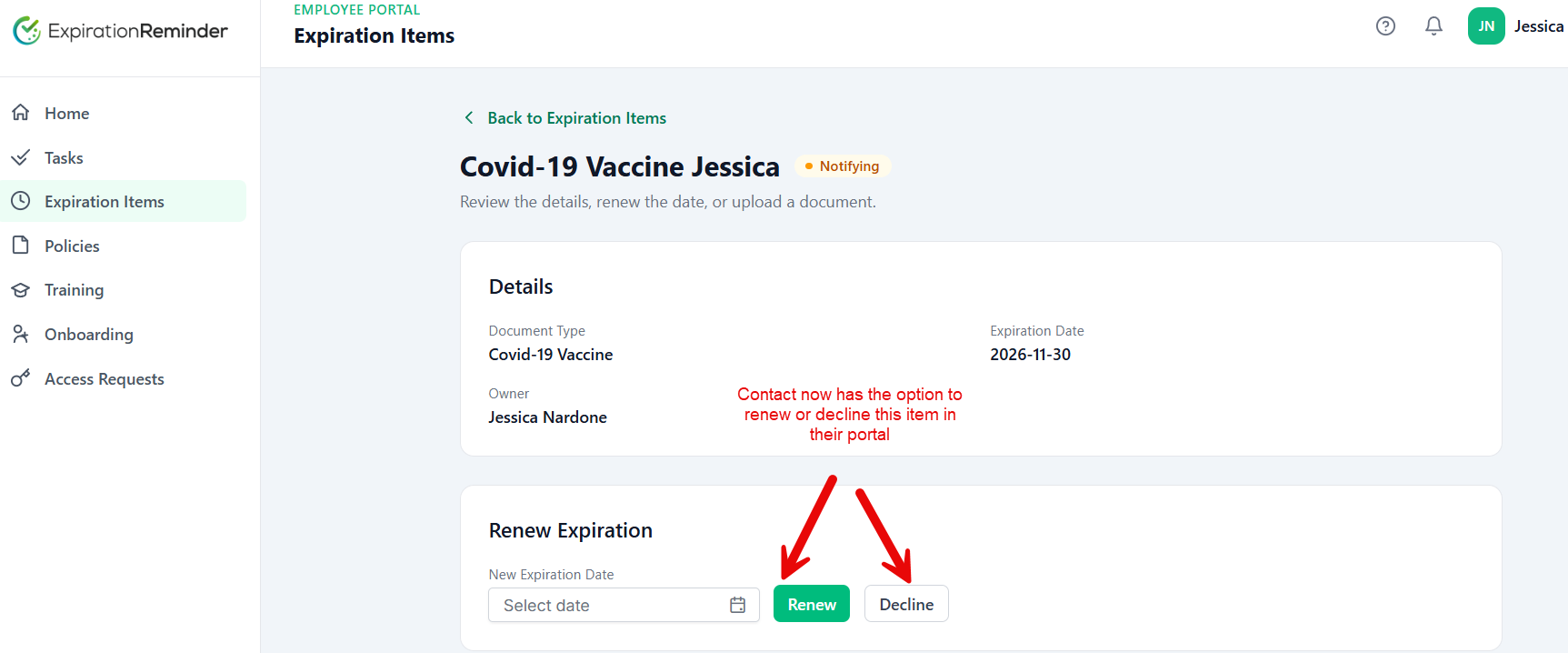
Once the above is saved, the next time a contact receives an email reminder that it is time to renew their Covid-19 vaccine, they can access their portal via the Magic link and now have the option to renew it or decline it. *It is important to note that the Document Type must also have the "Include employee/vendor portal link" enabled as well: Using the Portal Link for Contacts
Declining an expiration item in the Employee/Vendor Portal:
Now that the Decline option is enabled at the Document Type level, a contact can now decline an item in their Portal that they received a reminder for. The below steps show how it appears from the contact's point of view.
1. Contact receives a reminder email and access their portal (once again, see Using the Portal Link for Contacts to learn more about the Portal)
2. Once the contact is logged into their individual portal, they can now either renew or decline this item.
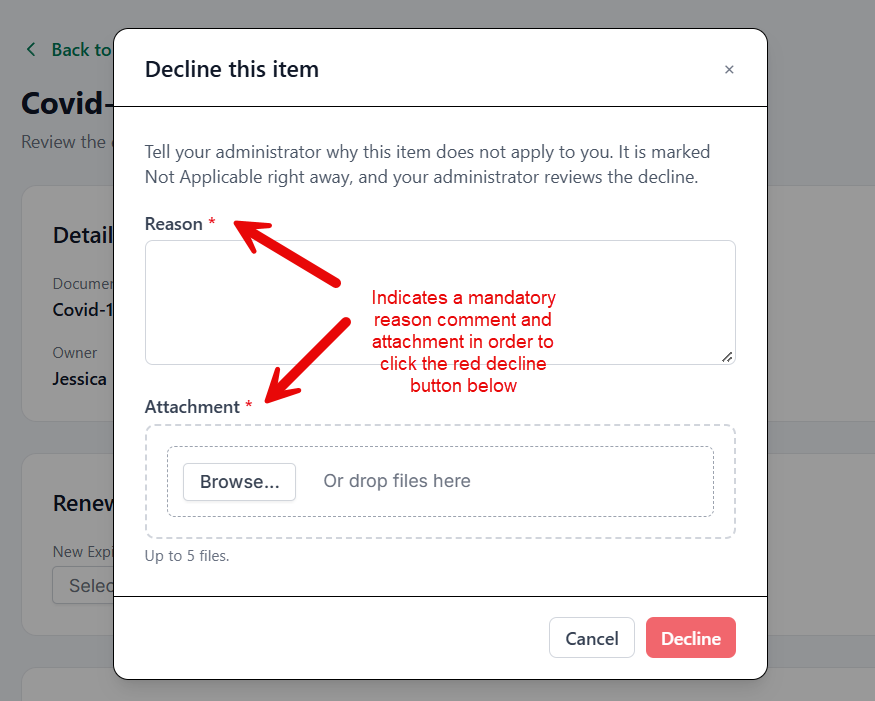
3. When the contact clicks decline, a box appears where they must enter a reason synopsis or comment, and if the user has previously indicated that an attachment is required to decline, a red * will appear next to the 'Attachment' section and they cannot proceed further with the decline until both of these sections are completed.
4. Once the contact has declined, a message appears indicating that their decline request is pending approval. The reason comment inputted will also appear. Contact can now log out.
How a User can Accept or Reject a contact's Declined Expiration Item:
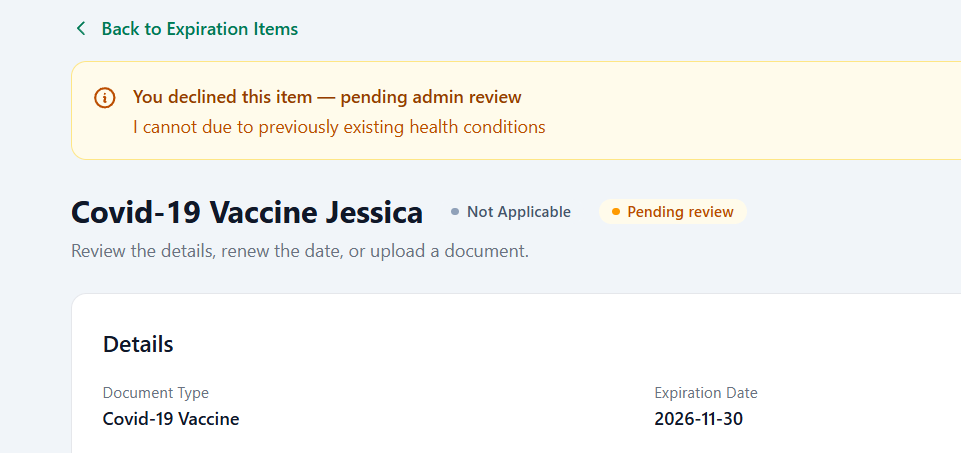
Once a contact has declined an expiration item in their Portal, that item switches to the 'Not Applicable' status in the main account. Any attachments will also appear on the record in the main account, and that Reason comment appears as a NOTE on the record. An 'Approval Pending' tag will also be on the item.
The OWNER of the expiration item (Owners are Users who have the permission to be owners of records) will now have the declined item appear in their TASK list to approve or reject. The owner will be notified as long as they have the 'Expiration Item Commented' enabled on their contact profile under the Watched Expirations tool and they are watching either ALL items, or ones that fall under pre-set rules (ie: they receive reminders for items they are owners of, or specific document types, etc.) Watched Expirations: Acknowledgments/Comments
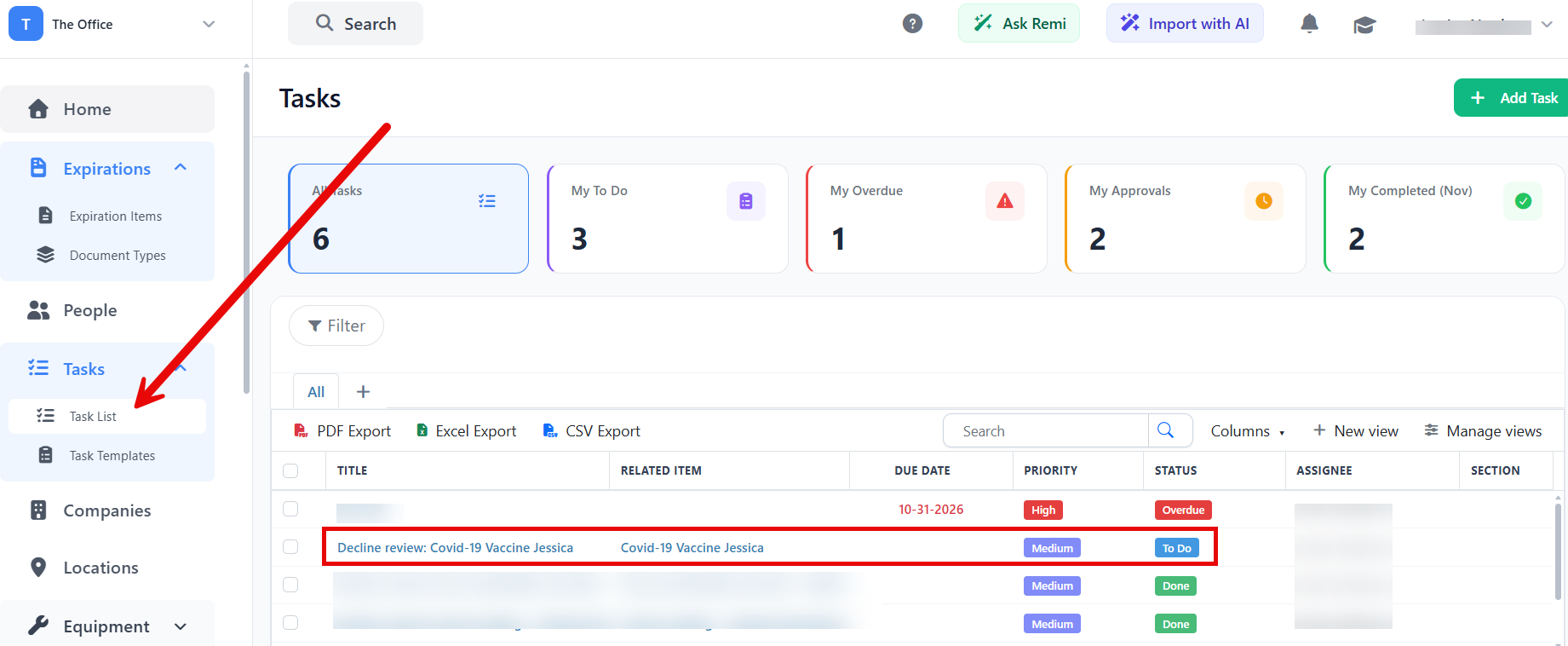
From the above list, the Owner of this declined item when logged into the main account, can click on the 'Title' link of the declined task, and from there manage it appropriately as a details panel will pop up on the right where management of the task takes place.
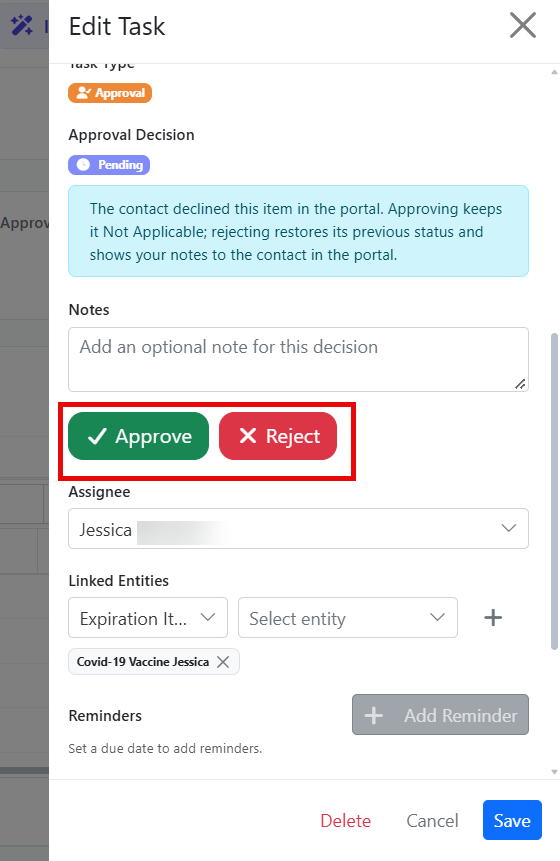
Here is where you can view the contact's reason to decline, you can set a due date for yourself to return to this at a later time, you can even change the 'Assignee' which are other owners/users of the account, and set a priority to yourself of how urgent this is to manage. In order to view any attachments that the contact uploaded, you must click into the expiration item itself (click on the link under the 'Related Items' column to view the expiration item in full including attachments).
Finally, this is where you can approve or reject the decline request. You can even write a note back to the contact under 'Notes'. Be sure to save your changes.
The contact will receive an email with an update on whether the item was approved or rejected. If rejected, the email encourages them to login to their portal via a magic link to renew or to submit a new decline request. The notes inputted if any will be on the email and in their portal.
Likewise, the user who approved or rejected the declined item/task will get an email confirmation of the action taken. If it was declined, it will remain in a TO DO status on the user/owner's TASKS. If approved, it will change to a 'Done' status. *Please remember that these decline requests only appear in the User's Tasks List if they are the OWNER of the item.
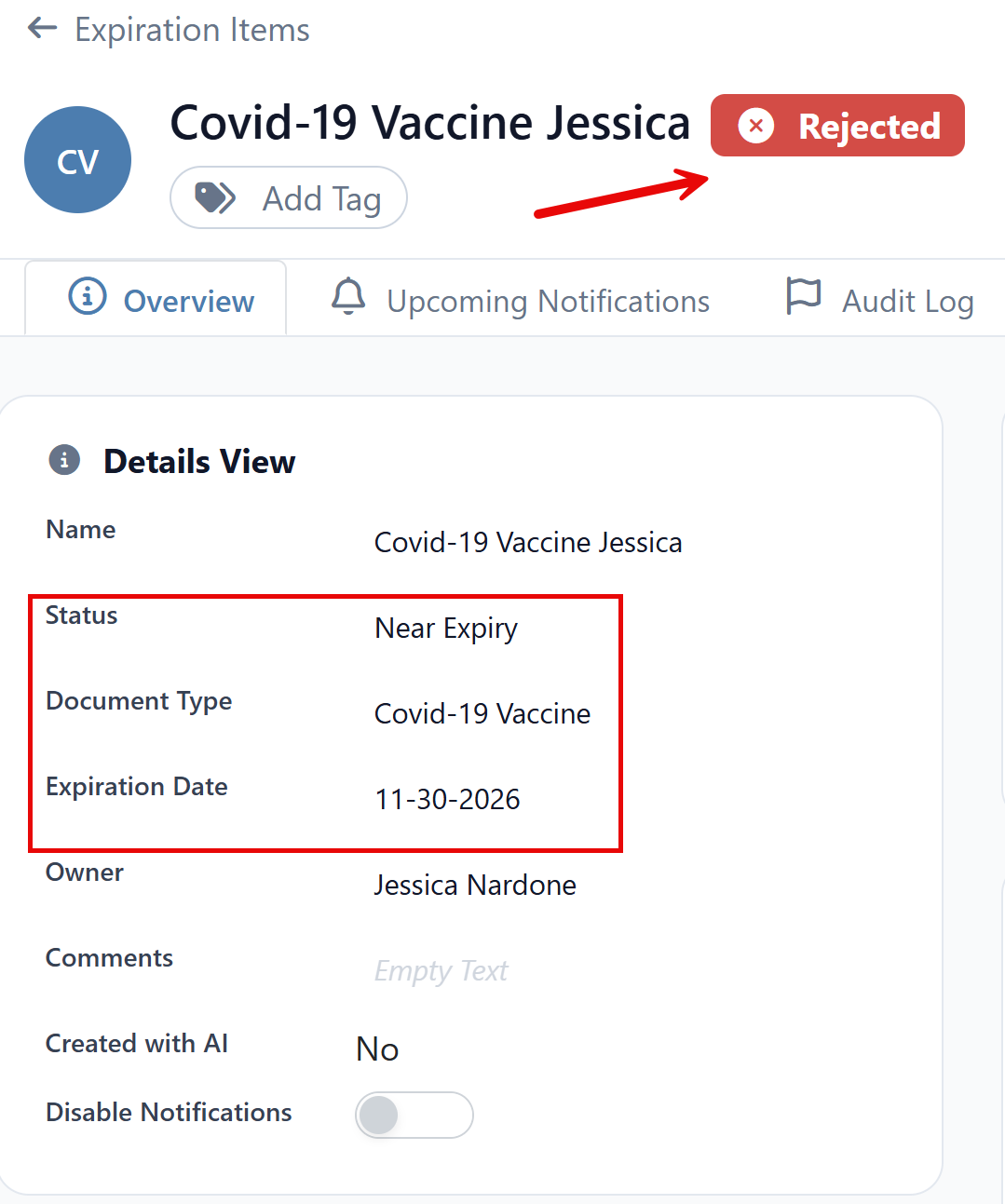
Approved items will remain in a Not Applicable status but have an 'Approved' tag applied, while rejected items will go back to their previous status and will have a 'Rejected' tag on the actual expiration item.
If a User wishes to resend the same request for renewal at a later time (ie: they want to resend a Covid-19 renewal a year later to the same contact), they have the choice to either manage the approved/declined items under the 'Not Applicable' status and renew those to a new deadline for reminders to be triggered, or create a new expiration item with the same Document Type and a new deadline. That way a year later, the contact has the option to renew or decline it again if this is for example, an annual request.