
Before You Begin
- You must be an Admin to create or revoke API keys.
- API keys are sensitive — anyone who has the key can access your data through the API. Treat them like passwords.
- Revoked keys cannot be reactivated. If you revoke by mistake, you'll need to create a new one and update the integration that used the old key.
- Related articles:
What are API keys?
An API key is a unique authentication token that grants an external application or script authorized access to your Expiration Reminder account via the public API.
An API key lets an external system — for example, a custom script, a Zapier webhook, or your in-house compliance dashboard — connect directly to Expiration Reminder. With a valid key, that system can read your existing data, add new records, and perform other actions permitted by the public API.Each key has a Name (so you can tell them apart) and an Access Token (the actual key value). You can create a separate key per integration, which makes it easy to revoke just one if a system is compromised or no longer in use.
Step-by-step instructions
Step 1: Open the API Keys page
- From the left sidebar, click Settings.
- Click API Keys.
You'll see a list of every API key currently active on your account, with columns for Name and Token.
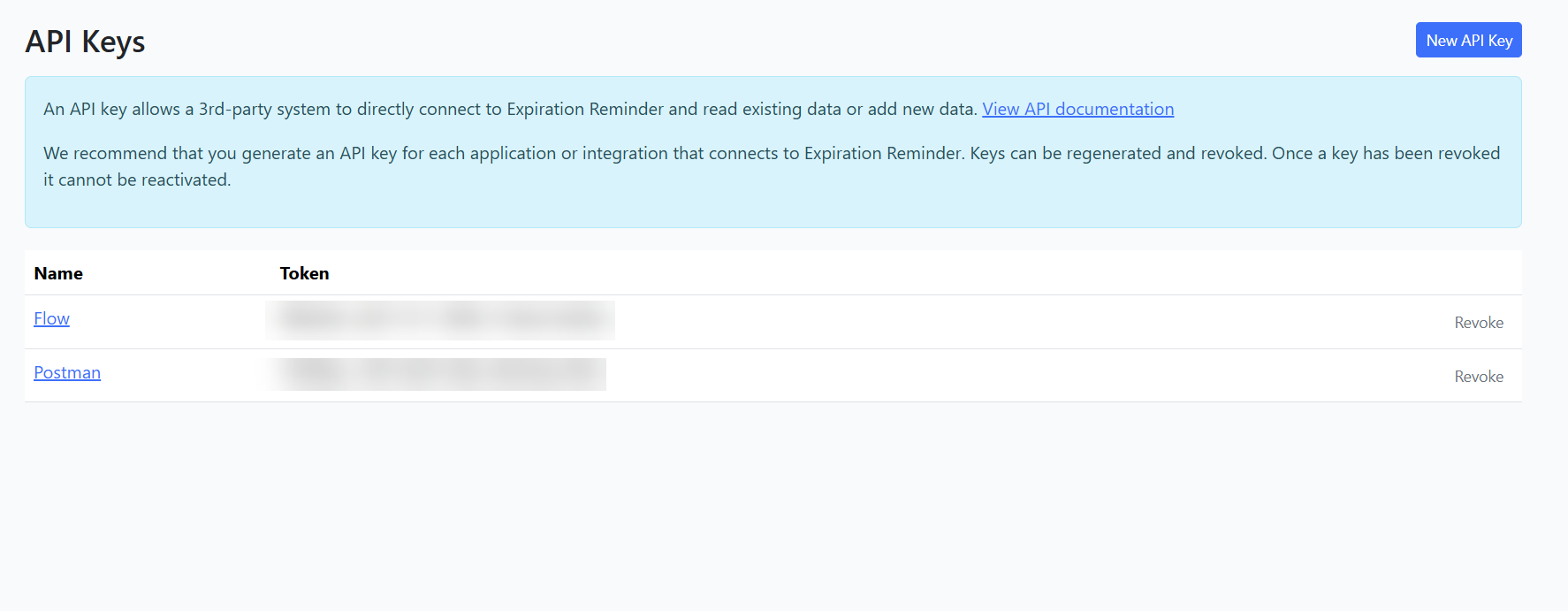
Step 2: Create a new API key
- Click Add New in the upper right.
- A sidebar opens on the right.
- Enter a descriptive Name for the key (for example, "Zapier — production" or "Internal dashboard").
- Click the Save button at the bottom of the sidebar.
The new key appears in the list with its Access Token visible. Copy the token and paste it into your integration's configuration.
Important: Copy the token immediately and store it somewhere safe (a password manager). If you lose it, you can revoke the key and generate a new one, but you can't recover the original value.
Step 3: Edit a key's name
To rename a key (for example, to reflect a new use):
- Click the key's name in the list.
- A sidebar opens with the editable name field.
- Update the name and save.
The token value does not change when you edit the name.
Step 4: Revoke an API key
- In the row for the key you want to revoke, click the Revoke button.
- A confirmation dialog asks: Are you sure you want to revoke this API key?
- Click the red Revoke button to confirm.
The key is removed from the list. Any integration that was using the token immediately stops working.
Tips & best practices
- One key per integration. Don't share a single key across multiple integrations. If one is compromised, you'd have to revoke and update every system using it.
- Name keys clearly. "Test", "Old", and "API" are useless three months later. Use "Zapier — production" or "John's compliance script — 2025" instead.
- Audit periodically. Open the API Keys page once a quarter and revoke any key you don't recognize or no longer use.
- Rotate after staff changes. If an employee with access to your API keys leaves the company, revoke the keys they used and generate replacements.
Troubleshooting
- Issue: I revoked a key but the integration still seems to work.
Solution: Some integrations cache the token. Restart the integration or wait a few minutes for the cache to expire. If it keeps working, double-check you're using the same account — multiple Expiration Reminder accounts could have separate keys. - Issue: I accidentally revoked the wrong key.
Solution: Revocation is permanent. Create a new key with a descriptive name and update the affected integration with the new token. - Issue: The Add New button doesn't appear.
Solution: Your account role is not Admin. Ask an account Admin to create the key for you, or to grant you the Admin role. - Issue: My integration says "Unauthorized" or "Invalid token".
Solution: Check the key still exists on the API Keys page and matches exactly what the integration is sending. Watch for stray whitespace or quotes when copying the token.