
There may be instances when you need to send a notification/reminder to someone immediately, and instead of waiting for the next scheduled reminder as per the frequency set at the document type (see Changing the Reminder Frequency), you can send a notification/reminder right away for any urgent matters.
Steps to Send an Instant Notification:
1. Find the expiration item that requires a notification be sent immediately.
2. Open the expiration item and ensure you are viewing it on one page (click on 'View Record' if you have the Details Panel open up on the right hand side).
3. Click on the 'Send Notifications' button in the top right corner.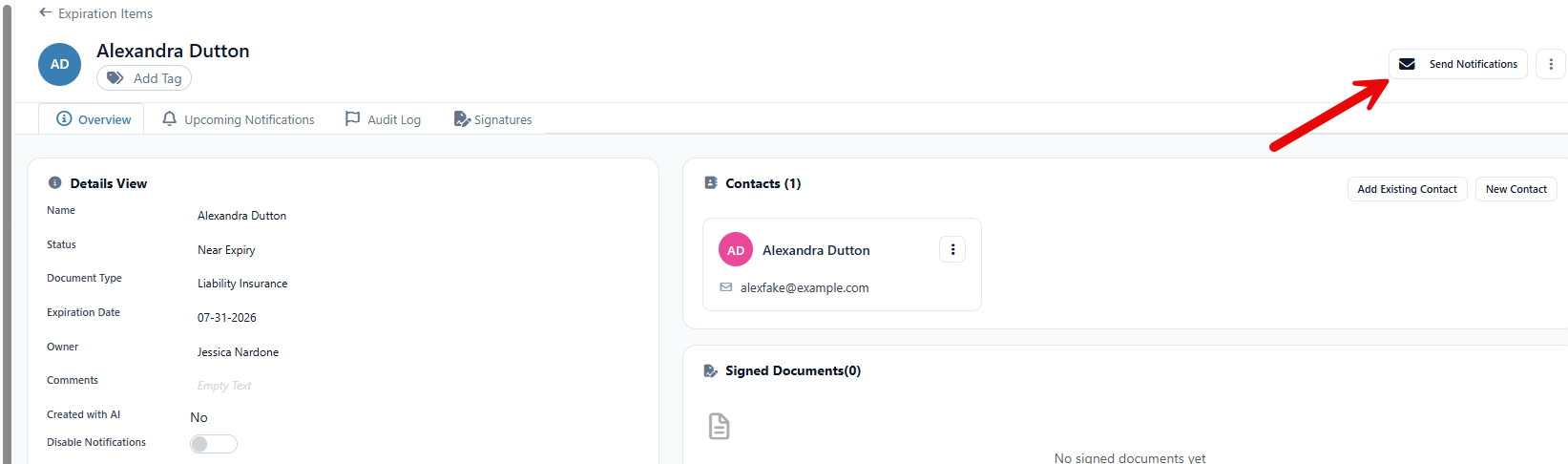
4. From here, you can select which email template to use for your instant notification. If you have not previously set up any custom email templates, then the drop-down option will only include the 'Default Template', which is the template that already exists in your Settings menu and is triggered to send as per the scheduled reminder frequency.
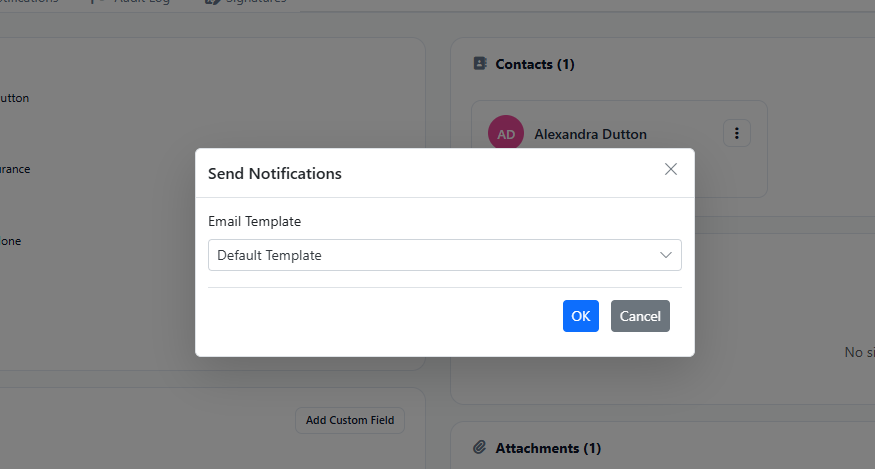
5. Click 'OK' and a reminder will go out instantly to the contact or contacts assigned to this particular expiration item, and they will receive these reminders based on whatever delivery type they have on their contact profiles. For example, if a contact is setup to receive both email and mobile/text reminders, then they will receive this instant notification by email and text.
These manually-sent instant reminders will appear in the item's audit log history. You can identify which ones these are by the paper airplane symbol. So if you ever see these, it means a notification was sent as per the above instructions outside of the scheduled reminder frequency.
