
Before You Begin
- You must be an Admin to configure QR Portal settings.
- The QR portal is a public-facing page. Anyone who scans the QR code and enters the correct passcode can view the record's basic details. Anyone who scans the QR code can see the record's basic details unless they enter the wrong passcode.
- Anyone in your account can generate QR codes for individual records — but the passcode is shared across the entire account.
- Related articles:
What is the QR Portal?
The QR Portal is a secure, public-facing web page that lets anyone with a printed QR code and a 4-digit passcode instantly view key details about a vehicle, equipment, location, or contact record without logging into Expiration Reminder. It is designed for field crews, visitors, and inspectors who need quick on-site access to record information and owner contact details.
How the QR Portal works- You print a QR code from a vehicle, equipment, location, or contact record.
- You stick it on the physical item (truck, generator, office door, etc.).
- Anyone scans the QR code with their phone camera.
- The portal asks for the 4-digit passcode before showing the record's details.
- Once entered, the portal shows the record's name, owner photo, Email Me and Call Me buttons, supervisor information, and any expiration status.
This is useful for field crews, customers, or visitors who need to identify or contact someone tied to a piece of equipment without logging into Expiration Reminder.
Step-by-Step Instructions
Step 1: Open the QR Code Portal settings
- From the left sidebar, click Settings.
- Click QR Code Portal.
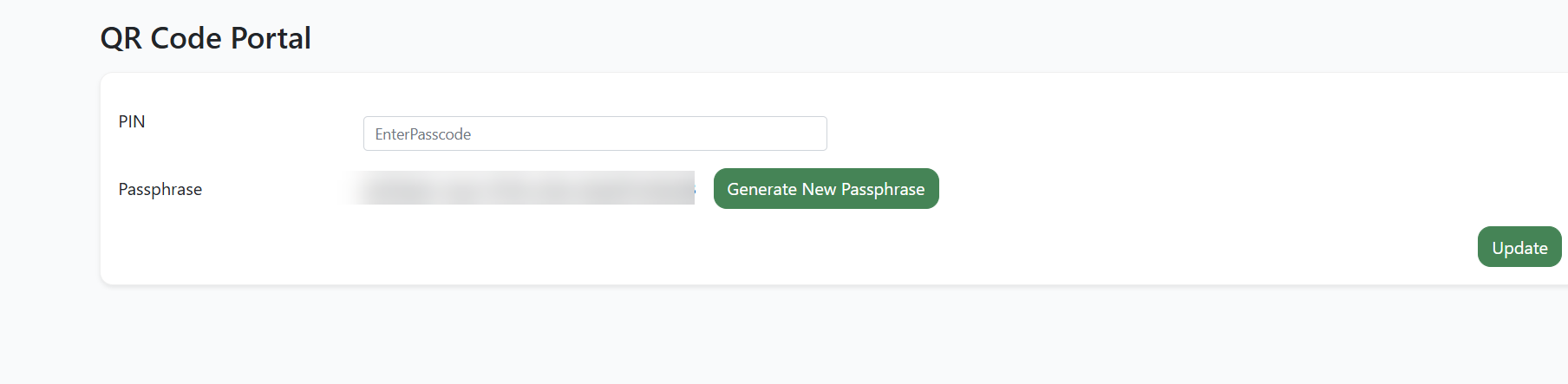
Step 2: Set the 4-digit passcode
In the QR Passcode field, type a 4-digit number. This is the code anyone scanning a QR will need to enter before seeing the record.
Tip: Choose a code your team can easily remember but that outsiders cannot easily guess - avoid obvious sequences like 1234 or 0000.
Step 3: Generate a passphrase (optional)
The QR Passphrase field shows a unique identifier that's baked into every QR code your account generates. This identifier links each QR code to your account. Rotating it immediately invalidates all previously printed codes. To rotate it (for example, if a QR sheet has been compromised):
- Click Generate New Passphrase.
- A new passphrase ID appears in the field.
- Click Update to save.
After rotating, all previously printed QR codes will stop working — you'll need to reprint and replace them.
Step 4: Save
Click the green Update button at the bottom of the page.
A confirmation message appears at the bottom-right of the screen to confirm your settings were saved.
Step 5: Generate a QR code for a record
- Open the record (a vehicle, equipment, location, or contact).
- Look for the QR Code action in the record's actions menu.
- The QR code opens in a dialog. You can print it or download it as an image.
- Stick the printed QR on the physical asset.
Step 6: Test the portal
- Use a phone camera to scan one of your QR codes.
- The portal opens in the phone's browser.
- Enter the 4-digit passcode when prompted.
- The record's name, contact details, and quick actions appear.
Tips & Best Practices
- Don't share the passcode publicly. It protects access to your portal — if outsiders learn it, they can read any record by scanning a QR.
- Rotate the passphrase if a QR sheet is lost. Generating a new passphrase invalidates every existing QR. It's a security reset, not a cosmetic change.
- Print durable QRs. Use weatherproof labels or laminate the QR if it's going on a vehicle or outdoor equipment.
- Combine with expiration tracking. The QR portal shows the contact details of the assigned owner — making it easy for someone on-site to call the right person about an expired registration or service.
Troubleshooting
- Issue: I scan a QR and get an error or "Invalid passcode" message.
Solution: Confirm you're typing the correct QR Passcode. If someone rotated the passphrase recently, old QR codes stop working — reprint them. - Issue: I don't see QR Code Portal in Settings.
Solution: The QR Code Portal settings page is visible to Admin users only. Ask an admin to grant you the Setting View permission, or have them perform the setup. - Issue: The Email Me or Call Me buttons don't appear.
Solution: These buttons only appear when the assigned contact record has an email address or phone number saved. Open the contact or assignee to add the missing details. - Issue: The QR opens, but I see "You must assign passcode."
Solution: The QR Passcode field is blank in your settings. Open Settings → QR Code Portal, set a 4-digit passcode, and click Update.