
Tasks in Expiration Reminder help you track work that needs to be completed. You can create individual tasks for one-off to-dos, or use Task Templates to build repeatable renewal workflows that automatically generate a checklist of steps when an expiration item reaches a specific point in its lifecycle.
For example, you could create a renewal workflow that automatically generates tasks 30 days before a document expires, assigning each step to the appropriate team member.
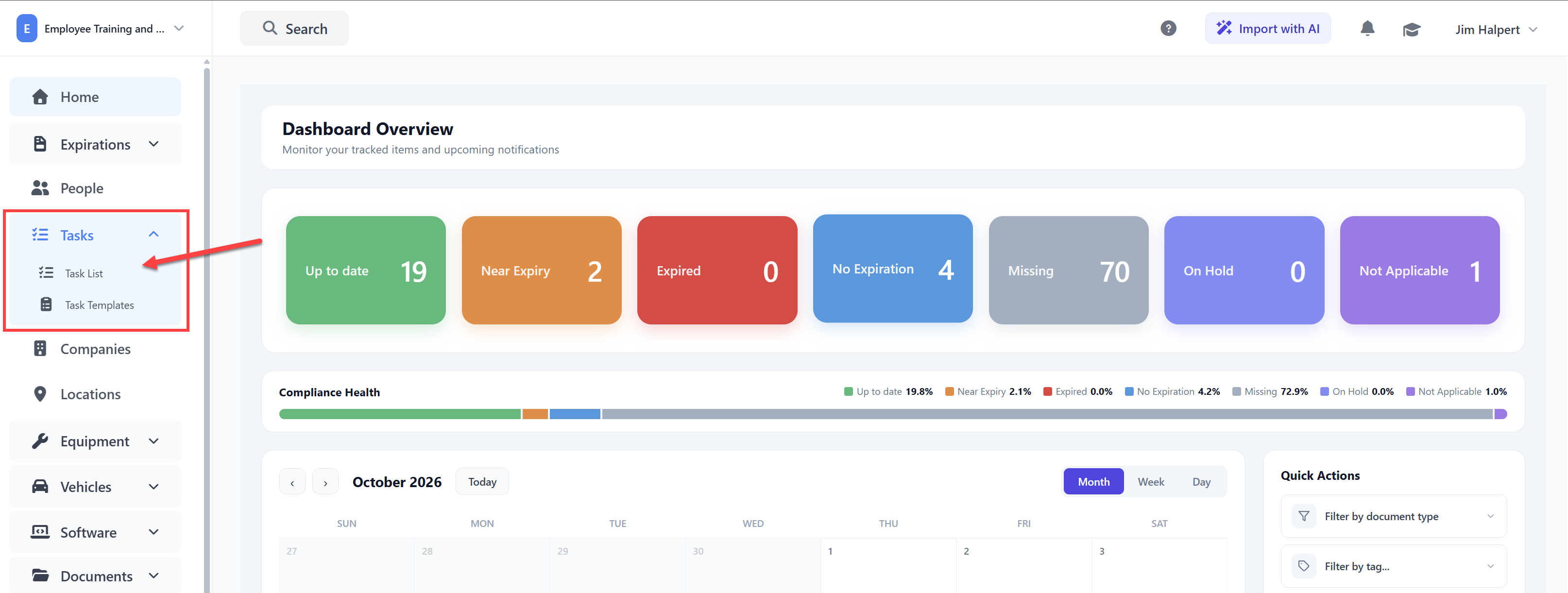
Creating a Task Manually
You can create a task for any one-time piece of work that needs to be tracked.
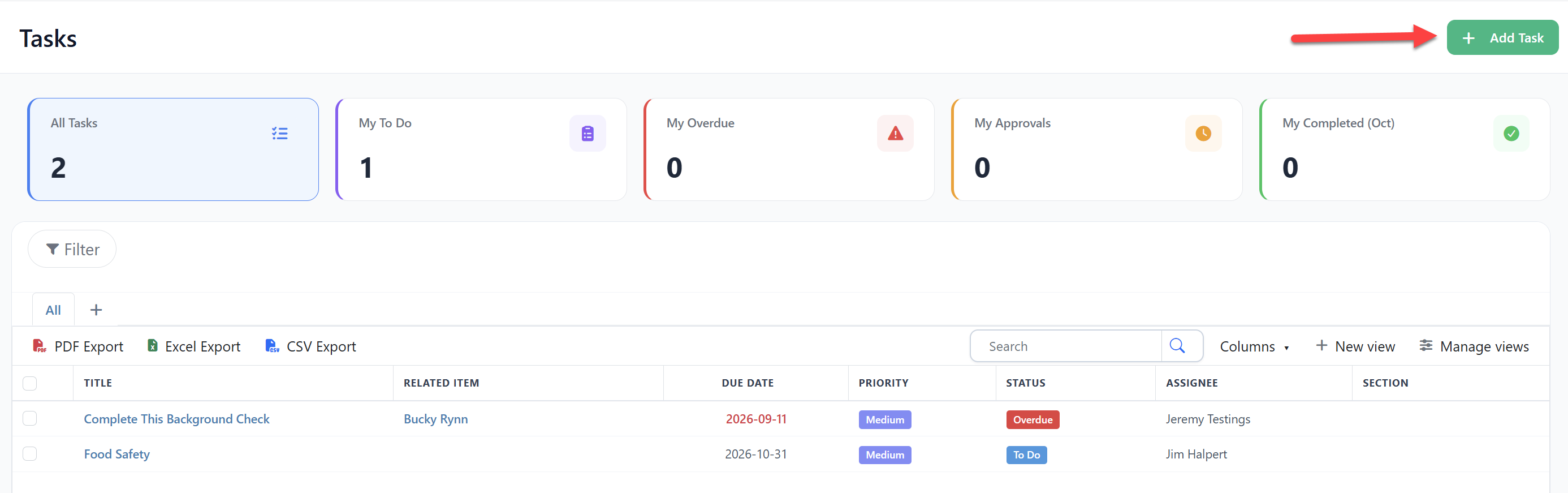
- Go to Tasks → Add Task.
- Enter a Title and Description.
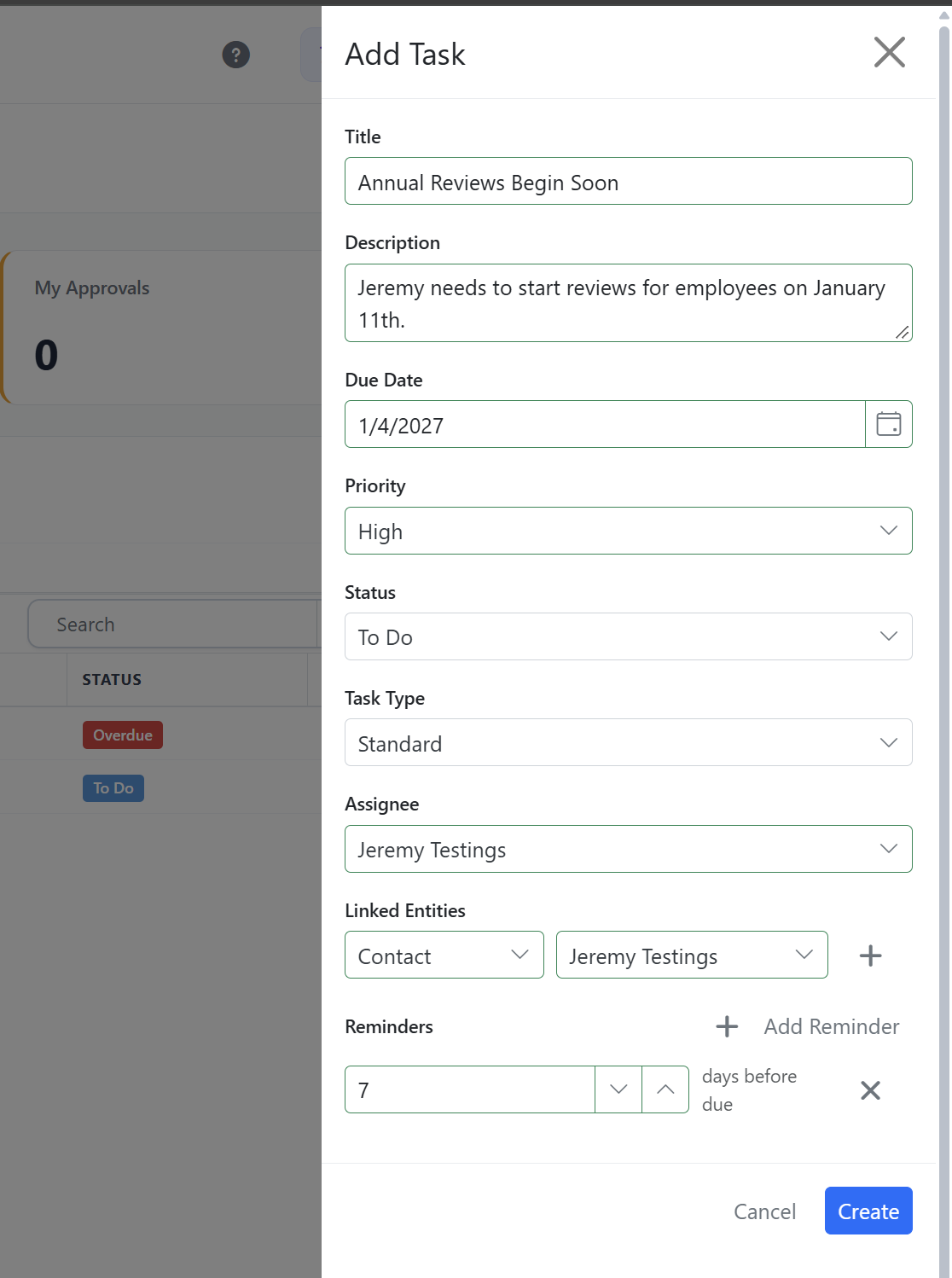
- Set the Due Date.
- Select a Priority:
- High
- Medium
- Low
- Select a Status:
- To Do
- In Progress
- Done
- Choose a Type:
- Standard
- Approval
- Select an Assignee.
- Under Linked Entities, select the type of record you want to associate with the task:
- Expiration Item
- Contact
- Company
- Location
- Equipment
- Vehicle
- Select the record and click + to add it. You can link multiple records to the same task.
- Under Reminders, add one or more reminder rows specifying how many days before the due date the reminder should be sent. A due date must be set before you can add reminders.
- Click Create.
The assignee will receive an email when a task reminder is triggered.
What are approval tasks?
Use an approval task when a piece of work needs to be formally reviewed and approved before it is considered complete.
When creating a task, set Type to Approval.
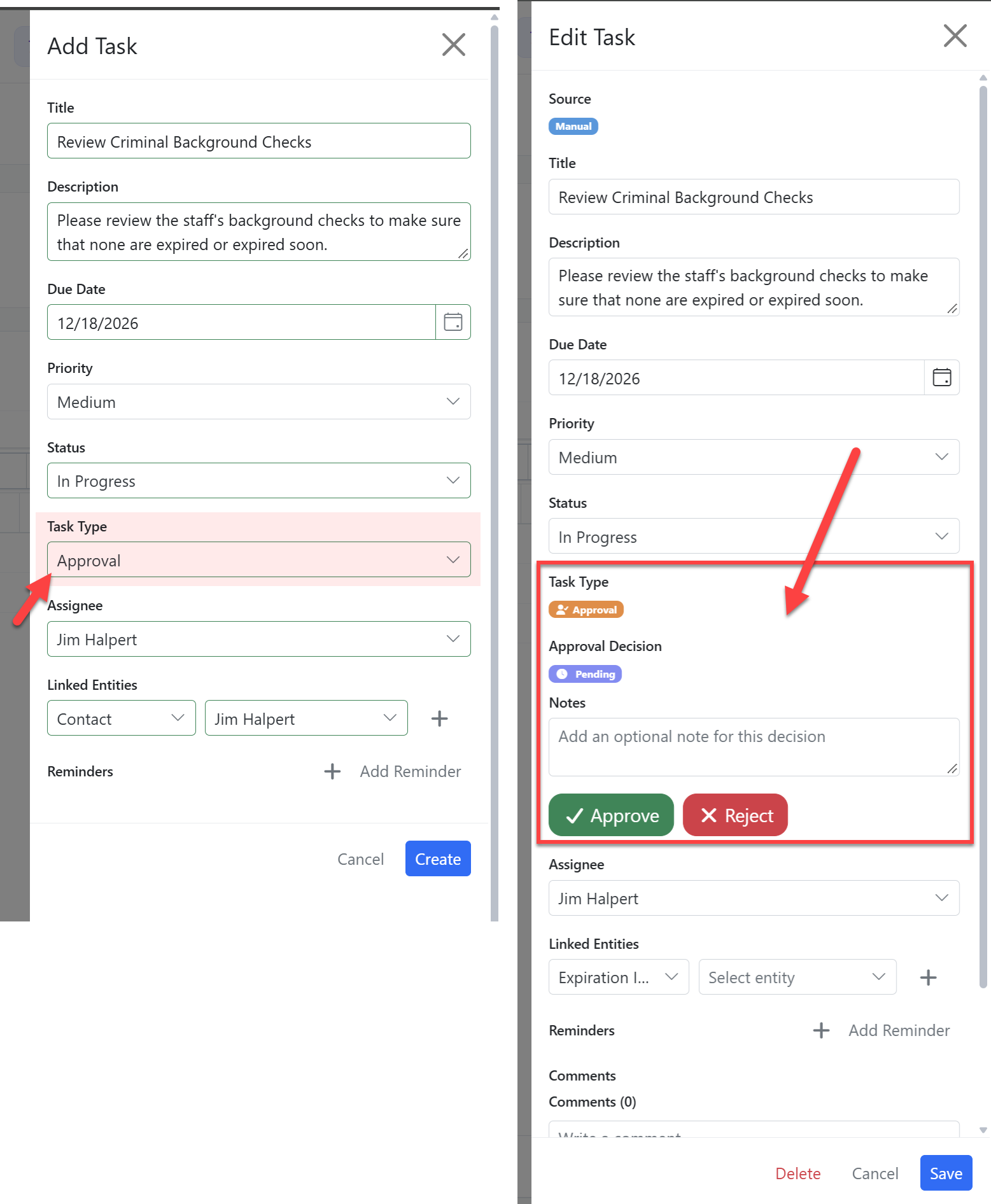
Once the task is saved, the designated approver will see Approve and Reject options. The approver can also add optional notes when making their decision.
Expiration Reminder stores:
- The approval decision
- The person who made the decision
- The date of the decision
- Any notes provided with the decision
An approval can also be reset if it needs to be reviewed again.
Tasks waiting for approval are included in the Approvals Pending count in the Task Overview widget.
How do I add comments to a task?
After a task has been saved, a Comments panel becomes available.
Use the Comments panel for communication and updates related to the task. Team members can use it to keep a record of questions, progress, or other information without having to communicate outside of the task.
Task Dependencies
A lock icon 🔒 next to a task title indicates that the task is blocked by another task it depends on.
A blocked task cannot be worked on until its prerequisite task has been completed.
Learn more about Task Templates and Workflows at our help article here: