
Before You Begin
- A user account with permission to view safety meetings. Permission to update meetings, export data, or delete meetings is needed for some of the actions below — your account administrator can grant these if you don't have them.
- At least one safety meeting that has been created (and ideally one that has been finished from the Kiosk) so there's data to review.
- For cross-meeting reports: meetings spread across the date range you want to analyze.
Related articles:
- Getting started with Safety Meetings
- Creating and Scheduling a Safety Meeting
- Using the Safety Meeting Kiosk for Sign-In
- Managing Safety Topics
What "Tracking" Means in Expiration Reminder
There are two layers of tracking, and you'll move between them often:
- Per-meeting attendance — open one meeting and see who signed, who didn't, who was a no-show, and the signed compliance record. Most of the day-to-day work happens here.
- Cross-meeting reports — open the Standard Reports library and see attendance rates across many meetings, per-employee history, sites that are falling behind, and topic coverage gaps. Use these to answer questions like "is anyone behind on safety meetings?" or "which sites have the lowest attendance rate this quarter?"
This article covers both, in that order.
Status & Attendance Reference
Two sets of statuses come up throughout the app. It helps to know what each one means before you start.
Meeting status describes the state of the meeting itself:
- Draft — created but not on the calendar.
- Scheduled — locked in for a date and time; the facilitator gets a 1-hour-before reminder.
- In Progress — the meeting is currently being run from the Kiosk.
- Pending Signatures — the meeting was conducted but at least one expected attendee hasn't signed yet.
- Completed — the meeting was finished from the Kiosk; the compliance record is final.
- Cancelled — the meeting won't happen.
Attendance status describes one person's participation in one meeting:
- Expected — added to the meeting roster, hasn't signed yet.
- Signed — captured a signature on the Kiosk.
- Not Attended — was on the roster but did not show up.
- Excused — was excused from attending (sick day, vacation, etc.).
Step-by-Step Instructions
Part 1: Review attendance for a single meeting
Step 1: Open the meetings list
- From the left sidebar, click Safety, then Safety Meetings.
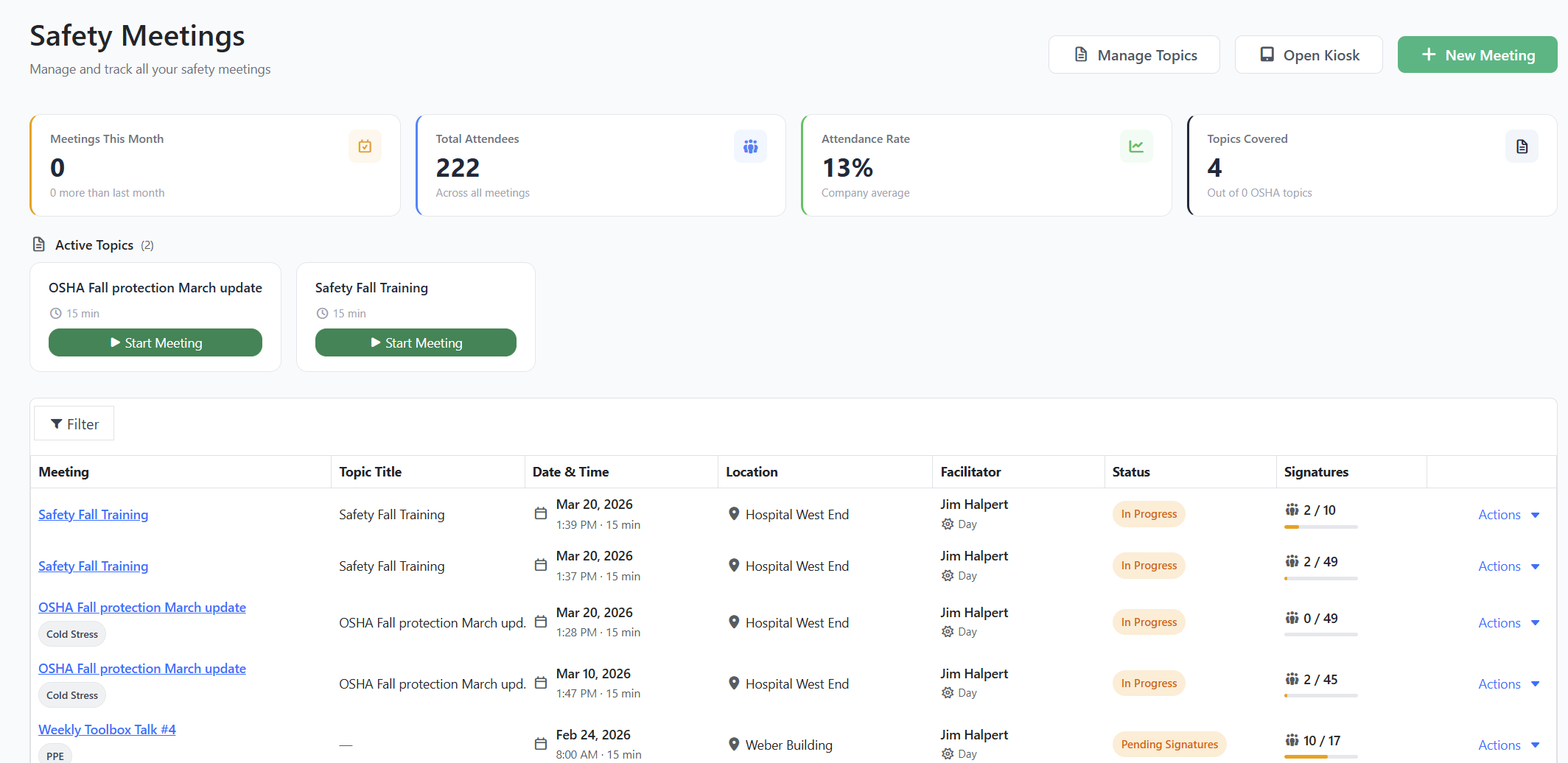
The Safety Meetings page opens. The top of the page shows four KPI cards (covered in Part 2 below). Below that is the meetings list.
Step 2: Find the meeting you want to review
Use the filter panel at the top of the meetings grid to narrow the list:
- Status — pick one or more of Draft, Scheduled, In Progress, Pending Signatures, Completed, or Cancelled. To find meetings that still need follow-up, choose Pending Signatures and In Progress together.
- Location — limit to one or more job sites.
- Facilitator — limit to a specific facilitator.
- Shift — Day or Night.
- Search — type any part of the meeting title.
The grid columns include Meeting, Topic Title, Date/Time, Location, Facilitator, Status, and Signatures (a small "X / Y" with a colored progress bar — green when fully signed, orange while in progress, gray when no one has signed).
Tip: The Signatures column is the fastest way to spot a meeting that needs follow-up. Any green check at "8 / 8" is done; anything below that — especially in Completed status — means people on the roster never signed.
Step 3: Open the meeting detail
- In the Meeting column, click the meeting title.
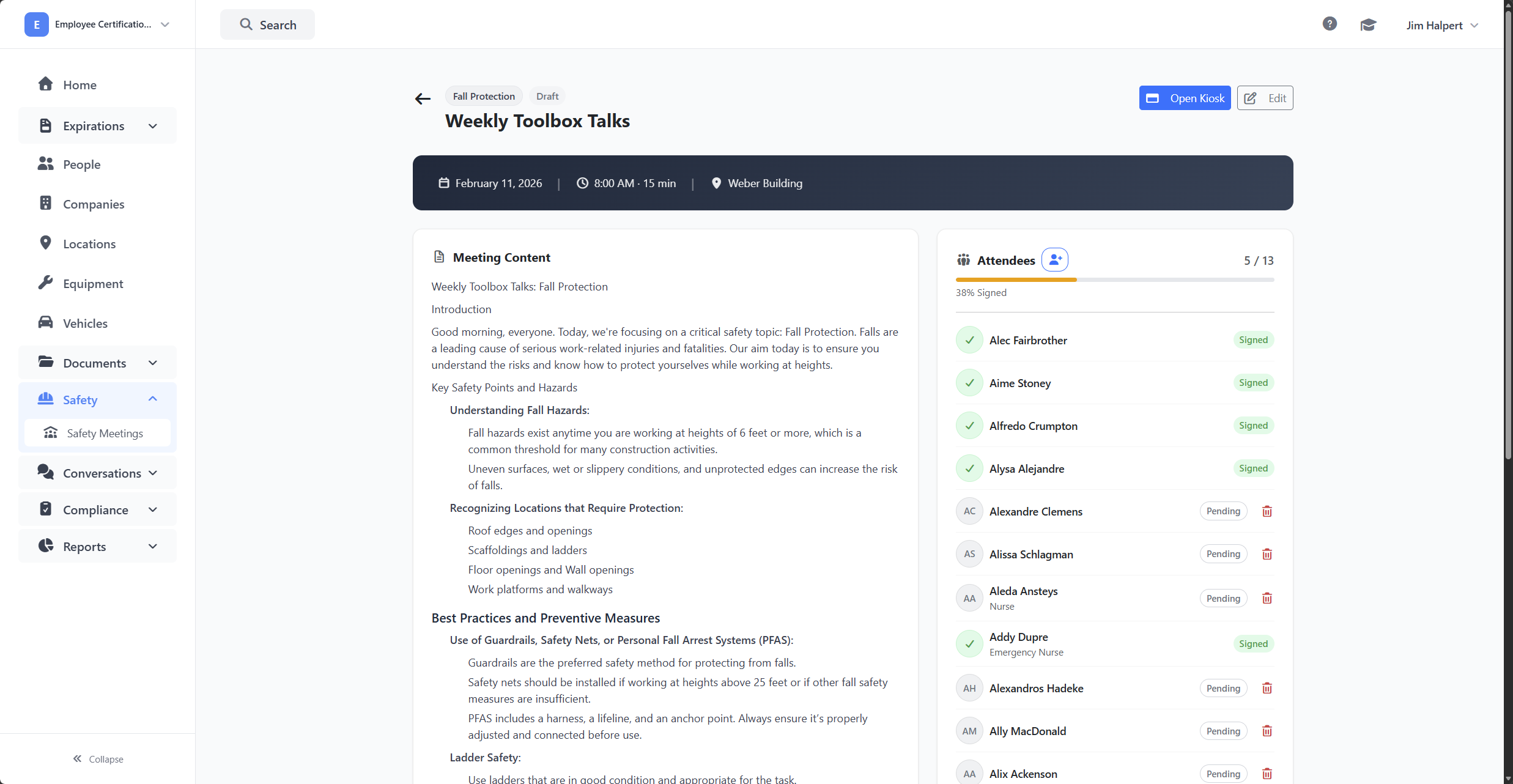
The meeting detail page opens. Up top you see the topic badge, status badge, title, date and time, location, shift, and the linked topic (if any).
Step 4: Read the attendance panel
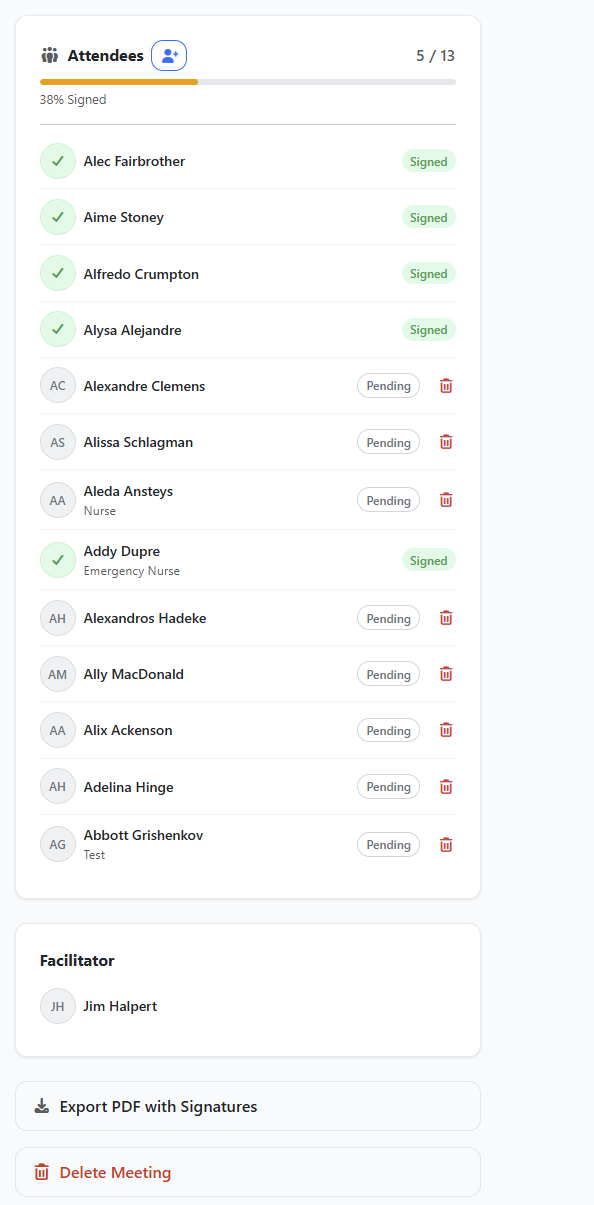
On the right side of the page, the Attendees card shows everyone on the roster, with a header counter like "6 / 8" (signed / total) and a colored progress bar.
Each attendee row shows:
- The person's name and job title.
- A circular avatar with their initials, or a green check if they've signed.
- A status pill on the right: Signed, Pending, Not Attended, or Excused.
Underneath the attendees, the Facilitator card shows the meeting's facilitator and a Verified & Signed confirmation if the facilitator also signed.
Step 5: Capture missing signatures
If the meeting is Completed but someone on the roster never signed, you can still pick up their signature using the Kiosk.
- At the top of the meeting detail page, click Open Kiosk.
- The Kiosk re-opens to the same attendee grid; anyone who already signed keeps their green check.
- Hand the device to the missing person and have them tap their name and sign.
- After they confirm, click Finish Meeting again to lock the record.
The attendee's status flips from Pending to Signed, the Kiosk records the signature image and timestamp, and the meeting's signature counter goes up. See Using the Safety Meeting Kiosk for Sign-In for the full Kiosk walkthrough.
Note: The meeting detail page shows attendance status badges (Pending, Not Attended, Excused) but currently does not include an in-place editor to flip an individual's status manually. The Kiosk is the only path that promotes someone to Signed. To change the meeting's overall state — for example, from Completed back to Pending Signatures while you collect a late signature — use Edit (next step).
Step 6: Adjust the meeting itself (optional)
To change meeting-level details — title, date and time, content, location, shift, topic, or status — open the Edit Meeting panel:
- At the top of the meeting detail page, click Edit.
- The Edit Meeting panel slides in from the right.
- Change any field you need. The Status dropdown lets you move the meeting between Draft, Scheduled, In Progress, Pending Signatures, Completed, and Cancelled.
- Click Save Changes.
A "Meeting updated" toast confirms the change, and the meeting page refreshes.
Step 7: Remove an attendee who shouldn't have been on the list (optional)
Sometimes someone is added to a meeting roster by mistake. You can remove them — but only if (a) the meeting hasn't been finished or cancelled, and (b) they haven't already signed.
- In the Attendees card, find the person.
- Click the small trash-can icon at the right edge of their row.
- In the Remove Attendee dialog, click Remove Attendee to confirm.
The person disappears from the roster and the attendee count goes down.
Note: If the person did sign or the meeting is already Completed or Cancelled, the trash-can icon won't appear — the record is locked to preserve the compliance trail.
Step 8: Export the signed compliance record
When you need a permanent, shareable record of who attended and how they signed:
- Scroll to the right column of the meeting detail page.
- Click Export PDF with Signatures.
A PDF downloads with:
- A cover page showing the meeting title, status, topic, date, time, duration, job site, facilitator, and shift.
- The full meeting content (or the original uploaded PDF, if the meeting used Upload PDF content).
- A signatures page with the facilitator and a row for every attendee, including the actual signature image, name, job title, and signed/pending status.
- A footer on every page with the export timestamp and "Safety Meeting Compliance Record".
This is the document auditors and inspectors typically ask for. Save it with your other compliance records.
If the meeting used an uploaded PDF as its content and you only want the original PDF (without the signatures page), click the Download PDF button inside the Meeting Content card instead.
Part 2: Read the dashboard at a glance
The Safety Meetings index page shows four KPI cards above the meetings list. Use them as a quick health check.

- Meetings This Month — count of meetings scheduled in the current month, with a percentage change vs. last month and a small "X more / fewer than last month" sub-label.
- Total Attendees — total roster count summed across every meeting in your account ("Across all meetings").
- Attendance Rate — percentage of all roster slots, across every meeting, that resulted in a signature ("Company average").
- Topics Covered — number of unique topics used across your meetings, shown as "out of N OSHA topics" so you can see how much of the topic catalog you've actually run.
These numbers refresh whenever you open the page, and they include every meeting in your account regardless of the filter panel below them.
Tip: The Active Topics strip below the KPIs is for starting new meetings from a template — it's not a tracking tool. See Managing Safety Topics for how that catalog is curated.
Part 3: Run cross-meeting reports
For analysis across many meetings — by date range, by site, by employee, or by topic — use the Standard Reports library.
Step 1: Open the Standard Reports page
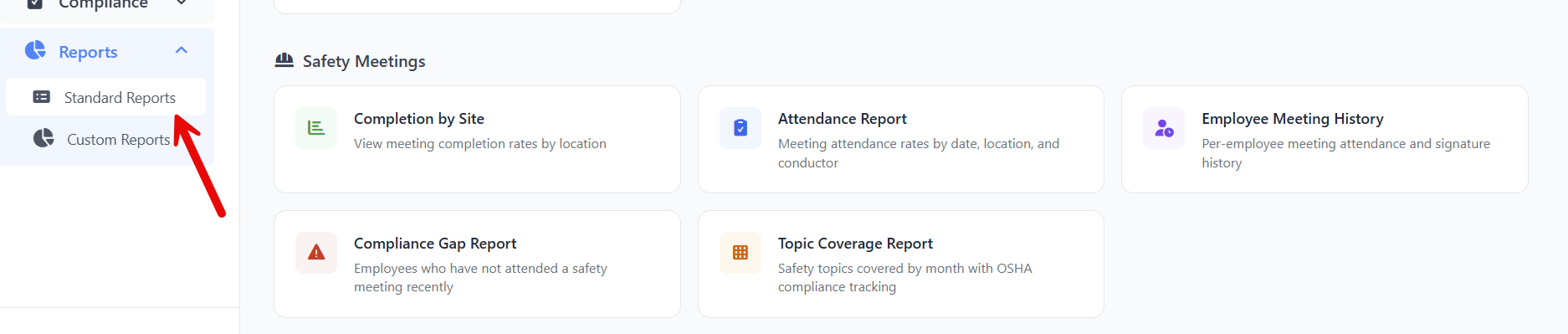
- From the left sidebar, click Reports, then Standard Reports.
- Scroll down to the Safety Meetings section.
You'll see five report cards. Click any card to open the report.
Step 2: Pick the right report for your question
Each report has its own date range filter at the top right. By default, every report opens with January 1 of the current year through today preselected. Adjust the date range using the Select date range picker to refocus the data.
Every report also has an Export button that downloads the filtered grid as an Excel (.xlsx) file.
Completion by Site
Use it to answer: "Which job sites are running the most meetings, and which have the lowest completion rate?"
- KPI cards: Total Sites, Total Meetings, Overall Completion Rate, Pending Meetings.
- Grid columns: Location, Total Meetings, Completed, Pending, Completion Rate (with a color-coded bar — green ≥ 75%, yellow ≥ 50%, red below).
Attendance Report
Use it to answer: "What's our attendance rate, meeting by meeting?"
- KPI cards: Total Meetings, Avg. Attendance Rate, Total Attendees, Total Signed.
- Grid columns: Meeting (clickable, opens the detail page), Date/Time, Location, facilitator, Attendees, Signed, Not Attended, Completion Rate (color-coded bar).
Employee Meeting History
Use it to answer: "How many safety meetings has Maria attended this year? Which ones did she miss?"
- Filter at the top: pick one employee from the All Employees dropdown, or leave it on All Employees to see everyone.
- KPI cards: Total Meetings in range, Attendance Rate, Not Attended count, Last Meeting Date.
- Grid columns: Date/Time, Meeting (clickable), Topic, Status (one of Expected, Signed, Not Attended, Excused, color-coded).
Tip: A faster way to see one person's history is to open their contact profile and click the Safety Meetings tab. You get the same per-employee KPIs (Total Meetings, Attended (Signed), Attendance Rate, Last Meeting, Days Since Last) plus filters for date range and attendance status. Use the Employee Meeting History report when you want to compare across people in one view.
Compliance Gap Report
Use it to answer: "Who hasn't been to a safety meeting in N days? Anyone we need to chase up?"
- Filter at the top: Threshold (days) — the cutoff that decides who counts as "behind." Default is 14 days.
- KPI cards: Total Employees (with meeting history), Below Threshold (count of people behind), Avg. Days Since (across the people behind).
- Grid columns: Employee, Department, Last Meeting Date (or Never if they've never attended), Days Since (color-coded — gray below threshold, orange at threshold, red at 30+ days).
The grid only lists people who are behind the threshold. Lower the threshold to 7 days to find people who haven't been in this week; raise it to 60 or 90 days to find longer-running gaps.
Topic Coverage Report
Use it to answer: "Are we covering every safety topic our crew needs? Which topics haven't we run lately?"
- KPI cards: Topics Covered, Total Topics, Coverage Rate, Uncovered Topics.
- A grid that lists every topic down the left, months across the top, and a green check (or red X) cell for each month showing whether the topic was covered.
Step 3: Export the data
Most reports include an Export button (the green button with the Excel icon, top-right). Click it to download an .xlsx file containing the currently-visible grid rows. Use this when you need to email the numbers to leadership, attach them to an audit response, or pivot the data in Excel.
The Topic Coverage report does not include an Export button — its layout is a coverage matrix, not a flat list.
Part 4: Spot meetings that need follow-up
A common workflow: at the end of the week, find every meeting where attendance is incomplete or the meeting never finished cleanly.
- Open Safety, then Safety Meetings.
- In the filter panel at the top of the meetings list, pick the Status filter.
- Select Pending Signatures and In Progress at the same time.
- (Optional) Add a Location or Facilitator filter to scope to your team.
- Look at the Signatures column on each row — anything below 100% is missing at least one signature.
- Click the meeting title to open it, then follow Part 1 above to capture late signatures or update the meeting.
Use the same technique for Cancelled meetings if you need to confirm none have been cancelled by mistake.
Tips & Best Practices
- End every Kiosk session with Finish Meeting. A meeting that's left in In Progress never closes its compliance record. Treat In Progress in your filter as a list of meetings that still need to be wrapped up.
- Run the Compliance Gap report weekly. A 14-day threshold is a sensible starting point for most crews; tighten it to 7 days if you require weekly toolbox talks.
- Run the Topic Coverage report monthly. It's the easiest way to confirm you're rotating through your full topic catalog instead of repeating the same two or three topics.
- Save the exported PDF as your audit trail. Export PDF with Signatures produces a single document that proves who attended, who facilitated, and what the content was. It's the report you want on hand if an inspector ever asks.
- Use the contact profile's Safety Meetings tab for one-off questions about one person. It's faster than the Employee Meeting History report when you only care about one employee.
- Keep facilitator names accurate. Reports and exported PDFs all label the facilitator using the contact's current name. If a facilitator's name is misspelled on a contact, every past meeting that lists them inherits the corrected name automatically when the contact is updated.
Troubleshooting
- Issue: A meeting shows Completed, but the Signatures column shows 6 / 8.
Solution: Two attendees never signed. Open the meeting and click Open Kiosk to capture the missing signatures. After they sign, click Finish Meeting again. - Issue: I want to mark someone as Excused for a meeting they missed for a legitimate reason.
Solution: Today, the meeting detail page does not include an in-place editor to flip an attendee's attendance status to Excused or Not Attended. Their status will remain Pending unless they later sign through the Kiosk. We're tracking this as a future enhancement; in the meantime, the Export PDF with Signatures record clearly shows who did and didn't sign, which is what most audits require. - Issue: The trash-can icon on an attendee row is missing.
Solution: That's expected when (a) the attendee has already signed, or (b) the meeting status is Completed or Cancelled. Removing them would erase part of the compliance record, so the action is locked. If you genuinely need to undo a signature, contact your account administrator. - Issue: The Compliance Gap report says someone has Never attended a meeting, but I know they did.
Solution: The report only counts attendees whose status is Signed. If they were on the roster but never signed (for example, they attended in person but the device was passed over them), they don't show up as having attended. Re-open the relevant meeting in the Kiosk and capture their signature. - Issue: The Attendance Rate KPI on the dashboard looks lower than I expected.
Solution: The KPI is computed across every meeting in your account, including old ones with incomplete signatures. Run the Attendance Report with a tighter date range (for example, the current quarter) to see whether recent meetings tell a different story. - Issue: I clicked Export on a report but nothing happened.
Solution: Some browsers block downloads inside an iframe or pop-up blocker. Check your browser's download bar. If you still don't see a file, refresh the page and try again. The Topic Coverage report intentionally has no Export button because of its matrix layout. - Issue: A meeting has been in Pending Signatures for weeks and we'll never collect the missing signatures.
Solution: Open the meeting, click Edit, change Status to Completed, and click Save Changes. The compliance record is then final, with the missing attendees marked Pending in the exported PDF.