
Before You Begin
Make sure you have the following in place before you launch Kiosk mode:
- A user account with permission to create and run safety meetings.
- A device you can hand around at the meeting — a tablet works best, but a laptop with a touchscreen (or a mouse, in a pinch) works fine too.
- One of the following, depending on which Kiosk path you'll use:
- Already-scheduled meeting: A safety meeting in Draft, Scheduled, In Progress, or Pending Signatures status. (See Creating and Scheduling a Safety Meeting.)
- Walk-up Kiosk: At least one active Topic in your topic catalog and at least one Location with crew assigned to it. (See Managing Safety Topics.)
Related articles:
- Getting started with Safety Meetings
- Creating and Scheduling a Safety Meeting
- Managing Safety Topics
What Kiosk Mode Is (and When to Use It)
Kiosk mode is a distraction-free, full-screen view designed for in-person sign-in. Once it's open, the device is essentially "locked" to the meeting — attendees see only their meeting title, optional meeting content, and a grid of names to tap. They sign with a finger or stylus, confirm, and hand the device to the next person.
Use Kiosk mode whenever you want everyone in the meeting to provide a real, captured signature instead of you ticking off attendance from a list. Common scenarios:
- A daily toolbox talk at the start of a shift.
- A monthly safety briefing where you need signed proof for compliance records.
- A walk-up "huddle" where you weren't sure in advance who would attend.
There are two ways to start Kiosk mode:
- Start from a scheduled meeting — You already created the meeting earlier (with attendees pre-selected). Best when you planned ahead.
- Start from a topic (walk-up Kiosk) — You haven't created the meeting yet. The Kiosk walks you through picking the topic, location, shift, and crew first, then jumps straight into sign-in. Best when you decide to run a meeting on the fly.
Step-by-Step Instructions
Option A: Launching Kiosk from a scheduled meeting
Use this path when the meeting was already created from the Safety Meetings page.
Step 1: Open the meeting
- From the left sidebar, click Safety, then Safety Meetings.
- In the meetings list, click the title of the meeting you're about to run.
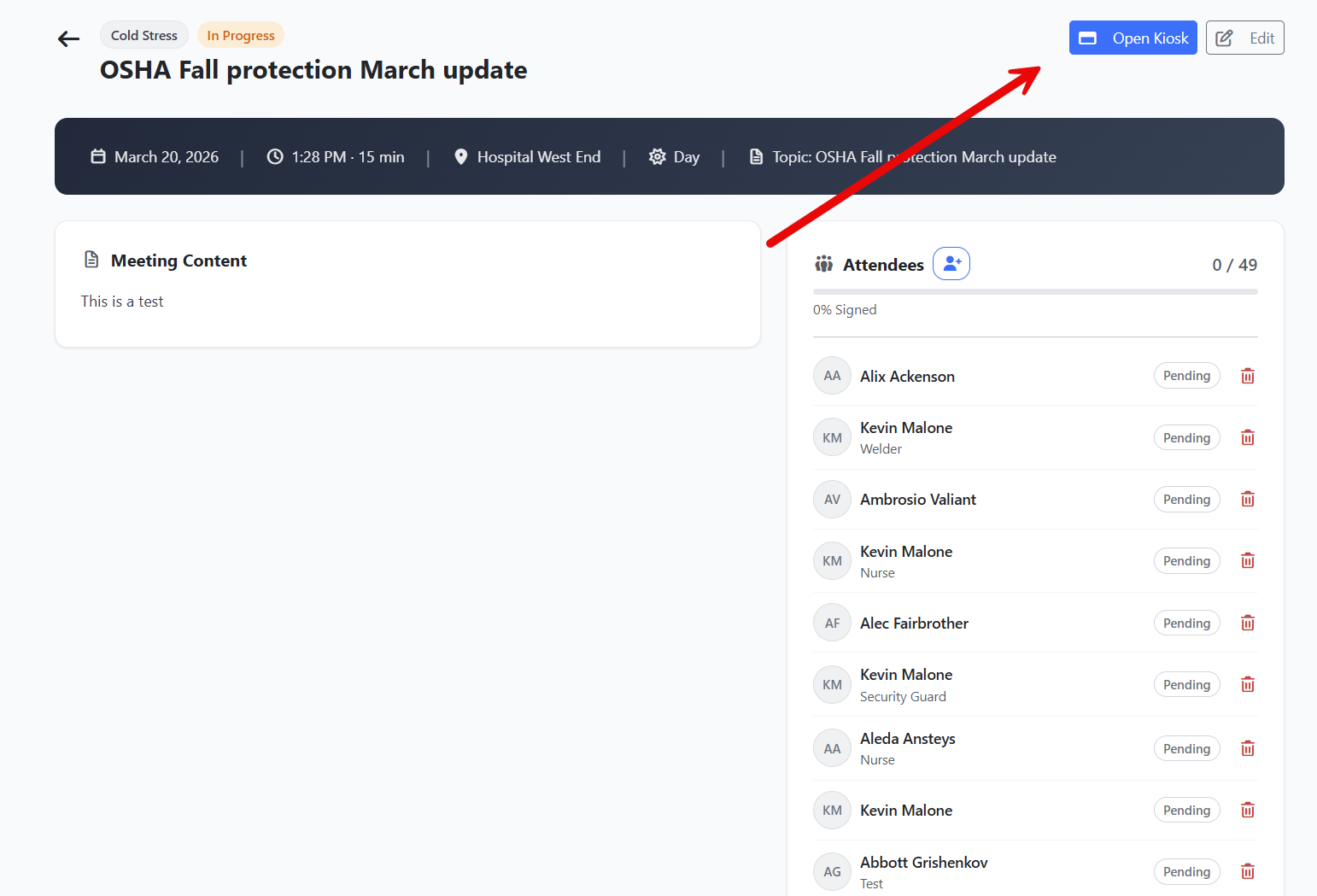
The meeting detail page opens, showing the title, status, date and time, location, content, and the attendee list.
Step 2: Launch Kiosk mode
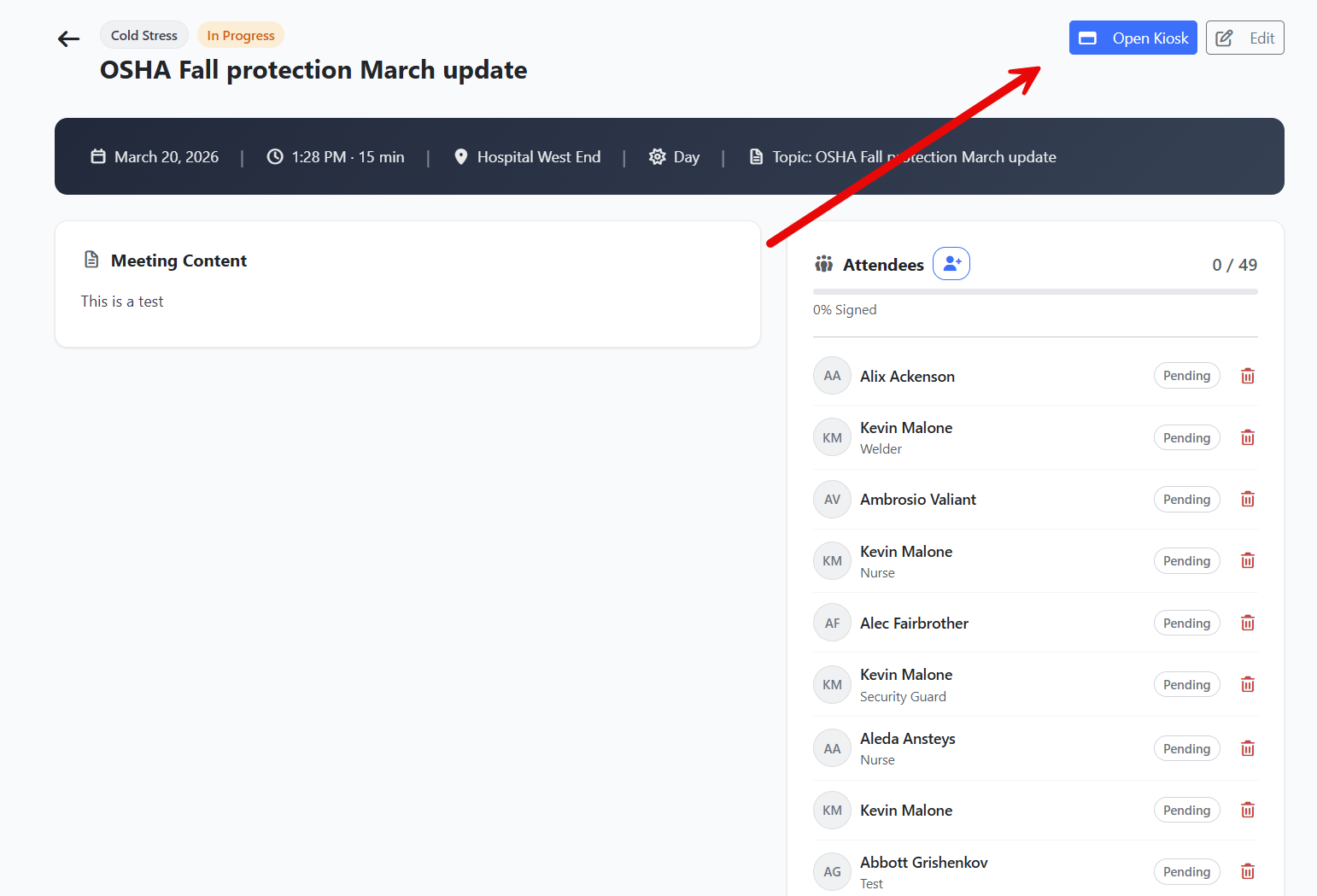
- In the upper-right corner of the meeting page, click Open Kiosk.
The screen switches to a full-screen, dark Kiosk view with the meeting title at the top, a sign-in progress counter (for example, "0 / 8 Signed") in the upper-right, and a grid of attendee cards below.
Tip: Hand the device to the first attendee at this point. Each person's signature is captured one at a time — the device returns to the attendee grid after each confirmation, ready for the next person.
Option B: Launching the walk-up Kiosk from the Safety Meetings page
Use this path when you want to start a brand-new meeting and run it immediately, without creating it in advance.
Step 1: Open the Kiosk wizard
- From the left sidebar, click Safety, then Safety Meetings.
- In the upper-right corner of the page, click Open Kiosk.
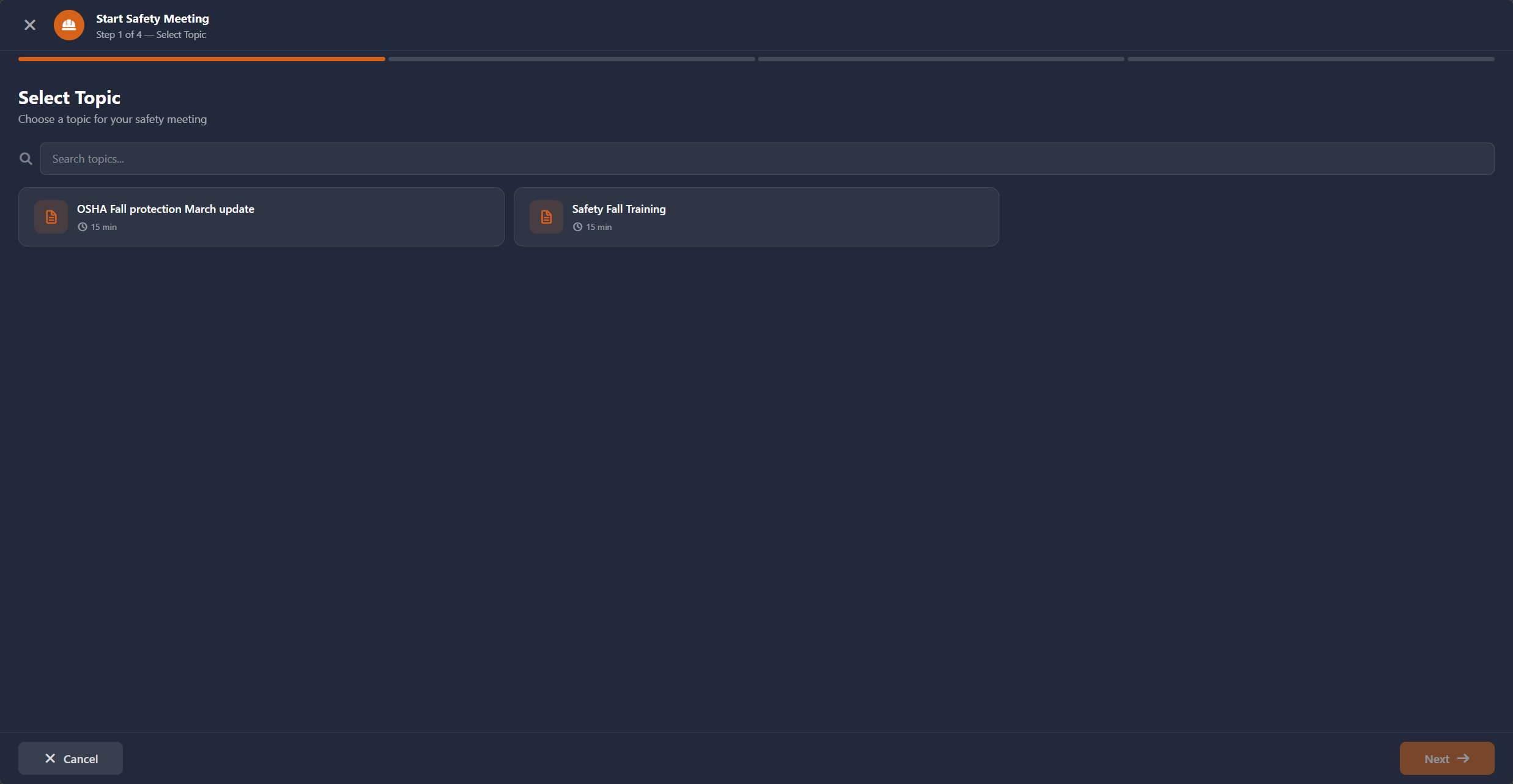
The full-screen Kiosk opens to Step 1 of 4 of the Start Safety Meeting wizard.
Step 2: Pick a topic (Step 1 of 4)
- Use the Search topics... box at the top to filter, or scroll through the topic cards.
- Tap the topic you want to cover. A check mark appears on the selected card.
- Click Next at the bottom-right.
Step 3: Pick the job site and shift (Step 2 of 4)
- From the Select Job Site dropdown, choose the location where the meeting is happening.
- From the Select Shift dropdown, choose None, Day, or Night.
- Click Next.
Note: You must pick a job site to continue. The crew shown in the next step is built from the contacts assigned to that location.
Step 4: Review the crew (Step 3 of 4)
The Kiosk loads everyone assigned to the selected location and pre-selects them all by default.
- Review the crew. Tap any card to remove a person who isn't here today; tap again to add them back.
- Use the Search by name... box to find a specific person quickly.
- Click Select All or Deselect All to flip the entire visible list.
- When the crew matches who's actually present, click Next.
Step 5: Confirm and start (Step 4 of 4)
A summary card shows the topic, location, shift, attendee count, and duration.
- Review the summary. If anything is wrong, click Back to fix it.
- When everything looks right, click Start Meeting Now.
A "Meeting started successfully" toast appears, and the Kiosk advances to the sign-in screen — exactly the same screen as Option A, Step 2. The meeting is created in In Progress status behind the scenes.
Step 6: Have each attendee sign in
This step is the same regardless of how you launched the Kiosk.
- Hand the device to an attendee.
- The attendee taps their own name in the grid. (They can use the Search by name... box at the top if the list is long.)
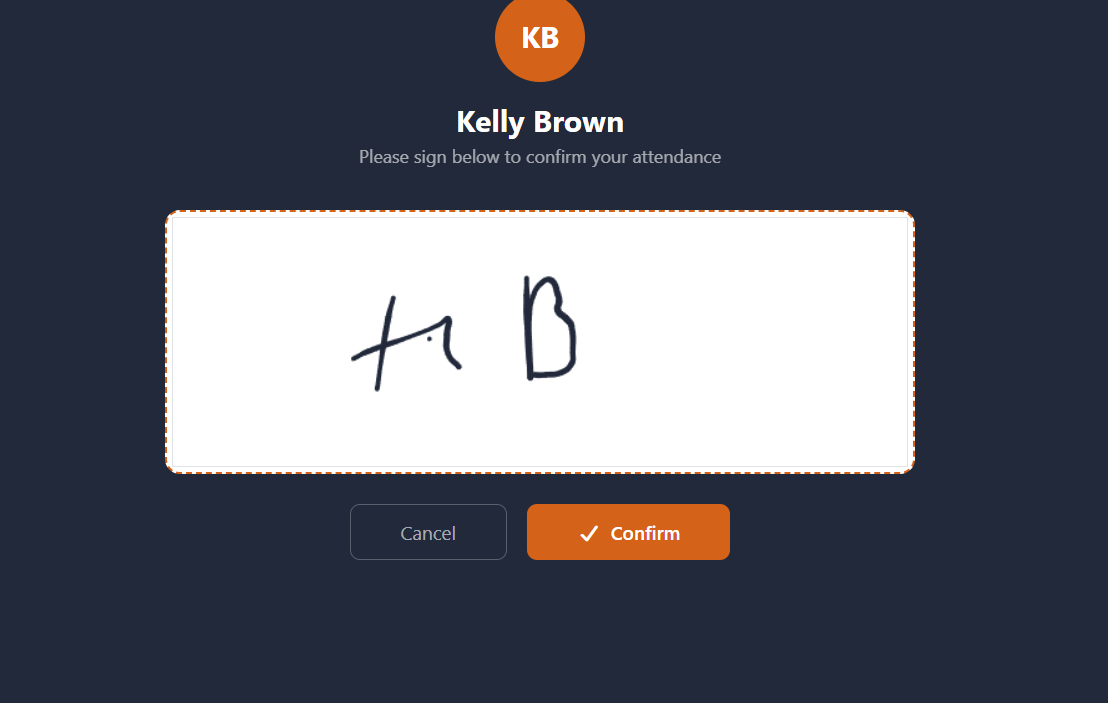
- A signature screen opens with their name and initials. Below it is a white signature pad bordered with a dashed orange line.
- The attendee signs with their finger or a stylus directly inside the white box.
- The attendee taps Confirm.
A "Signature recorded successfully" toast appears, and the Kiosk returns to the attendee grid. The attendee's card now shows a green check mark and a green border, indicating they're signed in. The progress counter at the top right increases (for example, "1 / 8 Signed").
If the attendee taps Confirm on a blank signature pad, a "Signature Required — Please sign before confirming" message appears. They can sign and try again.
If they decide to back out, they can tap Cancel or the ← Back link to return to the grid without signing.
Step 7: (Optional) Show the meeting content during sign-in
If your meeting includes talking points or a PDF attachment, you can let attendees review them on their devices before they sign.
- On the attendee grid, click Meeting Content at the top of the body.
- The content panel expands. If the meeting was set up with Write Content, the talking points are formatted and shown inline. If it was set up with Upload PDF, the PDF opens directly in the Kiosk.
- Click Meeting Content again to collapse the panel.
Step 8: (Optional) Add or remove an attendee on the spot
If someone arrives who wasn't on the original invite list, or if someone on the list isn't actually here, you can adjust the roster from the Kiosk — as long as the meeting hasn't been finished or cancelled.
To add an attendee mid-meeting:
- On the attendee grid, scroll to the bottom and tap the Add Attendee card (it has a dashed border and a person-plus icon).
- The Add Attendees panel slides in from the right.
- Use the search box, Filter by tag, or Filter by location dropdowns to find the contact(s) you want to add.
- Tap each contact to select them, then click Add Attendees at the bottom of the panel.
The new attendees appear in the grid and can sign in like everyone else.
To remove an attendee:
- On the attendee grid, tap the small trash-can icon on the right edge of an unsigned attendee's card.
- Confirm by clicking Remove Attendee in the dialog.
Note: The Add Attendee card and the trash-can buttons are hidden once a meeting is in Pending Signatures, Completed, or Cancelled status.
Step 9: Finish the meeting
When everyone present has signed (or you've decided to stop collecting signatures), end the meeting.
- Click Finish Meeting in the bottom-right corner of the Kiosk.
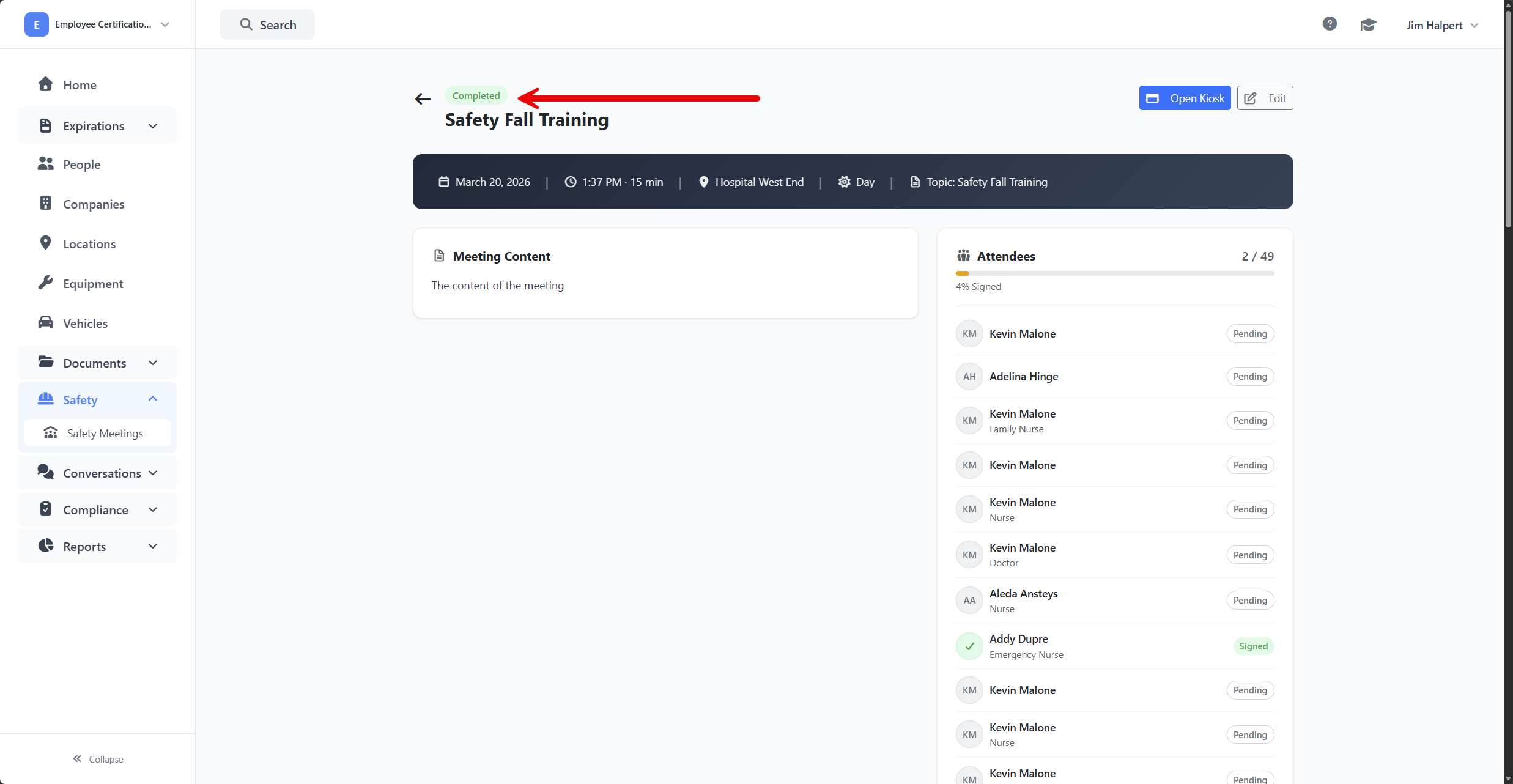
A "Meeting completed successfully" toast appears, the Kiosk closes, and you're returned to the meeting's detail page. The status badge now shows Completed, and the completion time is recorded.
What's Saved When You Finish
When a meeting is finished from the Kiosk:
- The meeting's status is set to Completed and the completion timestamp is stored.
- Each attendee who signed has their signature image, signed-at time, and signing channel ("Kiosk") saved to their attendance record.
- Attendees who signed are marked Signed on the meeting's attendance list.
- Attendees who did not sign keep their existing attendance status (typically Expected). You can adjust their status afterward from the meeting detail page if needed (for example, to mark someone as Excused or Not Attended).
- Signatures and the signed PDF report (if applicable) are available from the meeting's detail page.
Tips & Best Practices
- Use a tablet whenever possible. A 10-inch tablet is large enough for a clear signature, light enough to pass around, and the touchscreen feels natural for signing. A laptop with a trackpad works but is awkward for hand-signing.
- Brief the crew before passing the device. A 10-second "Tap your name, sign in the white box, tap Confirm" makes the round-robin much faster.
- Use walk-up Kiosk for impromptu huddles. If you're already on-site and decide to run a quick safety briefing, the Open Kiosk button on the Safety Meetings page is faster than creating a meeting from scratch.
- Use the scheduled-meeting Kiosk for planned events. Pre-creating the meeting (with attendees, content, and date already set) means there's nothing to configure on the day — just open the meeting and click Open Kiosk.
- Show the meeting content during the talk. Expanding the Meeting Content panel on the Kiosk lets attendees follow along with the bullet points or PDF as you speak.
- Check the progress counter before finishing. The "X / Y Signed" counter in the top-right of the Kiosk is your fastest sanity check that everyone present has signed.
Troubleshooting
- Issue: I clicked Open Kiosk on a meeting and the attendee grid is empty.
Solution: The meeting has no attendees yet. Tap the Add Attendee card at the bottom of the grid to add people from your contacts. - Issue: An attendee can't see their own name in the grid.
Solution: They weren't added to the meeting. Tap the Add Attendee card to bring up the Add Attendees panel and search for them. If they're not in the list there either, they need to be added as a contact in your account first. - Issue: I tap Confirm after signing and get a "Signature Required" error.
Solution: The signature pad didn't capture any strokes. Sign again, making sure your finger or stylus actually leaves a visible line in the white box, then tap Confirm. - Issue: The walk-up Kiosk wizard says "No crew members assigned to this location" on Step 3.
Solution: No contacts are assigned to the location you picked in Step 2. Either go back to Step 2 and pick a different site, or close the Kiosk, open the location, assign contacts to it, and start the Kiosk again. - Issue: I can't find the Open Kiosk button on the Safety Meetings page.
Solution: You don't have permission to create safety meetings (the walk-up Kiosk requires the same permission). Ask your account administrator to grant you the safety meeting permission. - Issue: I clicked Finish Meeting by accident before everyone signed.
Solution: The meeting is now Completed, but you can still capture missing signatures from the meeting detail page — open the meeting and use the attendance list to update individual attendees. (For full re-runs, create a new meeting.) - Issue: The Kiosk closed itself or I navigated away by mistake.
Solution: No data is lost. Open the meeting again from the Safety Meetings list and click Open Kiosk to resume. Anyone who already signed keeps their green check mark.