
Before You Begin
Make sure you have the following in place before you create a meeting:
- A user account with permission to create safety meetings. If you don't see the + New Meeting button on the Safety Meetings page, ask your account admin to grant you the safety meeting permission.
- (Optional but recommended) Locations set up for any sites where the meeting may take place.
- (Optional) Safety topics configured under Settings > Safety Topics if you'd like to categorize meetings (for example, "Fall Protection," "Lockout/Tagout," "PPE").
- (Optional) The list of employees you want to invite added as Contacts in your account, ideally tagged or assigned to a location so they're easy to filter.
Related articles:
Step-by-Step Instructions
Step 1: Open the Safety Meetings page
- From the left sidebar, click Safety to expand the section.
- Click Safety Meetings.
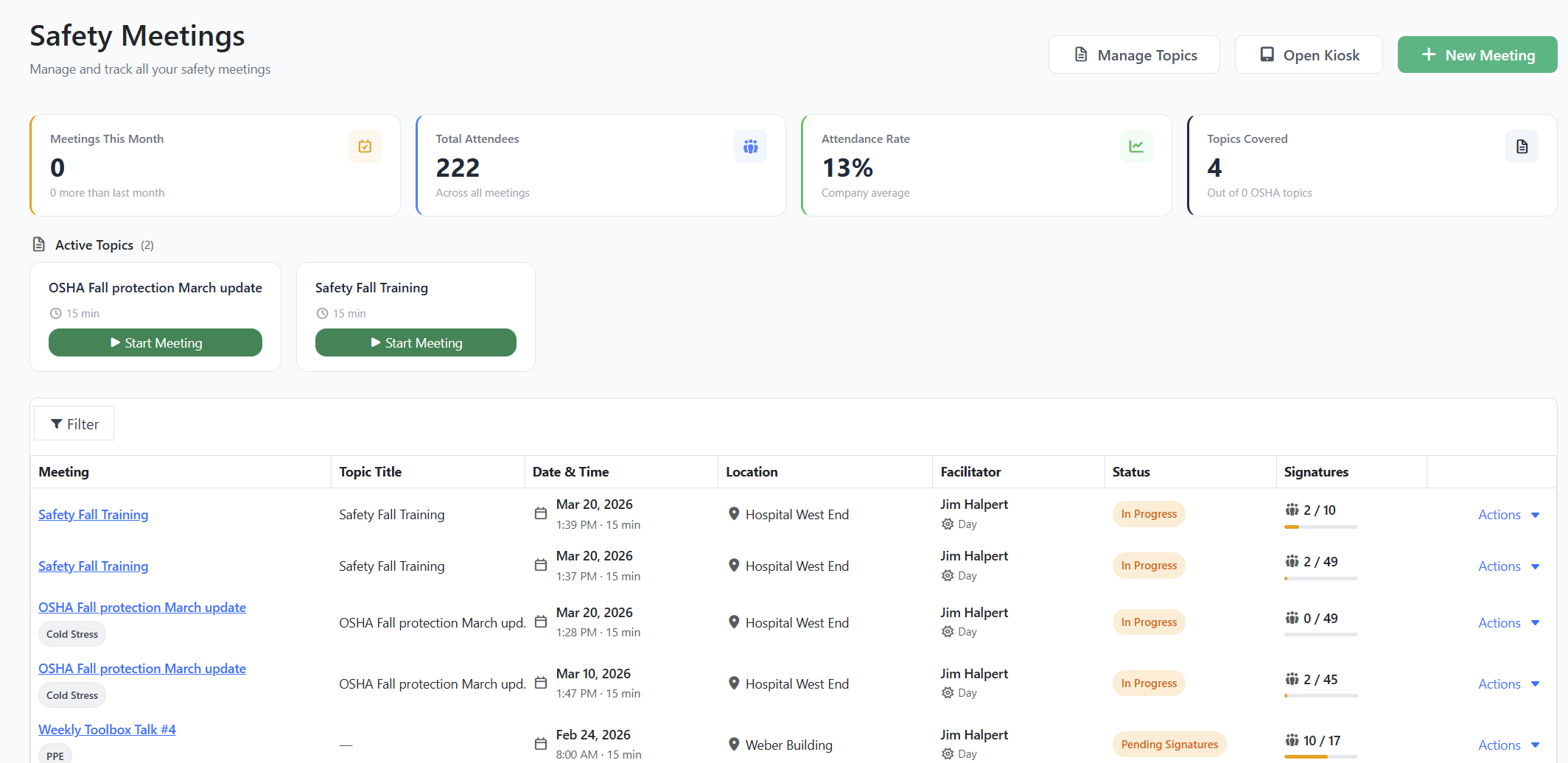
The Safety Meetings dashboard appears, showing your KPI cards (meetings this month, total attendees, attendance rate, topics covered), any active topics, and a list of all meetings.
Step 2: Start a new meeting
- In the upper-right corner of the page, click + New Meeting.
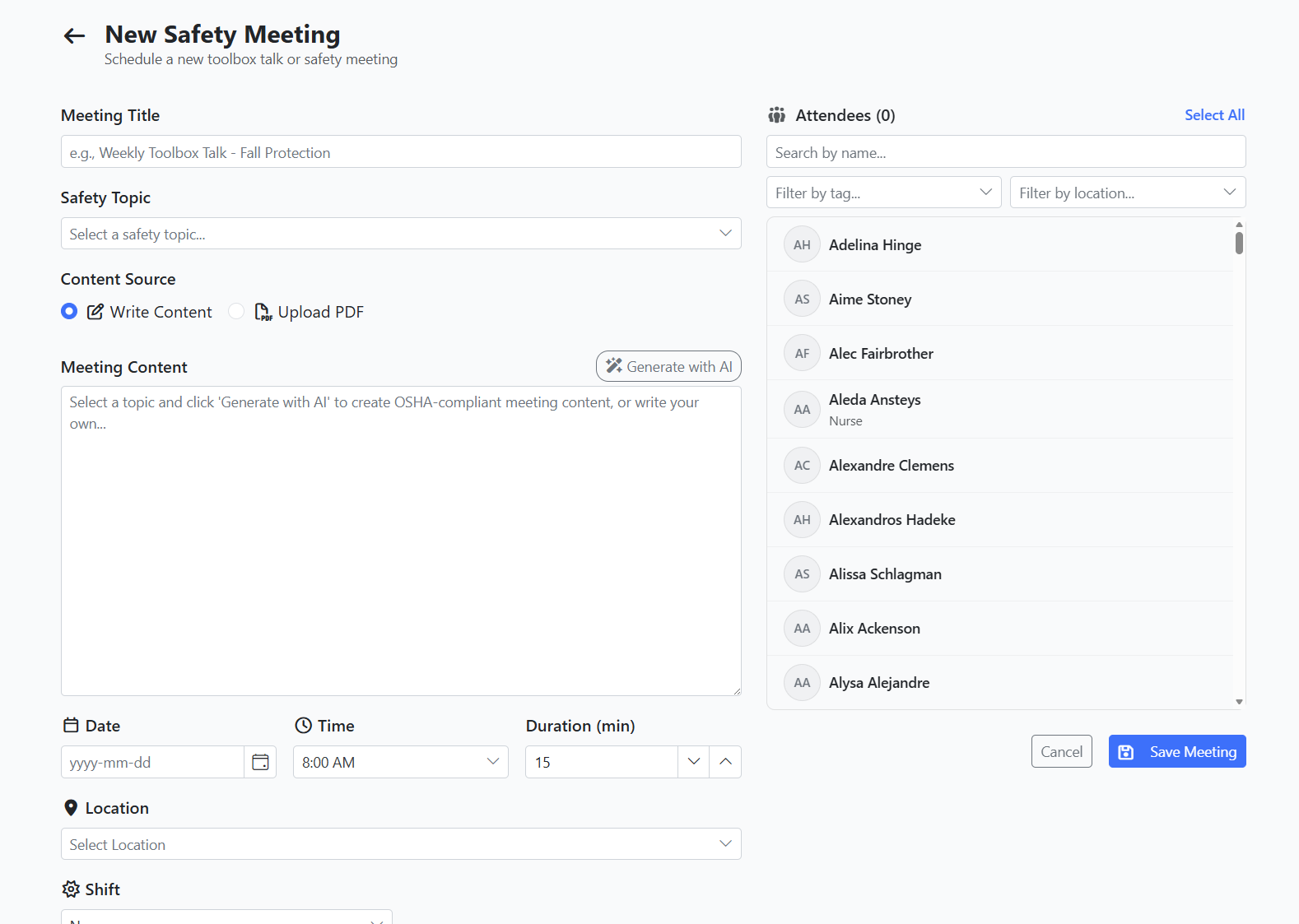
You're taken to the New Safety Meeting page, titled "Schedule a new safety meeting."
Step 3: Fill in the meeting details
Complete the fields on the left side of the page:
- Meeting Title — Enter a clear, descriptive title (for example, "August Toolbox Talk – Ladder Safety"). This field is required.
- Safety Topic — Choose a topic from the dropdown if your account has them configured, or leave it blank.
- Content Source — Pick how you'll provide the meeting material:
- Write Content — Type or paste the meeting talking points directly into the Meeting Content text box. You can also click Generate with AI to draft content automatically based on the topic and title you've chosen.
- Upload PDF — Click Choose File and select a PDF (for example, an OSHA fact sheet or your own safety bulletin) to attach to the meeting.
- Date — Pick the date the meeting will be held.
- Time — Select a start time in 30-minute increments (6:00 AM through 6:00 PM).
- Duration (min) — Set the planned length, between 5 and 480 minutes (default is whatever you choose; common values are 15–30 minutes for a toolbox talk).
- Location — Select the site where the meeting will take place.
- Shift — Choose None, Day, or Night if your organization runs multiple shifts.
Tip: If you select a topic and a title, the Generate with AI button can produce a starting draft of meeting content for you. You can edit the generated text before saving.
Step 4: Pick the attendees
The right side of the page lists every contact in your account. To select who should attend:
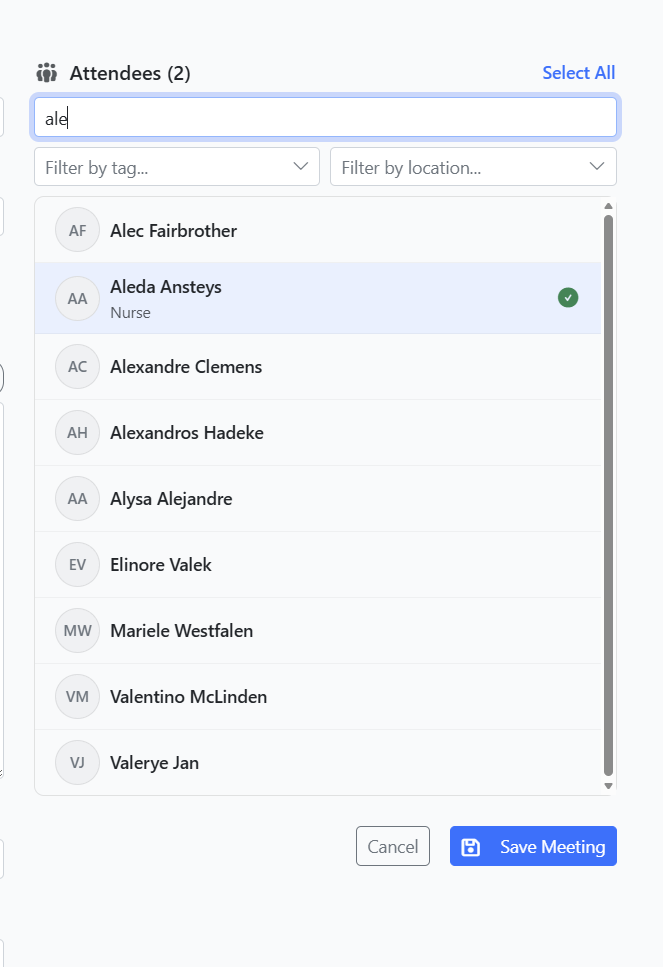
- Use the Search by name box to find a specific person.
- Use the Filter by tag dropdown to narrow the list to people with a particular tag.
- Use the Filter by location dropdown to show only people at a specific site.
- Click any contact row to mark them as an attendee. A green check mark appears next to selected attendees, and the Attendees counter at the top updates.
- To select everyone currently visible in the list, click Select all. Click Deselect all to clear the list.
- When you've applied a tag or location filter, you can also click Select all from tag or Select all from location to add the entire filtered group at once.
Step 5: Save the meeting (Draft)
- Once the form is complete, click Save Meeting at the bottom-right of the page.
A success message confirms the meeting was created, and you're returned to the Safety Meetings list. The new meeting appears with a Draft status badge.
Important: A new meeting always starts in Draft status. Drafts let you put a meeting together — including changing the date, content, or attendee list — without sending any reminders. To formally schedule the meeting (and trigger automatic reminders to the facilitator), continue to Step 6.
Step 6: Schedule the meeting
To move the meeting from Draft to Scheduled:
- From the Safety Meetings list, click the meeting's title to open it.
- In the upper-right corner of the meeting page, click Edit.
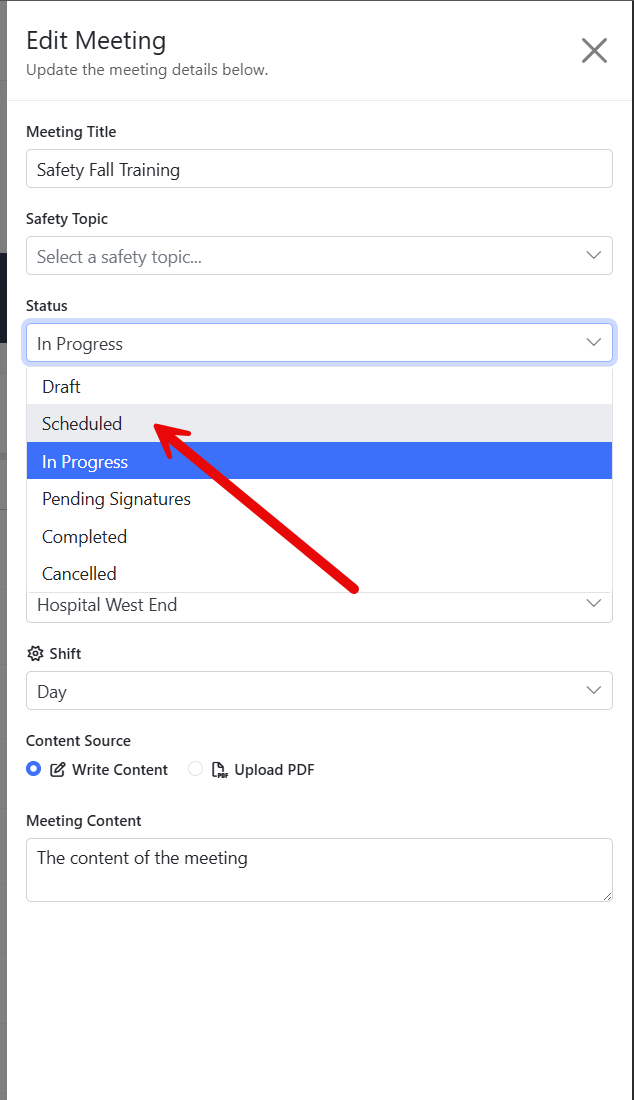
- The Edit Meeting panel slides in from the right. In the Status dropdown, choose Scheduled.
- Confirm the Date, Time, and any other details are still correct.
- Click Save Changes.
The status badge on the meeting changes to Scheduled (blue). A reminder is automatically queued for the facilitator one hour before the meeting starts.
Tips & Best Practices
- Save early, refine later. Save your meeting as a Draft as soon as you have the basics. You can keep editing the title, content, attendees, and date/time right up to the moment you switch the status to Scheduled.
- Use tags to invite groups quickly. If you frequently invite the same crew (for example, "Warehouse Team A"), apply that tag to the contacts beforehand. Then on the New Meeting page, filter by that tag and click Select all from tag.
- Pick the right content source for your audience. Use Write Content for short verbal talking points; use Upload PDF when you want everyone to review (and later sign off on) a formal document.
- Add a location whenever possible. Meetings with a location appear on location-based reports and make it easier to track which sites are up to date on safety topics.
- Use Generate with AI as a starting point. The AI draft is a launching pad — always review and adapt it to your own procedures and site conditions.
Troubleshooting
- Issue: I clicked Save Meeting but got a "Meeting Title is required" error.
Solution: Enter a value in the Meeting Title field. This is the only field that's required to save. - Issue: I don't see the + New Meeting button on the Safety Meetings page.
Solution: You don't have permission to create safety meetings. Contact your account administrator to request the safety meeting create permission. - Issue: I clicked Generate with AI but got a "Missing info" error.
Solution: Pick a Safety Topic or enter a Meeting Title before clicking the button — the AI needs at least one of these to write the draft. - Issue: The contact I want to invite doesn't appear in the attendee list.
Solution: The attendee list shows contacts in your account. If someone is missing, add them in the People section first, then come back to the meeting form. - Issue: I scheduled the meeting but no facilitator reminder was sent.
Solution: The facilitator reminder fires one hour before the meeting's start time. If you set the status to Scheduled less than an hour before the meeting, the reminder is skipped. The meeting can still be conducted as normal. - Issue: I want to cancel a meeting I just created.
Solution: Open the meeting, click Edit, set the Status dropdown to Cancelled, and click Save Changes.
What Happens Next
Once a meeting is scheduled, you (or another facilitator) can run it on the day of the meeting using Kiosk mode and collect attendee signatures. To learn about conducting meetings, capturing attendance, and finalizing signatures, see the related articles below.
Related Articles
- Getting started with Safety Meetings
- Conducting a Safety Meeting and Collecting Signatures (suggested follow-up article — link to be added once published)
- Managing Safety Topics (suggested follow-up article — link to be added once published)